Setting up the AS400 PCML Environment
The AS400 PCML connector allows you to access RPG programs that are available on AS400 (renamed as IBM iSeries). This is done using Program Call Markup Language (PCML).
you need to have access to an IBM iSeries server. If you do not have an on-premise IBM iSeries server, go to public IBM iSeries server, and create a public IBM iSeries server account.
The connector uses the IBM JTOpen library for all its operations. Copy the jt400.jar to <ESB_HOME>/repository/components/lib folder. You can download the IBM JTOpen library from (here)[https://sourceforge.net/projects/jt400/].
Setting up public IBM iSeries server
Follow the steps below to create public IBM iSeries server.
-
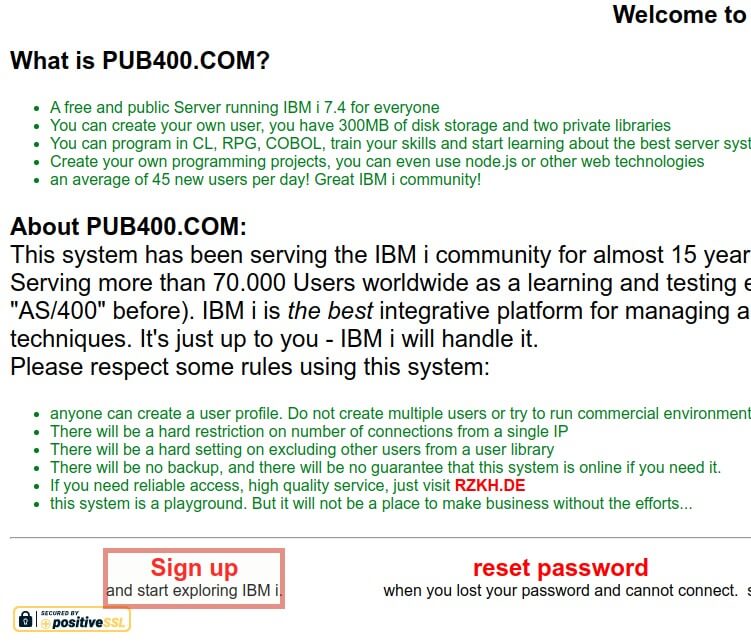
Go to https://pub400.com and click the Sign up button.
-
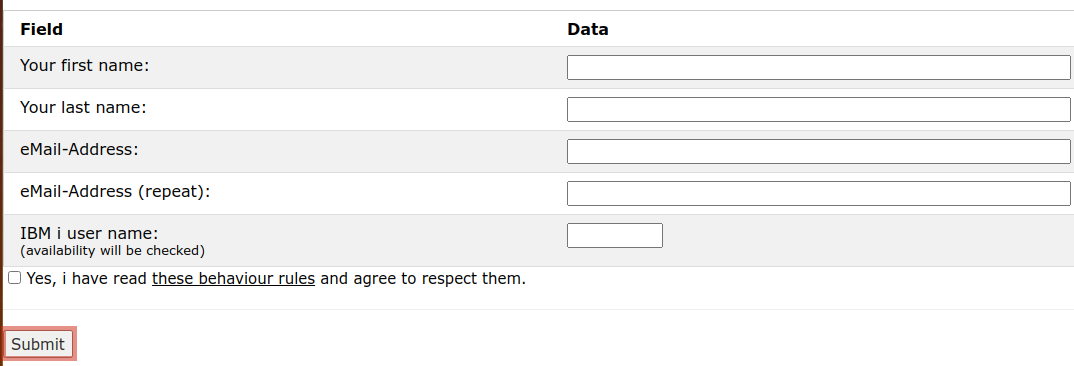
Go to https://pub400.com and click the Sign up button.
-
You will receive an email response with the client credentials to your email account (it will take a few hours).
-
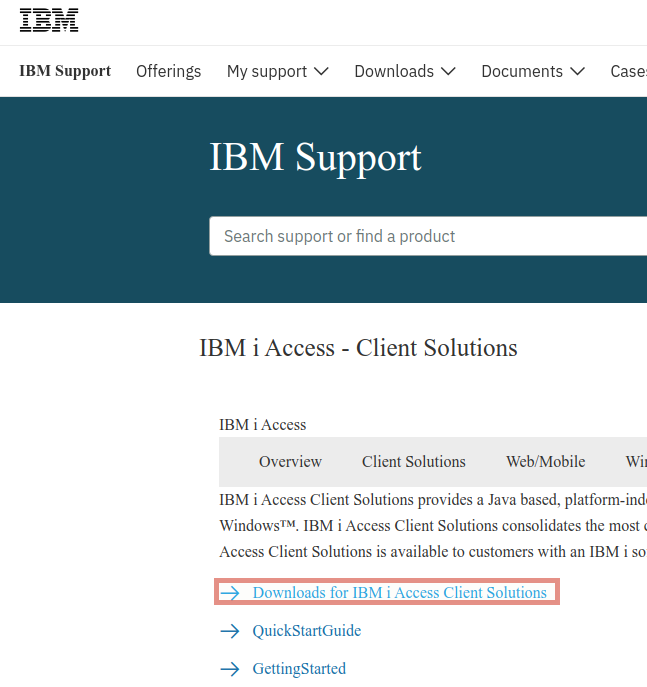
Navigate in to the IBM i Access - Client Solutions page. IBM i Access Client Solutions consolidates the most commonly used tasks for managing your IBM i into one simplified location.
-
Download the IBM i Access Client Solutions.
-
Extract the downloaded .zip file and install it.
-
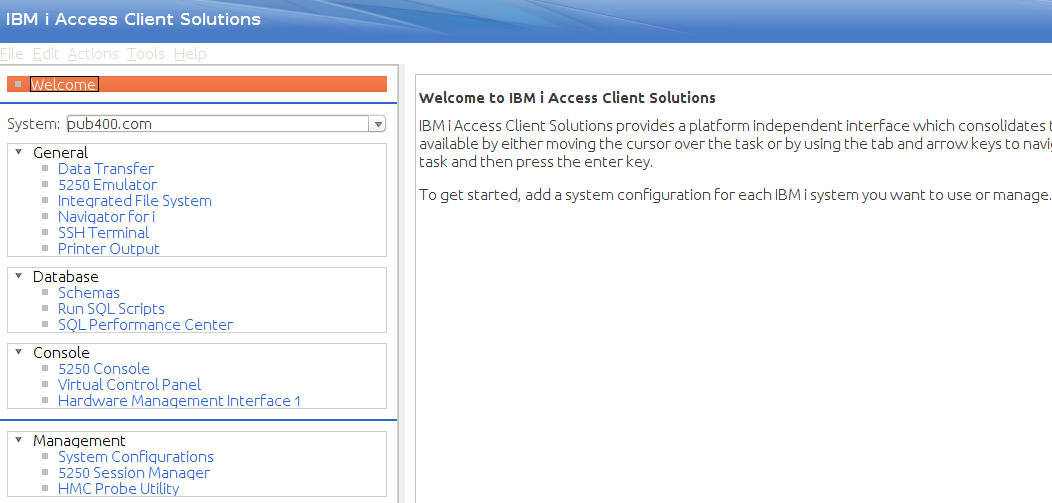
Start the IBM I access client solution.
-
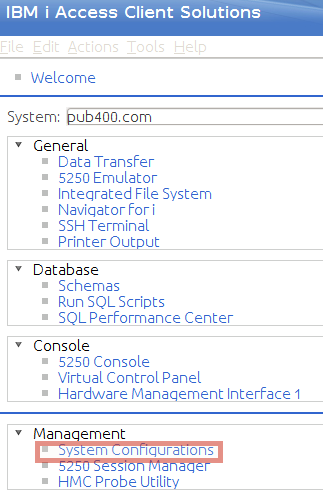
Click System Configurations section under Management section.
-
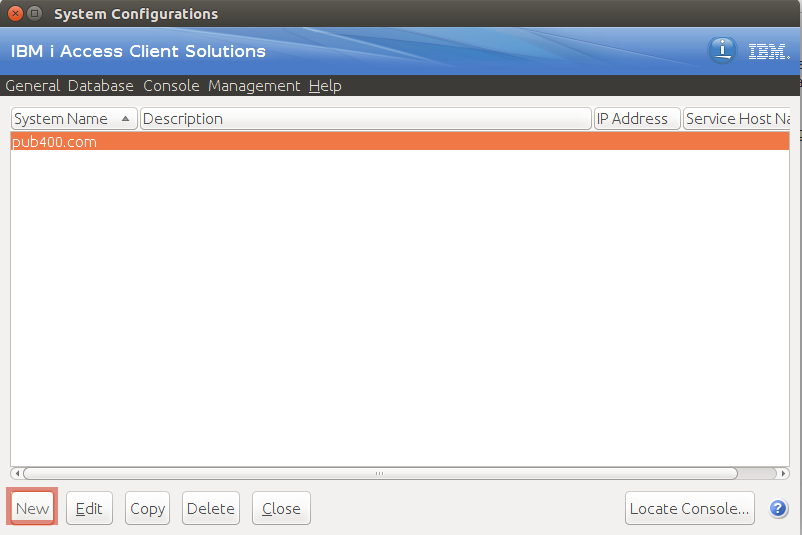
The following window appears system configuration parameters. Click the New button.
-
Add the required details. Add the System name and Description under General tab. In this sample we use
pub400.comas the System name.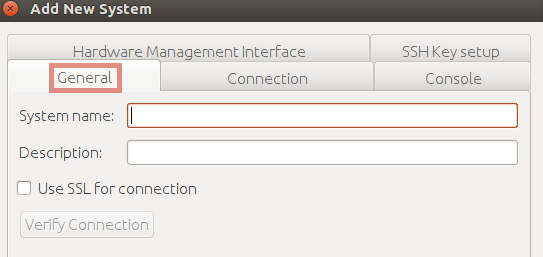
-
Add the Default username and port number under the Connection tab. In this sample we need to use
portnumber as23. Click OK.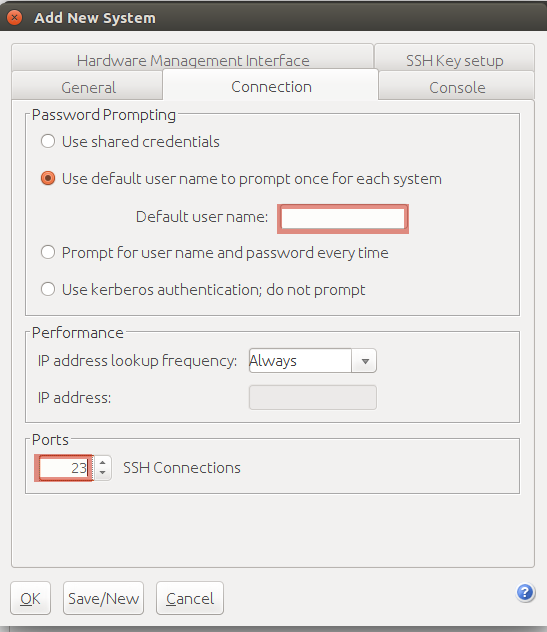
-
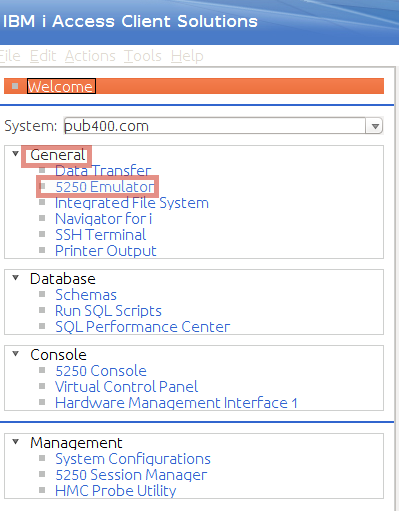
After setting up the configuration we can use the 5250 Emulator. Click the 5250 Emulator link under the General section.
-
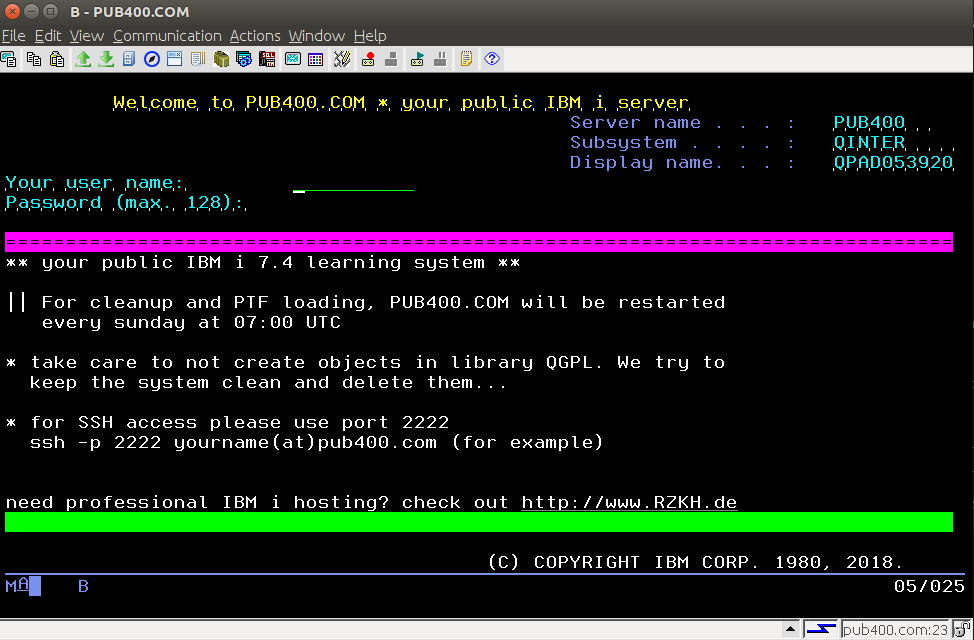
When you click this emulator you need to add the username and password you got in step 3. Then you will see the following window.
-
You need to add the same user name and password you got in the step 3.
-
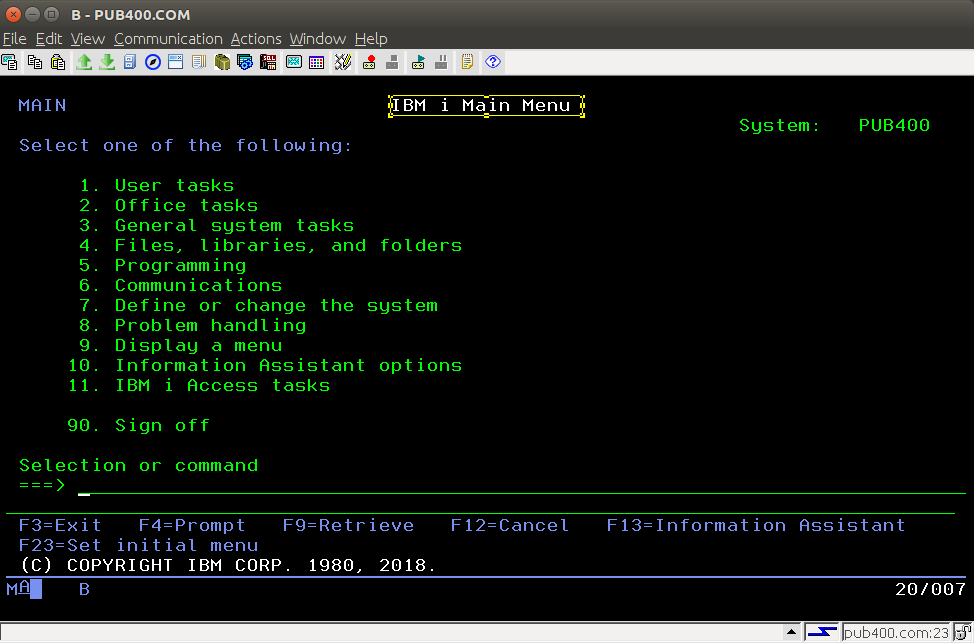
Now you can see the following IBM i Main Menu.
To configure the AS400 PCML connector, you will be required AS400 public server username and password.