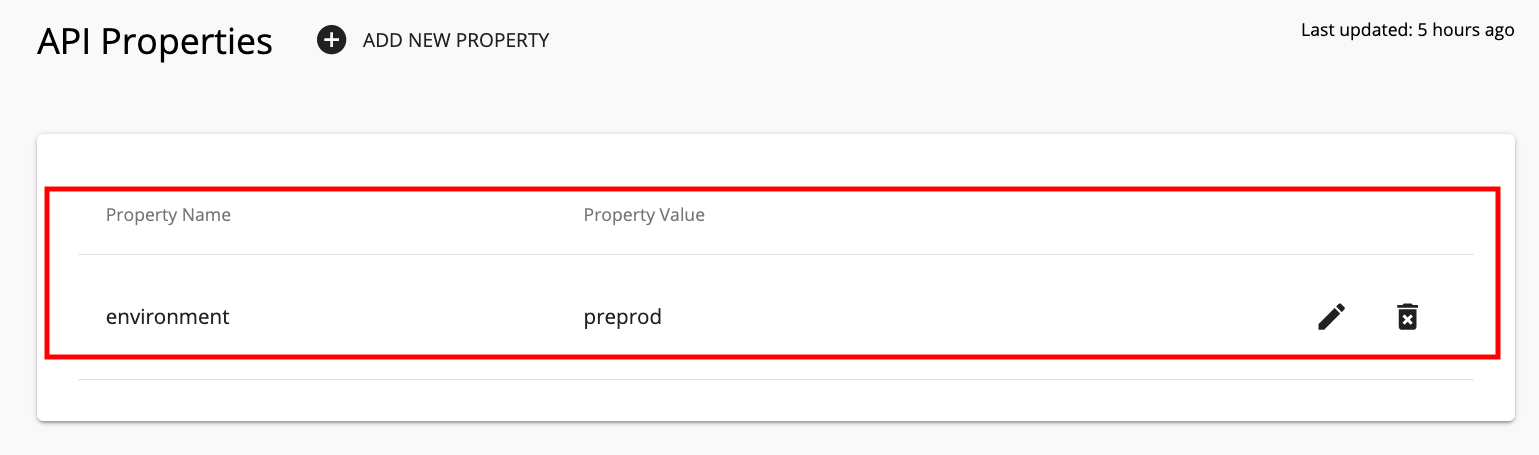
Adding Custom Properties to APIs
Usually, APIs have a predefined set of properties such as the name, version, context, etc. However, there may be instances where you want to add specific custom properties to your API. You can do this in either of the following ways:
When adding custom properties, note the following:
-
Property name should be unique.
-
Property name should not contain spaces.
-
Property name cannot be case-sensitive.
-
Property name cannot be any of the following as they are reserved keywords: provider, version, context, status, description, subcontext, doc, lcState, name, tags.
After the custom properties have been added, you can retrieve them from the API listing and search for APIs using custom property values.
Add custom properties via the API Publisher
-
Sign in to the WSO2 API Publisher.
https://<hostname>:9443/publisherExample:
https://localhost:9443/publisher -
Create a new API or edit an existing API.
-
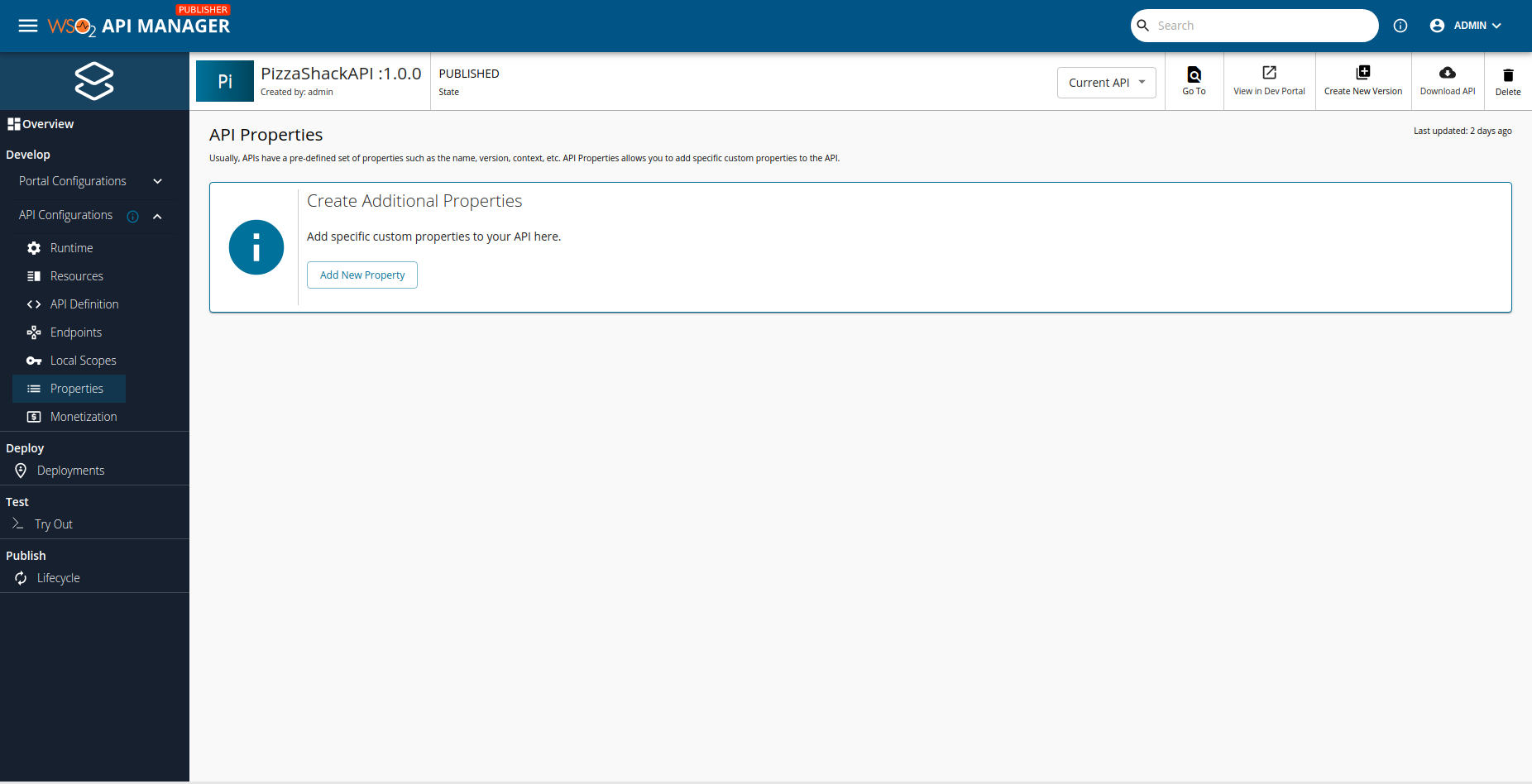
Click Properties and click Add New Property.
-
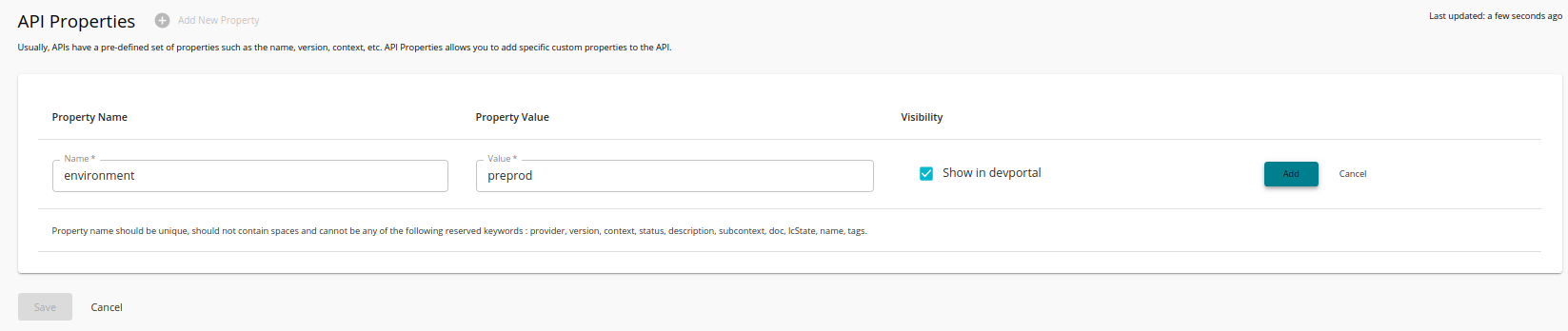
Enter a custom property name and value (e.g., property name: environment, property value: preprod), mark Developer Portal visibility as appropriate and click Add to add it.
-
Click Save to save the API.
Add custom properties via the REST API
Use the existing REST API to add a new API and in order to add the API with custom properties make sure to add the following element to the request body including the relevant properties.
"additionalProperties": [
      {
          "name" : "environment",
          "value" : "preprod",
          "display" : true
      },
      {
          "name" : "secured",
          "value" : "true",
          "display" : true
      }
    ]
Retrieve custom properties via the REST API
Info
From update level 18 onwards for wso2am-4.7.0 and wso2am-acp-4.7.0, the custom properties of each API can be retrieved from the API listing.
GET /apis/{apiId} returns the custom properties of an API by default. The API listing (GET /apis) does not, because the properties are not read for every API in a listing unless you ask for them.
To include them in the listing, set the expandProperties query parameter to true:
curl -k -H "Authorization: Bearer <access_token>" \
"https://<hostname>:9443/api/am/publisher/v4/apis?expandProperties=true"
Each API in the response then carries its additionalProperties and additionalPropertiesMap, holding the same values that GET /apis/{apiId} returns for that API.
"additionalProperties": [
      {
          "name" : "environment",
          "value" : "preprod",
          "display" : true
      }
    ],
"additionalPropertiesMap": {
      "environment__display" : {
          "name" : "environment",
          "value" : "preprod",
          "display" : false
      }
    }
Note that in additionalPropertiesMap, a property with Developer Portal visibility enabled is keyed with the __display suffix, while its name is the plain property name.
The parameter defaults to false. When it is omitted or set to false, both fields are returned empty for every API in the listing.
Search using custom properties
You can use the following format to search for an API using the custom properties:
-
If Developer Portal visibility is enabled
<property_name>__display:<property_value> -
If Developer Portal visibility is disabled
<property_name>:<property_value>
For example, if you want to search for the environment property with a specific value (e.g., preprod) and if the Developer Portal visibility is enabled for that property, you can search the API in the Publisher Portal, as shown below:
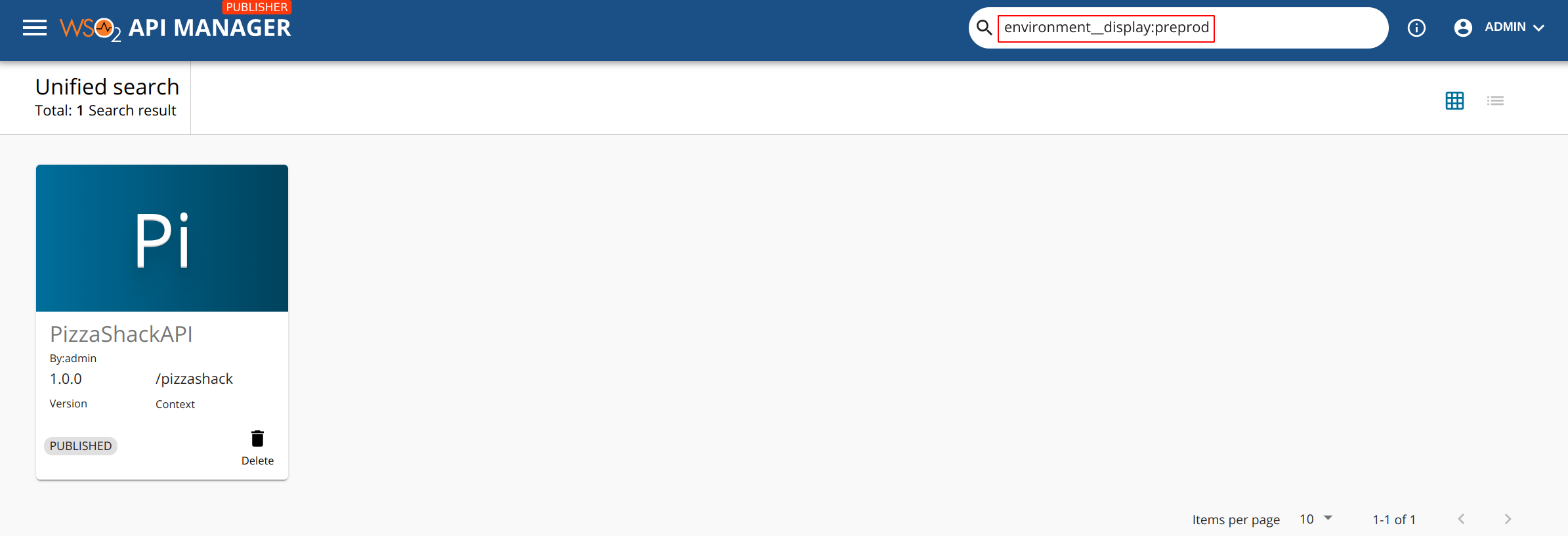
When you click on the name of the API in the above screen, the respective API Overview page appears. Click on the Properties tab to list the API properties that you added.