Admin-Defined Constraints for Key Manager Application Configurations
Admin-defined constraints allow administrators to set limits on application configuration fields (such as token expiry times) at the key manager level. These limits are enforced when generating or updating keys. If a developer provides a value that violates a constraint via the Developer Portal or REST API, the action is rejected and an error is returned.
Supported Constraint Types
| Type | Description | Developer Portal Behavior |
|---|---|---|
| MAX | Value must not exceed a specified maximum | Error if value > max; hint shows "Value must be at most {max}" |
| MIN | Value must be at least a specified minimum | Error if value < min; hint shows "Value must be at least {min}" |
| RANGE | Value must be within a min–max band | Error if value is out of range; hint shows the full range |
| REGEX | Value must match a regular expression pattern | Error if value does not match; hint shows the required pattern |
| ENUM | Value must be one of a predefined set | Dropdown restricted to only the values in the allowed list |
Defining Constraints in the Key Manager Connector
To expose constrainable application configuration fields in a key manager connector, set constraintType and constraintLabel in the ConfigurationDto within its getApplicationConfigurations() method.
Default Constraint Value Format
You can also provide default constraint values as a map; see the format below:
| Constraint Type | Default Value Format | Examples |
|---|---|---|
| MAX | {"max": <value>} |
{"max": 3600} |
| MIN | {"min": <value>} |
{"min": 60} |
| RANGE | {"min": <value>, "max": <value>} |
{"min": 60, "max": 3600} |
| REGEX | {"pattern": "<regex>"} |
{"pattern": "^[a-zA-Z0-9]*$"} |
| ENUM | {"allowed": [<list of values>]} |
{"allowed": ["password", "client_credentials"]} |
applicationConfigurationsList.add(
    new ConfigurationDto(
        "my_application_configuration_field",
        "My Application Configuration Field",
        "input",
        "Tooltip text",
        ...
        AppConfigConstraintType.MAX,       // constraint type
        null,                              // default constraint value (null = not constrained by default)
        "Maximum Field Value",             // constraint label shown in Admin Portal
        "Maximum value in seconds"         // constraint tooltip shown in Admin Portal
    )
);
Once the API Manager is restarted with the above connector, you can see the fields appear under Application Configuration Constraints for that key manager in the Admin Portal.
Configuring Constraints in the Admin Portal
Once the constraints are defined in the key manager connector, administrators can configure and enable them through the Admin Portal UI.
Step 1 – Open the Key Manager
- Sign in to the Admin Portal:
https://<hostname>:9443/admin - Go to Key Managers.
- Click Add Key Manager or click the edit icon on an existing key manager.
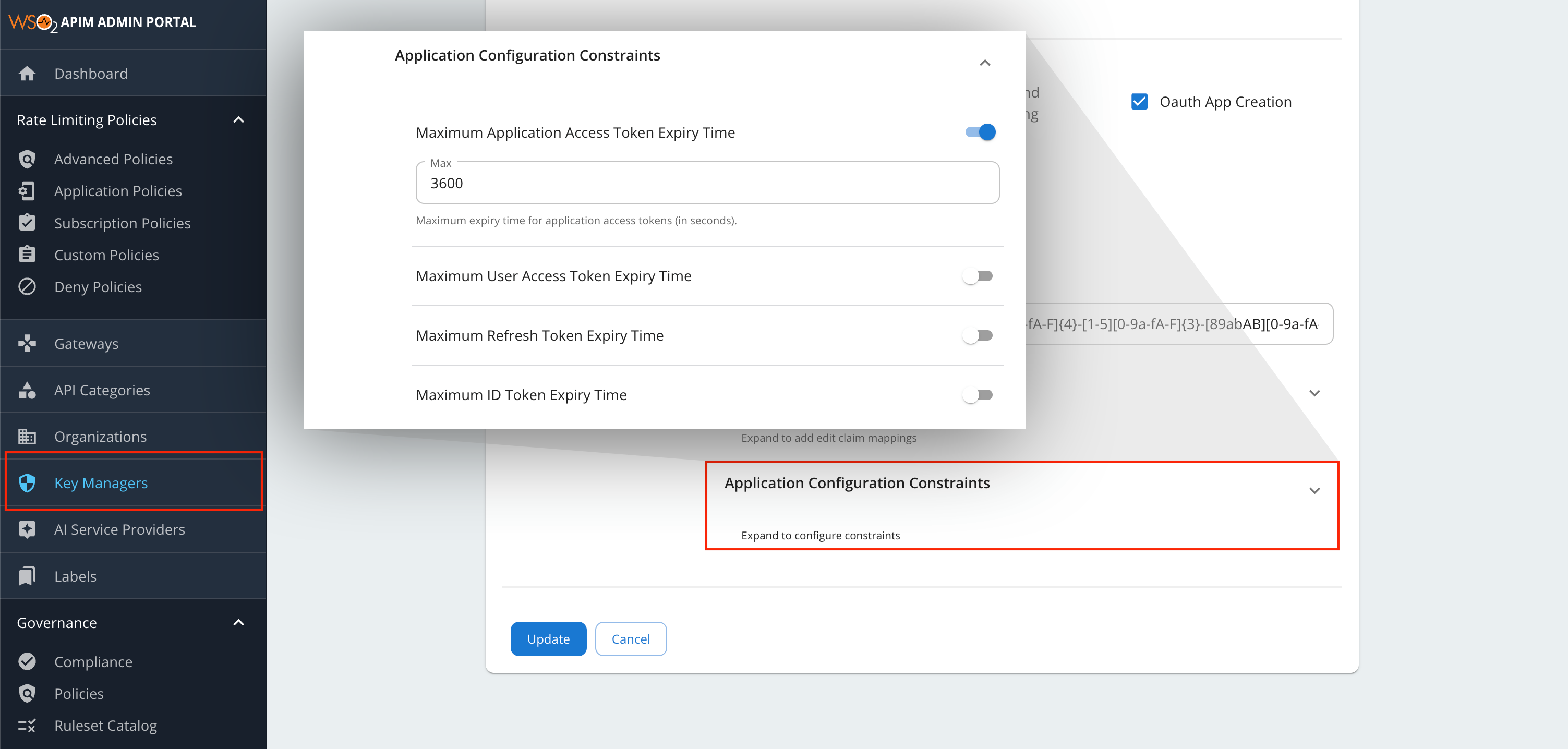
Step 2 – Expand Application Configuration Constraints
- Fill in the required key manager fields.
- Scroll to the Advanced Configurations section.
- Click the Application Configuration Constraints header to expand it.
Step 3 – Enable and Set Constraints
- Toggle the switch ON for a field you want to constrain.
- Enter the constraint value (e.g.,
3600for a 1-hour maximum). - Toggle OFF to remove a constraint.
Note
Constrainable fields depend on the key manager type. Third-party connectors may expose application configurations with their own constraint definitions (as defined in Defining Constraints in the Key Manager Connector).
The following constraints are available by default for the WSO2 IS and Resident Key Manager:
| Constraint Label | Field Name | Type |
|---|---|---|
| Maximum Application Access Token Expiry Time | application_access_token_expiry_time |
MAX |
| Maximum User Access Token Expiry Time | user_access_token_expiry_time |
MAX |
| Maximum Refresh Token Expiry Time | refresh_token_expiry_time |
MAX |
| Maximum ID Token Expiry Time | id_token_expiry_time |
MAX |
Step 4 – Save
Click Add (or Update) to save. Constraints take effect immediately.
Configuring Constraints via REST API
You can also manage key manager constraints using the API Manager Admin REST API. Use the following endpoints:
POST https://<hostname>:9443/api/am/admin/v4/key-managers(Add a new key manager)PUT https://<hostname>:9443/api/am/admin/v4/key-managers/{key-manager-id}(Update an existing key manager)
When sending the request payload, include the constraints within the additionalProperties.constraints object:
{
  "name": "key-manager-name",
  "type": "key-manager-type (default, WSO2-IS, etc)",
  ...
  "additionalProperties": {
    "constraints": {
      "sample_range_prop": {
        "type": "RANGE",
        "value": {
          "min": 10.0,
          "max": 1000.0
        }
      },
      "sample_max_prop": {
        "type": "MAX",
        "value": {
          "max": 3600.0
        }
      },
      "sample_min_prop": {
        "type": "MIN",
        "value": {
          "min": 10.0
        }
      },
      "sample_enum_prop": {
        "type": "ENUM",
        "value": {
          "allowed": ["value1", "value2", "value3"]
        }
      },
      "sample_regex_prop": {
        "type": "REGEX",
        "value": {
          "pattern": "^[A-Z0-9_]{2,17}$"
        }
      }
    }
  }
}
Developer Portal Behavior
UI Behavior
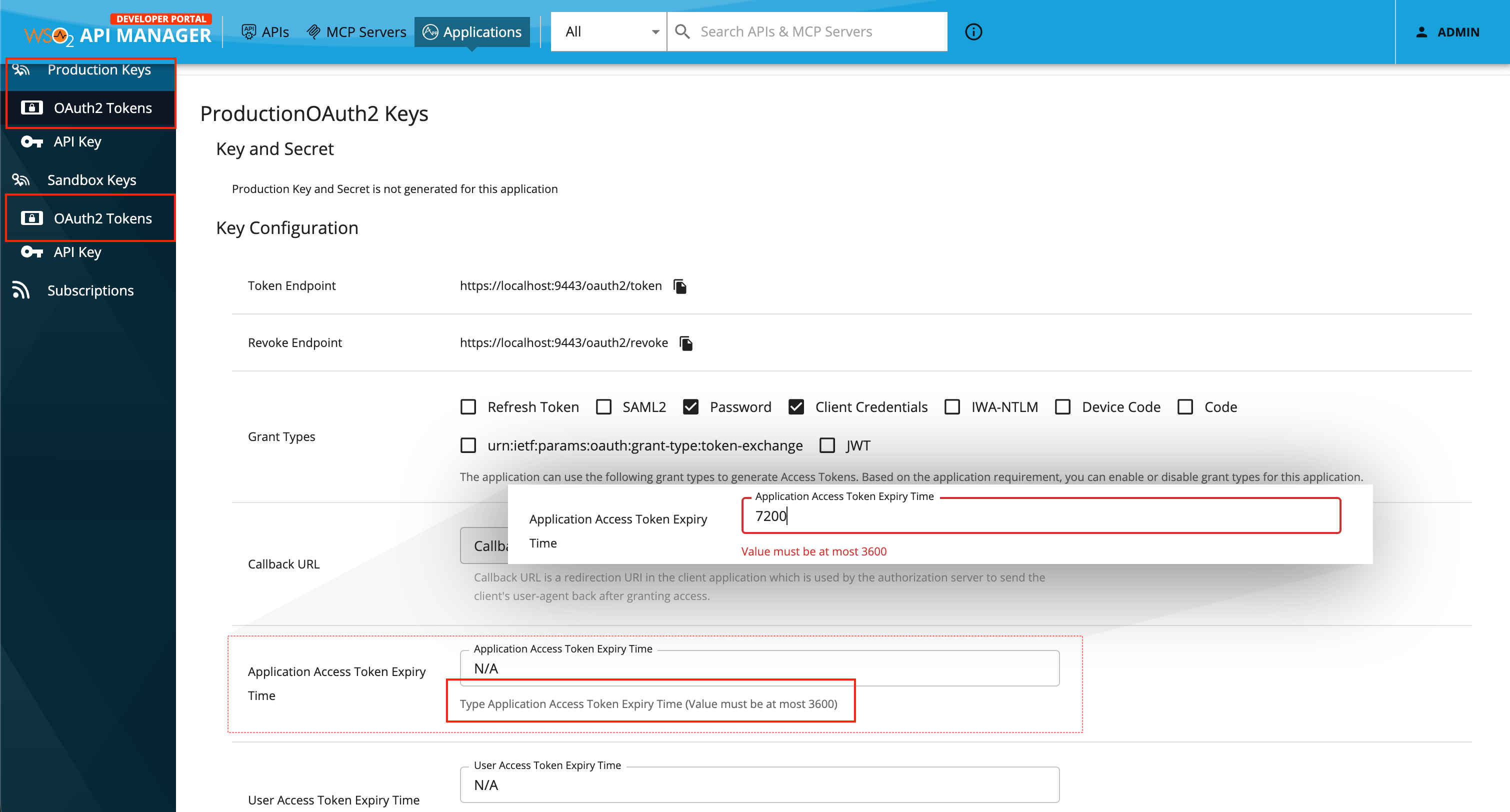
When a developer opens an application's Production Keys or Sandbox Keys tab:
- The field tooltip shows the allowed limit as a hint.
- Entering a value that violates the constraint shows an inline error below the field.
- The error clears once the value is corrected.
For ENUM-constrained fields, the dropdown only shows the values in the allowed list.
REST API Behavior
If a developer provides a value that violates a constraint via the Developer Portal REST API (e.g., when generating keys using POST https://<hostname>:9443/api/am/devportal/v3/applications/{application-id}/generate-keys), the request is rejected and an error response is returned detailing the constraint violation.