Deploying WSO2 API Manager on Azure AKS
This guide provides a step-by-step approach to deploying WSO2 API Manager on Azure Kubernetes Service (AKS). This deployment follows the standard WSO2 Kubernetes architecture, extended to use Azure-specific services such as Azure Database for PostgreSQL/MySQL for databases and Azure Application Gateway for ingress.
Info
This deployment aligns with the standard deployment models described in WSO2 API Manager Deployment Patterns and API-M Deployment with All-in-One HA Setup.
Contents
- Deploying WSO2 API Manager on Azure AKS
- Contents
- Prerequisites
- Architecture Overview
- Step 1: Create and Prepare the AKS Cluster
- Step 2: Install Envoy Gateway API Controller
- Step 3: Configure the Databases
- Step 4: Set Up Docker Images
- Step 5: Generate Keystore and Truststore
- Step 6: Deploy Helm Charts
- Step 7: Configure Gateway and DNS
- Step 8: Access Management Consoles
- Troubleshooting
- Next Steps
- See Also
Prerequisites
Before deploying WSO2 API Manager on Azure AKS, ensure you have the following prerequisites in place:
Azure Requirements
- Azure account with admin or strong IAM permissions
- Azure Kubernetes Service (AKS) cluster (or ability to create one)
- kubectl and Helm installed locally
- Azure CLI configured with appropriate credentials
- Azure Database for PostgreSQL/MySQL provisioned
WSO2 Requirements
- Access to WSO2 API Manager (APIM) Docker images
- Kubernetes deployment artifacts (Helm charts or YAML manifests from the WSO2 docs repository)
- Knowledge of:
- API-M database schemas
- Deployment patterns
- Clustering requirements
- Keystore and TLS configuration
Architecture Overview
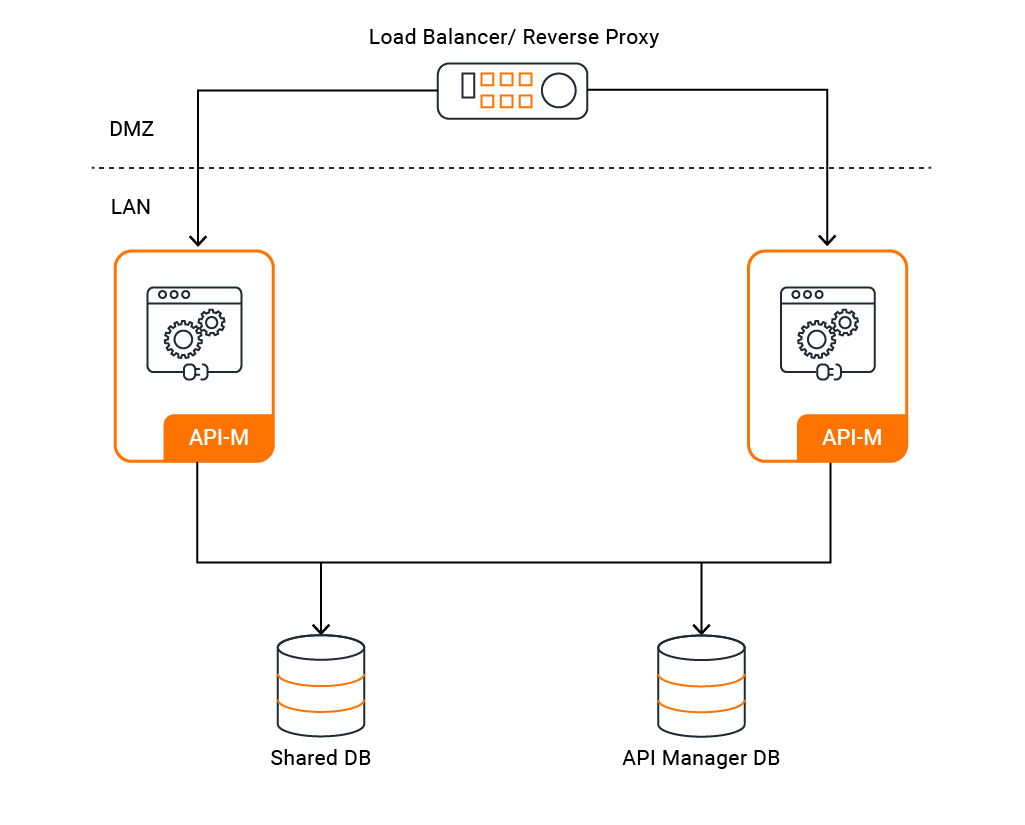
This deployment follows the standard WSO2 Kubernetes architecture, extended to use Azure-specific services:
- Envoy Gateway (Gateway API) exposes the APIs and portals
- Azure Database for PostgreSQL/MySQL hosts API Manager databases
- AKS manages the Kubernetes cluster and worker nodes
- Envoy Gateway Controller manages Gateway API resources
WSO2 API Manager Deployment Architecture
Step 1: Create and Prepare the AKS Cluster
If you do not have an existing AKS cluster, you can create one using az aks create.
Info
If az CLI is not installed, refer to the Azure CLI installation documentation for setup instructions.
Create an AKS cluster with the following command:
az aks create \
  --name apim \
  --resource-group <RESOURCE_GROUP> \
  --location eastus \
  --nodepool-name apimng \
  --node-vm-size Standard_D4ds_v5 \
  --node-count 2 \
  --min-count 1 \
  --max-count 4 \
  --enable-cluster-autoscaler \
  --enable-addons monitoring \
  --generate-ssh-keys
Tip
Adjust the --location, --node-vm-size, and node count parameters based on your requirements and expected load.
Step 2: Install Envoy Gateway API Controller
WSO2 API Manager uses the Gateway API to route traffic to the cluster. You can install it and configure additional settings as needed via the values.yaml file by following the instructions in the API-M Deployment with All-in-One HA Routing Controller Setup guide.
Step 3: Configure the Databases
WSO2 API Manager requires external databases to store API metadata, user data, and other configurations. Navigate to Azure Database for MySQL or Azure Database for PostgreSQL to create your preferred database instance.
Note
WSO2 APIM supports MySQL, Microsoft SQL Server, PostgreSQL, Oracle, and DB2. This guide uses MySQL for simplicity.
Create Database Instances
WSO2 APIM requires two databases:
- apim_db – Main API-M database
- shared_db – Common user and permission data
Connect to your Azure Database for MySQL/PostgreSQL instance and create the databases:
CREATE DATABASE apim_db;
CREATE DATABASE shared_db;
Initialize Database Schemas
Download the WSO2 APIM distribution from the official website. Once unzipped, you can find all the necessary SQL scripts within the dbscripts directory.
Execute the database scripts using the following commands:
mysql -h <DB_HOST> -P 3306 -u sharedadmin -p -Dshared_db < './dbscripts/mysql.sql'
mysql -h <DB_HOST> -P 3306 -u apimadmin -p -Dapim_db < './dbscripts/apimgt/mysql.sql'
Replace <DB_HOST> with your Azure Database for MySQL/PostgreSQL endpoint.
Warning
Ensure that the database users have appropriate permissions and that the firewall rules allow connections from your AKS cluster.
Step 4: Set Up Docker Images
The official WSO2 APIM Docker image does not include JDBC drivers. You need to build a custom image containing the necessary driver and push it to Azure Container Registry (ACR).
Create a Custom Dockerfile
Create a Dockerfile with the following content:
FROM registry.wso2.com/wso2-apim/am:4.7.0.0

ARG USER=wso2carbon
ARG USER_HOME=/home/${USER}
ARG WSO2_SERVER_NAME=wso2am
ARG WSO2_SERVER_VERSION=4.7.0
ARG WSO2_SERVER=${WSO2_SERVER_NAME}-${WSO2_SERVER_VERSION}
ARG WSO2_SERVER_HOME=${USER_HOME}/${WSO2_SERVER}

USER root

RUN curl -fSL https://repo1.maven.org/maven2/mysql/mysql-connector-j/8.0.33/mysql-connector-j-8.0.33.jar \
    -o ${WSO2_SERVER_HOME}/repository/components/lib/mysql-connector-j-8.0.33.jar \
    && chown wso2carbon:wso2 ${WSO2_SERVER_HOME}/repository/components/lib/mysql-connector-j-8.0.33.jar

USER wso2carbon
Build and Push to ACR
Build the custom Docker image:
docker build -t wso2am-mysql:4.7.0 .
Tag and push the image to your ACR repository:
az acr login --name <ACR_NAME>

docker tag wso2am-mysql:4.7.0 <ACR_NAME>.azurecr.io/wso2am-mysql:4.7.0

docker push <ACR_NAME>.azurecr.io/wso2am-mysql:4.7.0
Note
Replace <ACR_NAME> with your actual Azure Container Registry name. Ensure your ACR repository exists before pushing.
Grant AKS Access to ACR
AKS needs pull access to your ACR. There are two ways to achieve this:
Option 1 — Attach ACR to AKS (recommended)
This is the preferred approach for AKS. It uses the cluster's managed identity and requires no credentials in your values.yaml:
az aks update \
  --name <AKS_CLUSTER_NAME> \
  --resource-group <RESOURCE_GROUP> \
  --attach-acr <ACR_NAME>
With this option, leave imagePullSecrets.enabled: false in values.yaml (the default).
Option 2 — Kubernetes image pull secret
If managed identity is not available, create a pull secret manually and reference it in the Helm chart:
kubectl create secret docker-registry acr-secret \
  --docker-server=<ACR_NAME>.azurecr.io \
  --docker-username=<SERVICE_PRINCIPAL_ID> \
  --docker-password=<SERVICE_PRINCIPAL_PASSWORD> \
  -n wso2
Then set the following in values.yaml:
wso2:
  deployment:
    image:
      imagePullSecrets:
        enabled: true
        username: "<SERVICE_PRINCIPAL_ID>"
        password: "<SERVICE_PRINCIPAL_PASSWORD>"
Step 5: Generate Keystore and Truststore
WSO2 APIM uses Java keystores for internal communication. While self-signed certificates are sufficient for internal traffic, you should use publicly trusted certificates for external communication.
Locate Default Keystores
You can find the existing keystore and truststore in the WSO2 APIM distribution under the /repository/resources/security/ directory.
Create a New Keystore
Generate a new JKS keystore with the following command:
keytool -genkey -alias wso2carbon -keyalg RSA -keysize 2048 -validity 3650 \
  -keystore wso2carbon.jks \
  -dname "CN=<your-domain>, OU=MS,O=WSO2,L=Colombo,ST=Colombo,C=LK" \
  -ext san=dns:<your-domain>,dns:gateway.<your-domain>,dns:localhost \
  -storepass wso2carbon -keypass wso2carbon
Important
WSO2 APIM currently only supports JKS keystores. Newer JDK versions default to PKCS12 format, so ensure you specify JKS explicitly when creating keystores.
Import Certificate to Truststore
Import the certificate from the keystore into the client truststore:
keytool -export -keystore wso2carbon.jks -alias wso2carbon -storepass wso2carbon | \
  keytool -import -alias wso2carbonssl -keystore client-truststore.jks \
  -storepass wso2carbon -noprompt
Replace <your-domain> with your actual domain name.
Step 6: Deploy Helm Charts
Connect to AKS Cluster
Configure kubectl to connect to your AKS cluster:
az aks get-credentials --resource-group <RESOURCE_GROUP> --name <AKS_CLUSTER_NAME>
Add WSO2 Helm Repository
Add the WSO2 Helm chart repository:
helm repo add wso2 https://helm.wso2.com && helm repo update
Create Kubernetes Secret for Keystores
Create a Kubernetes secret to store the keystore and truststore files:
kubectl create secret generic apim-keystore-secret \
  --from-file=wso2carbon.jks \
  --from-file=client-truststore.jks \
  -n <namespace>
Replace <namespace> with your target namespace (e.g., wso2).
Configure values.yaml
Before deploying, set the mandatory internal encryption key under wso2.apim.configurations.encryption.key. If your deployment runs more than one API-M pod or instance, use the same key value across all of them. For more information, see Configuring Encryption Key.
Create a values.yaml file with the following configuration:
kubernetes:
  gatewayAPI:
    enabled: true
    management:
      enabled: true
      hostname: "am.example.com"
    gateway:
      enabled: true
      hostname: "gw.example.com"
    websocket:
      enabled: true
      hostname: "websocket.example.com"
    websub:
      enabled: true
      hostname: "websub.example.com"

wso2:
  apim:
    configurations:
      encryption:
        key: "<generated-64-char-hex-key>"
      databases:
        type: "mysql"
        jdbc:
          driver: "com.mysql.cj.jdbc.Driver"
        apim_db:
          url: "jdbc:mysql://<DB_HOST>:3306/apim_db?useSSL=false"
          username: "apimadmin"
          password: "db_password"
        shared_db:
          url: "jdbc:mysql://<DB_HOST>:3306/shared_db?useSSL=false"
          username: "sharedadmin"
          password: "db_password"

      security:
        jksSecretName: "apim-keystore-secret"
        keystores:
          tls:
            enabled: true
            password: "wso2carbon"
            keyPassword: "wso2carbon"
        truststore:
          name: "client-truststore.jks"
          password: "wso2carbon"

  deployment:
    highAvailability: true
    image:
      registry: "<ACR_NAME>.azurecr.io"
      repository: "wso2am-mysql"
      tag: "4.7.0"
      digest: "sha256:your-image-digest"
      imagePullSecrets:
        enabled: false
        username: ""
        password: ""
Advanced Configuration
WSO2 APIM offers extensive configuration options. You can review the full values.yaml file in the WSO2 Helm APIM repository. For example:
- The chart uses Gateway API by default. To switch to a different routing controller such as the Azure Application Gateway for Containers, the templated Gateway API resources can be disabled under
kubernetes.gatewayAPI - Setting
azure.enabled: truein the helm-chart enables Azure-specific Helm resources. It activates two optional sub-features:- Azure Key Vault — set
wso2.apim.secureVaultEnabled: trueand configureazure.keyVault(vault name, service principal, tenant ID, subscription, and secret identifiers) to use Azure Key Vault via the Secrets Store CSI driver instead of plain Kubernetes secrets. - Azure File persistence — set
wso2.deployment.persistence.solrIndexing.enabled: trueand configureazure.persistence(storage class, file share name, and secret name) to back Solr indexing data with an Azure File Share.
- Azure Key Vault — set
- For production deployments, review and adjust resource requests, limits, and autoscaling parameters.
Deploy the Helm Chart
Deploy WSO2 API Manager using Helm:
kubectl create namespace wso2

helm install apim wso2/wso2am-all-in-one \
  --version 4.7.0-1 \
  --namespace wso2 \
  -f values.yaml \
  --dependency-update
Verify the Deployment
Check the deployment status:
kubectl get pods -n wso2
kubectl get svc -n wso2
Wait for all pods to be in the Running state before proceeding.
Step 7: Configure Gateway and DNS
Obtain the Load Balancer Address
Get the external address of the ingress:
kubectl get gateway -n wso2
Note the ADDRESS field, which will be the Azure Load Balancer DNS name.
Configure DNS Records
Add DNS records (A or CNAME) in your DNS provider mapping your hostnames to the Load Balancer address:
am.example.com→ Azure Load Balancer DNS namegw.example.com→ Azure Load Balancer DNS namewebsocket.example.com→ Azure Load Balancer DNS namewebsub.example.com→ Azure Load Balancer DNS name
Note
If you're using Azure DNS, you can create alias records pointing to the Azure Load Balancer for better performance.
Step 8: Access Management Consoles
Once DNS propagation is complete, you can access the API Manager consoles:
- Publisher Portal:
https://am.example.com/publisher - Developer Portal:
https://am.example.com/devportal - Admin Portal:
https://am.example.com/admin - Carbon Console:
https://am.example.com/carbon - Gateway:
https://gw.example.com
Tip
Default admin credentials are admin/admin. Change these immediately in a production environment.
Troubleshooting
Pods Not Starting
Check pod logs for errors:
kubectl logs <pod-name> -n wso2
kubectl describe pod <pod-name> -n wso2
Database Connection Issues
Verify:
- Network security groups allow traffic from AKS to Azure Database
- Database credentials are correct in
values.yaml - Database schemas are properly initialized
Gateway Not Working
Check:
- Envoy Gateway Controller is installed and running (
kubectl get pods -n envoy-gateway-system) - Gateway API resources are correctly created (
kubectl get gateway,httproute -n wso2) - Network security groups and subnet configurations are properly set
Next Steps
- Set up Rate Limiting
- Enable Analytics