AWS Bedrock
AWS Bedrock is a default AI Service Provider in WSO2 API Manager which has Multi Model Provider support that allows you to manage multiple AI models from various providers. This guide explains how to configure AWS Bedrock by adding model families (providers) and their associated models within the API Manager. For more information about AWS Bedrock, see the AWS Bedrock Documentation.
Configuring AWS Bedrock
Follow the steps to set up and customize AWS Bedrock within your API Manager environment.
Step 1: Access AWS Bedrock Configuration
- Login to the Admin Portal (
https://<hostname>:9443/admin) - Navigate to the AI Service Providers section in the left navigation pane
- Find AWSBedrock in the list of AI Service Providers and click on it to edit the configuration
Step 2: Configure Model Providers
The Model Provider(s) section allows you to add and configure different AI model providers within AWS Bedrock.
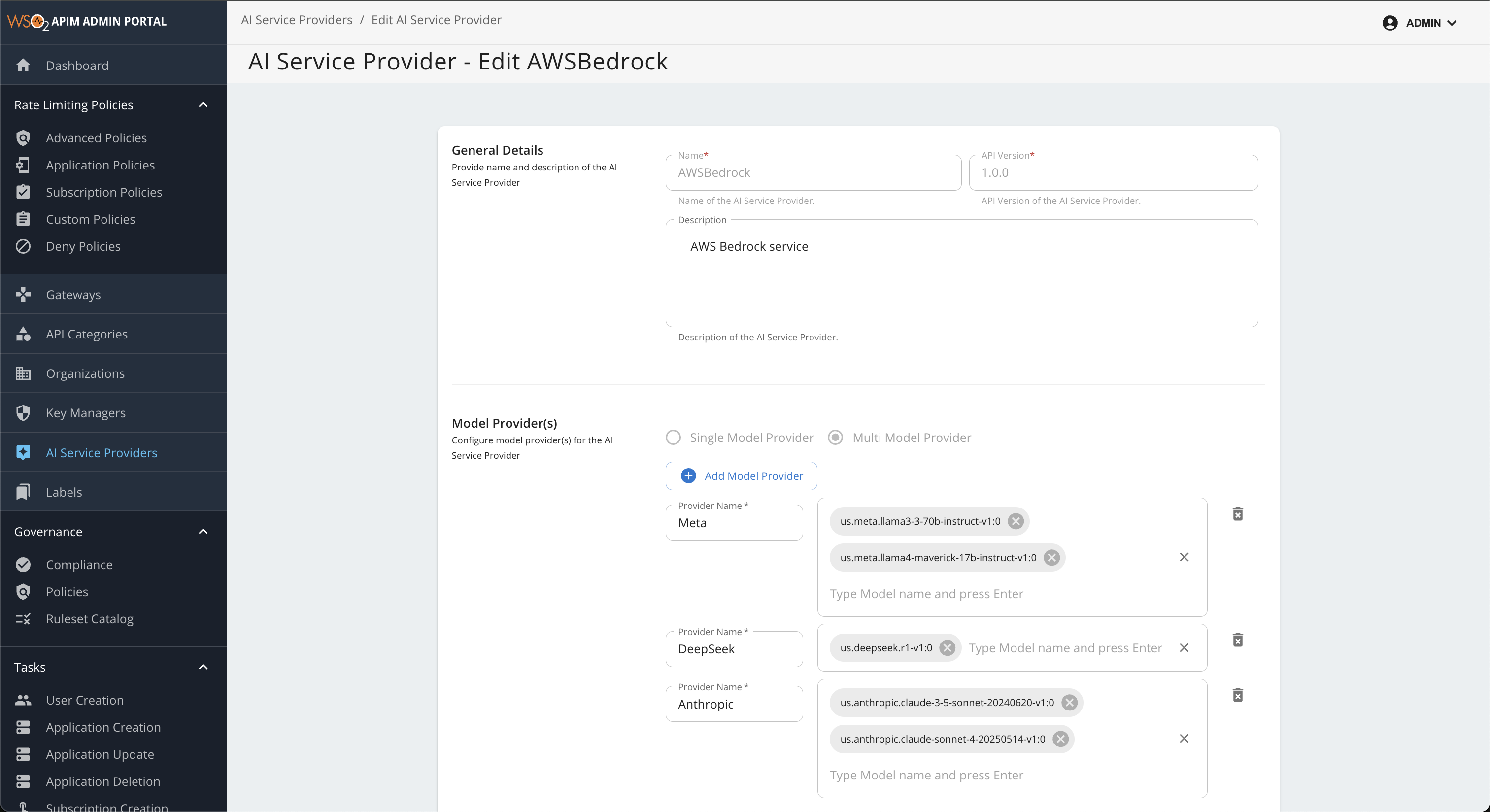
Adding Model Providers
- Click the "+ Add Model Provider" button to add a new provider family
- Configure each provider with the following details:
Provider Configuration Fields
| Field | Description |
|---|---|
| Provider Name | Name of the AI provider (e.g., Meta, Anthropic, DeepSeek) |
| Models | List of model IDs available from this provider |
Add Multiplde Model Providers and models
Adding multiple models under a provider allows you to use advanced routing strategies such as failover, load balancing, and other traffic management options. You can configure these routing policies when creating AI APIs to control how requests are distributed among the available models. For more details, see Multi-Model Routing Overview.
Example Provider Configurations
The following are example provider configurations that illustrate how to group models by their provider (model family) and specify the available models for each.
| Provider Name | Example Models |
|---|---|
| Meta | us.meta.llama3-3-70b-instruct-v1:0, us.meta.llama4-maverick-17b-instruct-v1:0 |
| DeepSeek | us.deepseek.r1-v1:0 |
| Anthropic | us.anthropic.claude-3-5-sonnet-20240620-v1:0, us.anthropic.claude-sonnet-4-20250514-v1:0 |
You can use these as a starting point and add or remove models as needed based on your AWS Bedrock access and requirements.
AWS Bedrock supports multiple model providers. For a complete and up-to-date list of all supported models, see the AWS Bedrock Supported Models documentation.
Adding Models to a Provider
- In the provider configuration, you'll see an input field labeled Type Model name and press Enter
- Type the complete model ID (including the region prefix) and press Enter to add it to the provider
- You can add multiple models by typing your model name and pressing enter for each one. This enables model-based load balancing and failover capabilities within the AI Gateway.
- You can add or remove individual models as needed to match your requirements
Important
When adding models, use the model ID exactly as Amazon Bedrock lists it, including any geographic prefix. Such a prefix is part of the identifier of a cross-Region inference profile. It does not name an AWS region, and it does not have to match the region that you invoke Bedrock from.
Geographic Inference Profile Prefixes
Model IDs that begin with us., eu., or apac. identify cross-Region inference profiles for the US, EU, and Asia Pacific geographies. Such a profile is invoked from one of its supported source regions and may route the request to any destination region within that geography. For example, us. denotes the US geography, not the us-east-1 region.
- Example:
us.anthropic.claude-3-5-sonnet-20240620-v1:0 - Example:
us.meta.llama3-3-70b-instruct-v1:0 - Example:
us.deepseek.r1-v1:0
Choose a region that AWS lists as a supported source region for the model or inference profile that you intend to use, and configure that same region on the AI API endpoint. For the complete list of identifiers, see Supported foundation models in Amazon Bedrock and Supported Regions and models for inference profiles.
Step 3: Save Configuration
After configuring your model providers, click Update to apply the changes.
Once you have saved your changes, the updated AWS Bedrock configuration will be applied and made available for use in your AI APIs, enabling seamless integration with the selected models.
Authentication
Unlike the other default AI service providers, AWS Bedrock is not accessed with a simple API key. Every request to the Bedrock runtime must be signed with AWS Signature Version 4 (SigV4). The Gateway signs each outbound request on your behalf, using the credentials that you configure on the endpoints of your AI API.
Two aspects are configured independently:
- Credential source – where the Gateway obtains its base AWS credentials from. This is either Stored credentials (an access key and secret key saved with the endpoint) or Environment credentials, in which no keys are stored in API Manager and the Gateway resolves them at runtime through the AWS SDK default credential provider chain.
- STS AssumeRole – optionally, whether the Gateway exchanges those base credentials for the temporary credentials of an IAM role before signing the request. This can be enabled on top of either credential source.
The following combinations are therefore supported:
| Credential Source | AssumeRole | Behavior |
|---|---|---|
| Stored credentials | Off | Requests are signed directly with the stored access key and secret key. This is the default and matches the behavior of earlier releases. |
| Stored credentials | On | The stored keys are used only to call AWS STS AssumeRole. Requests are signed with the temporary credentials of the assumed role. This suits a base IAM user that holds nothing but sts:AssumeRole permission. |
| Environment credentials | Off | No keys are stored. The Gateway resolves credentials at runtime through the AWS SDK default credential provider chain, as described in the note below, and signs requests with them. |
| Environment credentials | On | No keys are stored. The runtime identity is used to call AWS STS AssumeRole, and requests are signed with the temporary credentials of the assumed role. |
How environment credentials are resolved
In environment-credentials mode the Gateway does not read any credentials from the endpoint configuration. It delegates to the default credential provider chain of the AWS SDK for Java 2.x, which checks the following sources in order and uses the first one that supplies credentials:
- Java system properties –
aws.accessKeyId,aws.secretAccessKey, andaws.sessionToken. - Environment variables –
AWS_ACCESS_KEY_ID,AWS_SECRET_ACCESS_KEY, andAWS_SESSION_TOKEN. - Web identity token and IAM role ARN – the token file and role ARN given by
AWS_WEB_IDENTITY_TOKEN_FILEandAWS_ROLE_ARN, which the SDK exchanges for temporary credentials throughsts:AssumeRoleWithWebIdentity. This is how EKS IAM Roles for Service Accounts (IRSA) supplies credentials. - The shared
credentialsandconfigfiles –~/.aws/credentialsand~/.aws/config, using the profile named byAWS_PROFILEwhen it is set. In a containerized deployment these files must be mounted into the Gateway container to be picked up. - Amazon ECS container credentials.
- Amazon EC2 instance metadata – the instance profile attached to the Gateway node.
The resolved credentials are cached and refreshed automatically by the SDK, so no credential lookup is performed per request.
Note
Existing AWS Bedrock endpoints are unaffected by this feature. When no credential source is recorded and no role is configured, the endpoint continues to use its stored access key and secret key exactly as before.
Step 1: Grant Amazon Bedrock Permissions in AWS
Whichever approach you choose, the identity that ultimately signs the request must be permitted to invoke the models that you configured above.
- Log in to the AWS Management Console and navigate to the IAM service.
-
Attach a policy granting the required Amazon Bedrock permissions, such as
bedrock:InvokeModelandbedrock:InvokeModelWithResponseStream, to the identity that will invoke Bedrock. For more information, see Identity and access management for Amazon Bedrock. -
Stored credentials – create (or select) an IAM user, attach the policy to it, create an access key, and note down the Access Key ID and Secret Access Key.
- Environment credentials – attach the policy to the identity that the Gateway's runtime resolves from the provider chain, for example the EC2 instance profile, the EKS service account role (IRSA), or the IAM user behind the shared profile.
- STS AssumeRole – attach the Amazon Bedrock policy to the role that is going to be assumed. The base identity does not need Bedrock permissions of its own, but assuming the role requires permissions on both sides. The base identity needs an identity policy that allows
sts:AssumeRoleon the target role ARN, and the target role needs a trust policy that lists the base identity as a trusted principal. The base identity is the IAM user of the stored keys in stored-credentials mode, or the identity resolved from the provider chain in environment-credentials mode. If you intend to use an external ID, the trust policy must also require the same value that you configure on the endpoint. Both sides are mandatory when the target role belongs to a different AWS account; within the same account the trust policy alone is sufficient if it names the base identity explicitly, but grantingsts:AssumeRoleon the base identity as well keeps the configuration valid in either case. For more information, see Using an IAM role to grant permissions. - Note down the AWS region from which the Gateway will invoke Bedrock (for example,
us-east-1). It must be a region that supports the models or inference profiles that you configured, and the same region must be used in both the endpoint URL and the AWS Region field, because that is the region the request signature is computed for.
Important
- Make sure that access has been requested and granted for each of the models that you configured under the model providers. For more information, see Access Amazon Bedrock foundation models.
- A model ID that begins with a geographic prefix such as
us.,eu., orapac.identifies a cross-Region inference profile, not a literal AWS region. For example,us.does not meanus-east-1. Such a profile is invoked from one of its supported source regions and may route the request to any of its destination regions, so select a supported source region for the model or profile and verify its destination regions. For more information, see Supported Regions and models for inference profiles. - Invoking through an inference profile needs broader permissions than invoking a single model. The identity that signs the request must be allowed to call
bedrock:InvokeModelon both the inference profile resource (arn:aws:bedrock:*:*:inference-profile/*) and the underlying foundation models (arn:aws:bedrock:*::foundation-model/*), in the source region and in every destination region that the profile can route to. If your organization applies service control policies (SCPs) or region restrictions, they must allow all of the profile's destination regions, otherwise a routed request is denied even though the source region is permitted. For more information, see Prerequisites for inference profiles.
Step 2: Configure Authentication on the AI API Endpoints
- Sign in to the Publisher Portal (
https://<hostname>:9443/publisher) and open the AI API that uses AWSBedrock as its AI service provider. - Navigate to API Configurations → Endpoints.
- Click the Edit icon of the endpoint that you want to configure, and make sure the Endpoint URL points at the Bedrock runtime, replacing the
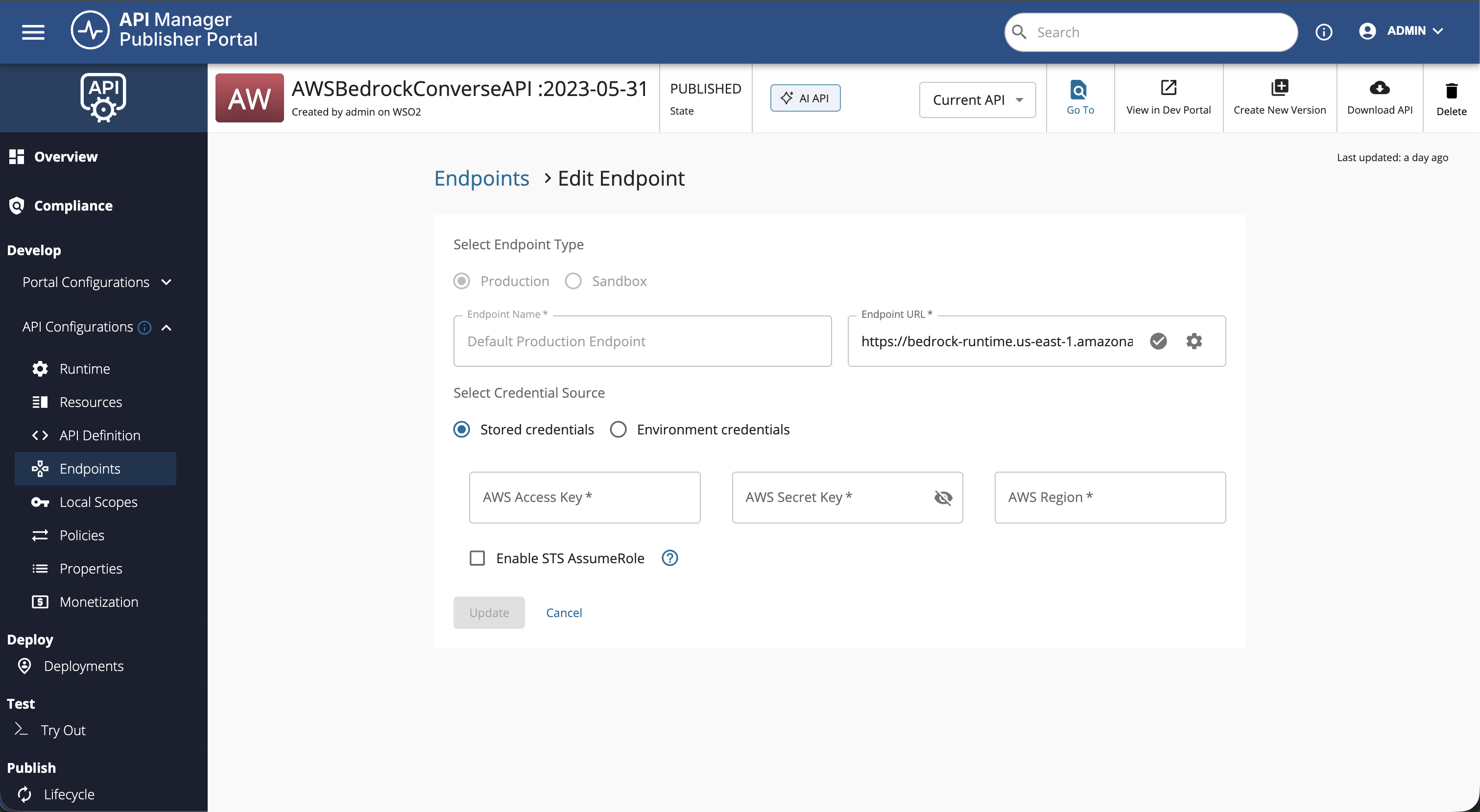
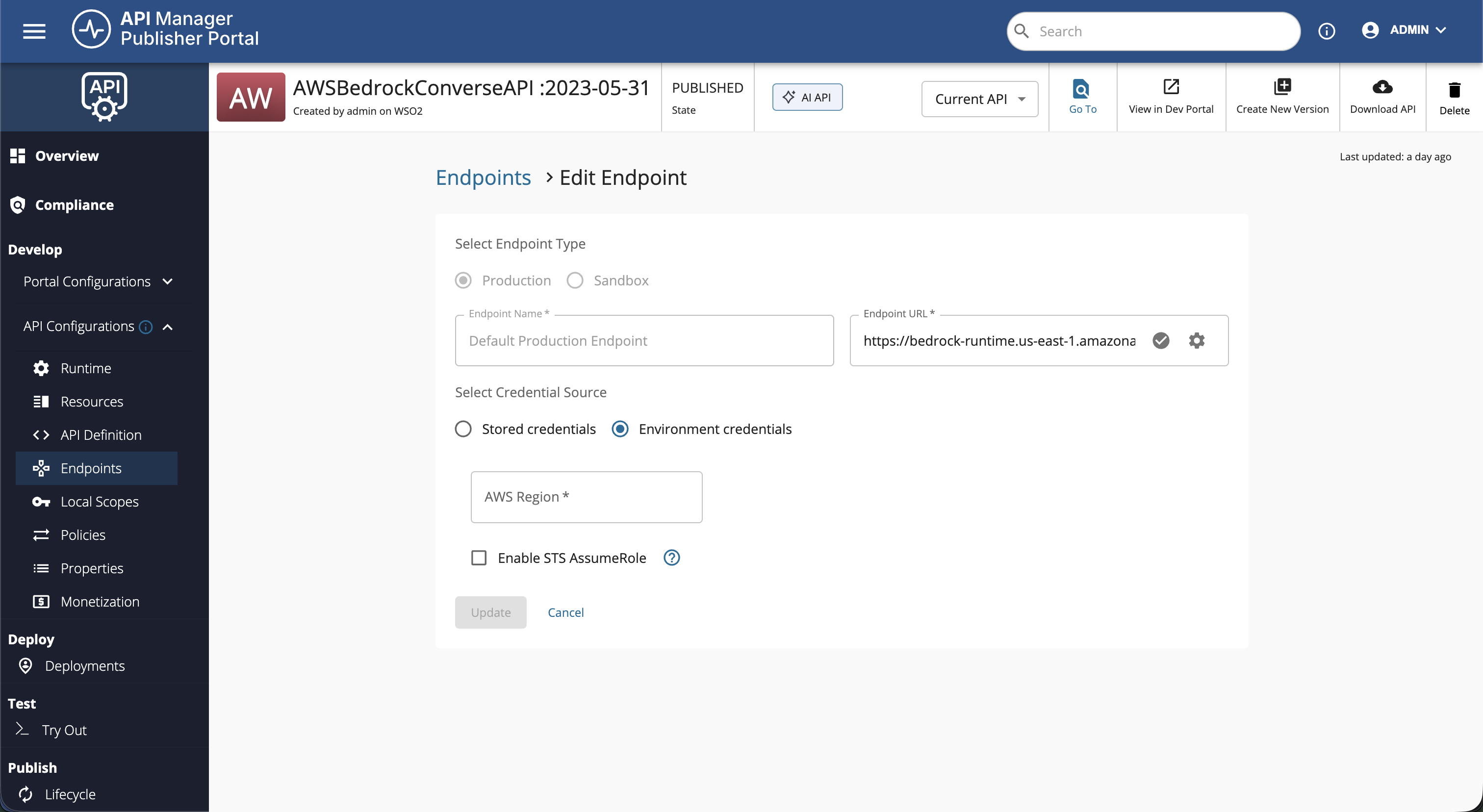
{region}placeholder inhttps://bedrock-runtime.{region}.amazonaws.comwith your AWS region. - Select the Credential Source and fill in the corresponding fields:
| Field | Description |
|---|---|
| Stored credentials | Select this to sign requests with an access key and secret key saved against the endpoint. The AWS Access Key and AWS Secret Key fields are displayed and are both mandatory. |
| Environment credentials | Select this to resolve credentials from the Gateway's runtime instead of storing any keys. The AWS Access Key and AWS Secret Key fields are hidden and are not required. |
| AWS Region | The AWS region in which your Amazon Bedrock model access is granted (for example, us-east-1). This is mandatory for every credential source. |
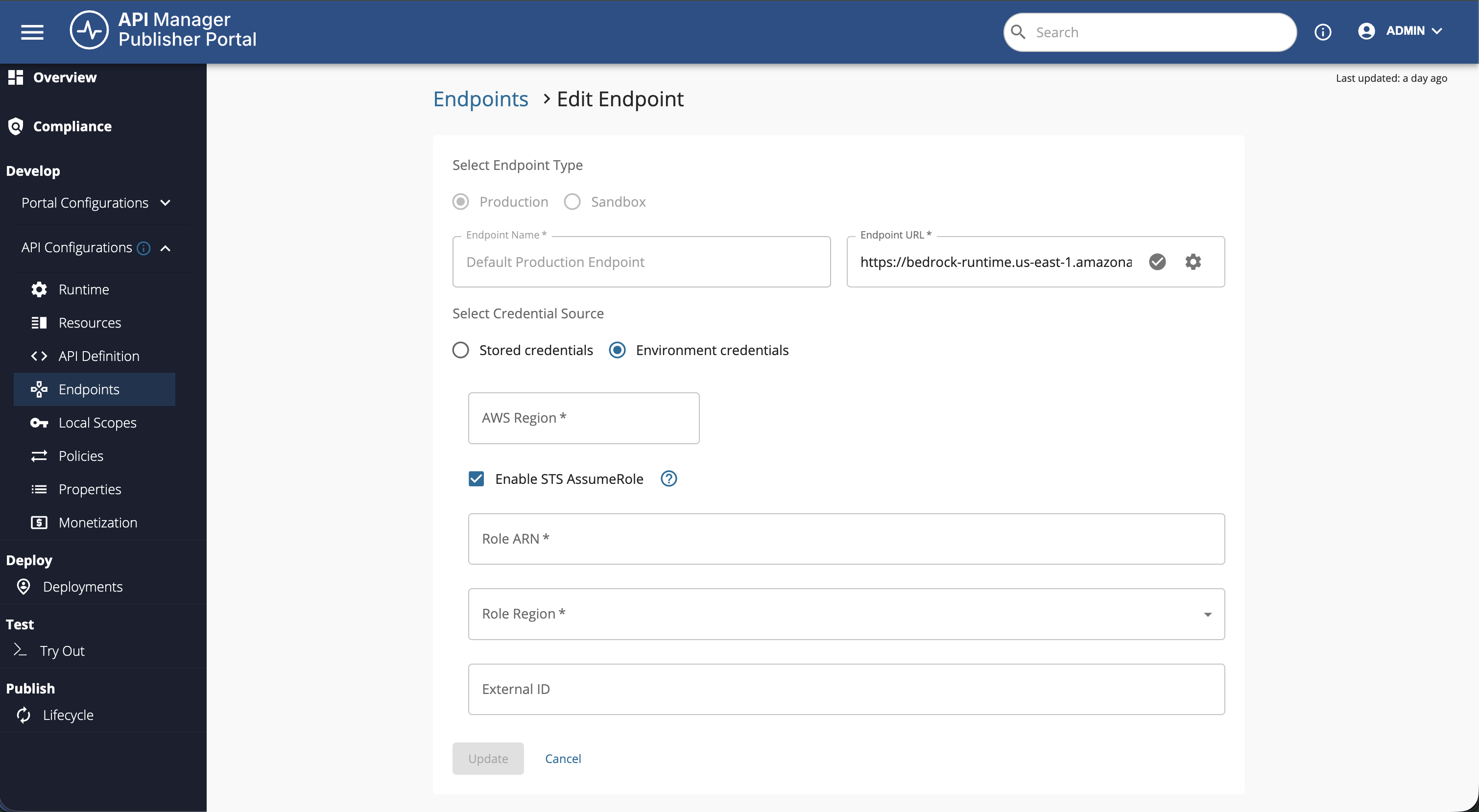
 5. Optionally, select Enable STS AssumeRole to sign requests with the temporary credentials of an IAM role, and provide the following:
| Field | Description |
|---|---|
| Role ARN | The ARN of the IAM role to assume, for example arn:aws:iam::123456789012:role/bedrock-invoke-role. Mandatory when AssumeRole is enabled. |
| Role Region | The region of the AWS STS endpoint used to assume the role, selected from the list of AWS regions. Mandatory when AssumeRole is enabled. |
| External ID | Optional. The external ID expected by the role's trust policy. Provide this only if the trust policy requires it. |
 6. Click Update to save the changes.
7. Repeat the above steps for the other endpoint (production or sandbox) as required, and then Save and re-deploy the API for the changes to take effect.
6. Click Update to save the changes.
7. Repeat the above steps for the other endpoint (production or sandbox) as required, and then Save and re-deploy the API for the changes to take effect.
Note
- In environment-credentials mode the AWS Access Key and AWS Secret Key are not persisted with the endpoint, and any previously stored secret key is removed from the endpoint configuration when you save.
- When AssumeRole is enabled, the Role ARN, Role Region, and External ID are stored in the endpoint configuration as plain text, and are returned to the Publisher when you reopen the endpoint. Unlike the AWS Secret Key, the External ID is neither encrypted nor masked in the UI. Its protection comes from the target role's trust policy requiring the value, not from keeping the value confidential. For more information, see How to use an external ID.
For more information on securing the backend of AI APIs, see AI Backend Security.