Configuring GitHub Copilot in VS Code with AI Gateway
It is possible to route GitHub Copilot Chat requests from Visual Studio Code through WSO2 API Manager using the AI Gateway, enabling GitHub Copilot to access AI services such as OpenAI through the AI Gateway.
GitHub Copilot in VS Code supports Bring Your Own Key (BYOK) through its Custom Endpoint model provider. A Custom Endpoint lets Copilot Chat send requests to any OpenAI-compatible Chat Completions endpoint. By pointing the Custom Endpoint at an AI API exposed by WSO2 API Manager instead of at the AI service provider directly, you can apply security, traffic control, and governance policies such as guardrails, rate limiting, and analytics. The Gateway acts as an intermediary, forwarding requests from GitHub Copilot to the AI service provider while enforcing these controls.
This section explains the overall architecture and provides step-by-step instructions for routing GitHub Copilot Chat requests through WSO2 API Manager.
Architecture
When a developer selects a Custom Endpoint model in Copilot Chat, the Copilot extension sends the Chat and agent requests for that model to the URL configured for the model, instead of to GitHub-hosted models. In this setup, that URL is an AI API deployed on the WSO2 API Manager AI Gateway.
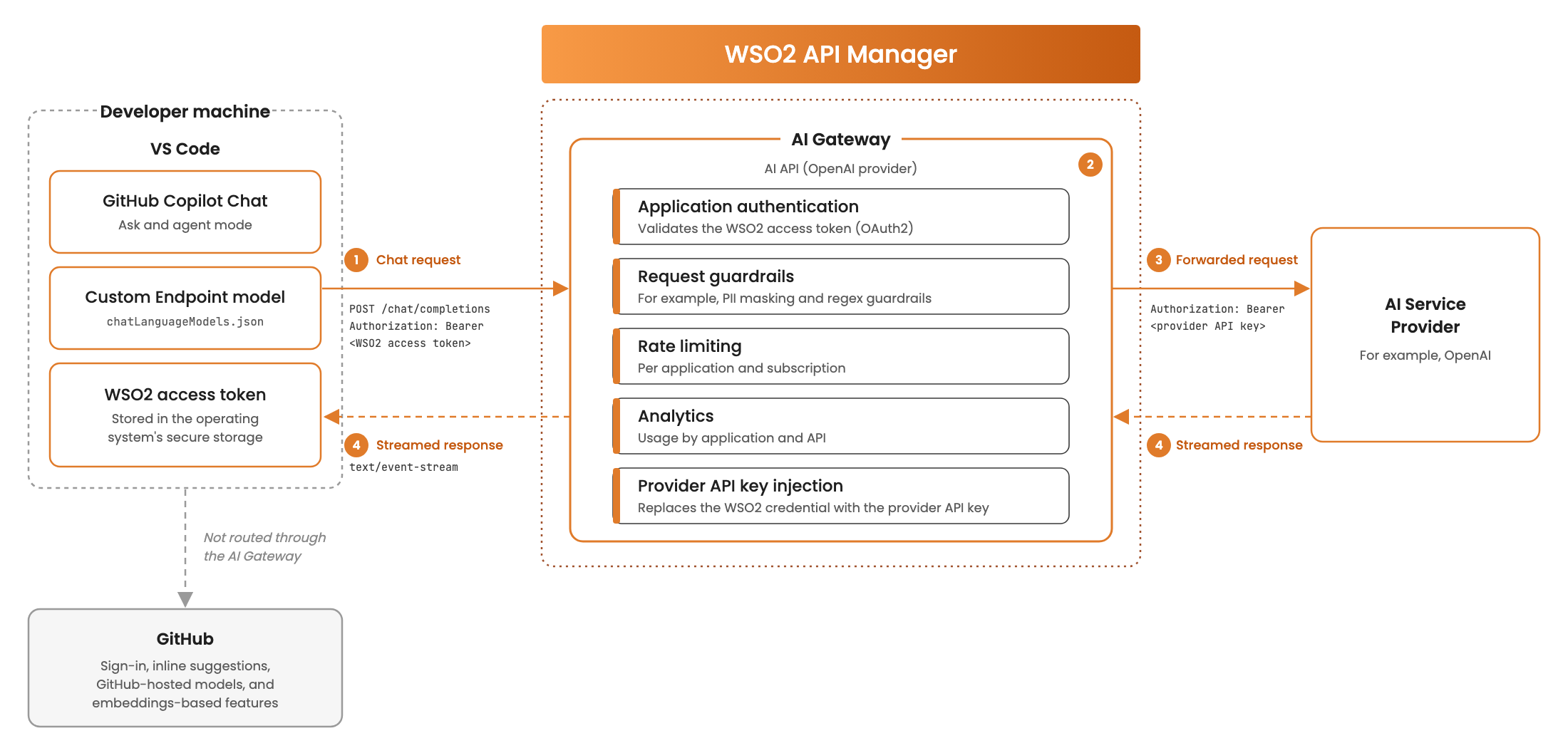
The request flow is as follows:
- VS Code to AI Gateway: Copilot Chat posts the request to the Custom Endpoint URL using the OpenAI Chat Completions format. The request carries the WSO2 API Manager credential that the developer entered in VS Code, in the
Authorization: Bearer <credential>header, and the model ID configured for the Custom Endpoint in themodelfield of the body. - AI Gateway processing: The AI Gateway authenticates the application, applies the policies attached to the AI API (for example, guardrails and rate limiting), and publishes analytics data.
- AI Gateway to AI service provider: The Gateway removes the WSO2 API Manager credential, injects the AI service provider API key that is configured in the AI API endpoint, and forwards the request to the provider.
- Response: The provider streams the response back through the Gateway to VS Code, and Copilot renders the reply or runs the requested tool calls.
This architecture provides the following benefits:
- Developers never hold the AI service provider key. The provider key is stored only in WSO2 API Manager. Each developer, team, or business unit uses its own WSO2 API Manager application credential, which can be revoked or rotated without affecting others.
- Usage is attributable. Every request is associated with a WSO2 API Manager application and subscription, so usage can be monitored, limited, and reported per application.
- The provider can be changed without changing VS Code. Because developers only see the AI API URL and a model ID, administrators can change the backend model, provider, or routing strategy at the Gateway.
Note
Only the Copilot features that use the Custom Endpoint model are routed through the AI Gateway. GitHub sign-in, inline suggestions (code completions), and GitHub-hosted models continue to communicate directly with GitHub. For more information, see Limitations.
Prerequisites
Before continuing with the setup, make sure you have the following:
- Visual Studio Code with GitHub Copilot set up.
- If you use a GitHub Copilot Business or Enterprise plan, your GitHub organization administrator must enable the Bring Your Own Language Model Key in VS Code policy in the organization's Copilot policy settings on GitHub. If the organization restricts the models that BYOK requests can use, note the allowed model IDs.
- An OpenAI API key.
Info
This guide uses OpenAI as the AI service provider. You can use any other AI service provider that is supported by the AI Gateway and exposes an OpenAI-compatible Chat Completions API. For the latest information on Custom Endpoint support and plan requirements, see the VS Code language models documentation.
Step 1: Deploy the OpenAI AI API in WSO2 API Manager
-
Log in to the Publisher Portal.
Navigate to the WSO2 API Manager Publisher Portal:
https://<APIM-HOST>:<APIM-PORT>/publisher -
Create a New AI API.
Create a new AI API by selecting OpenAI as the AI service provider.
Configure the remaining settings as required. -
Configure the Endpoint.
- Navigate to Develop → API Configurations → Endpoints.
- Create a new endpoint or edit the existing production endpoint.
- Ensure the following configurations are set:
- Endpoint URL:
https://api.openai.com/v1 - API Key:
<OPENAI API KEY>
- Endpoint URL:
-
Enable OAuth2 Application Level Security.
GitHub Copilot sends the credential configured for a Custom Endpoint in theAuthorization: Bearer <credential>header, and does not support adding custom headers such asApiKey. Therefore, the AI API must accept OAuth2 access tokens.- Navigate to Develop → API Configurations → Runtime.
- Under Application Level Security, make sure OAuth2 is selected.
- Make sure the Authorization Header is set to
Authorization.
-
Deploy and publish the OpenAI AI API.
-
Note the Gateway URL of the AI API (for example,
https://localhost:8243/openaiapi/2.3.0). You need this URL to configure GitHub Copilot.
Step 2: Obtain an Access Token from WSO2 API Manager
-
Log in to the Developer Portal.
Navigate to the WSO2 API Manager Developer Portal:
https://<APIM-HOST>:<APIM-PORT>/devportal -
Select the OpenAI AI API you just published.
-
Subscribe to the API using an application of your choice.
Tip
To attribute and limit usage per developer, team, or business unit, create a separate application for each of them and subscribe each application with the required business plan.
-
Generate an OAuth2 Access Token.
- Navigate to Applications, select the application, and click Production Keys.
- Click Generate Keys to create the consumer key and secret with the Client Credentials grant type. For more information, see Generating application keys.
- Generate an access token with a validity period that suits your token rotation policy, and make sure to save it for later use. GitHub Copilot does not refresh the token automatically, so requests fail once the token expires. For more information, see Changing the default token expiration time at the application-level.
Step 3: Add the AI Gateway as a Custom Endpoint in GitHub Copilot
GitHub Copilot stores Custom Endpoint models in the chatLanguageModels.json file in the VS Code user profile, and stores the credential in the operating system's secure storage.
-
Open the Language Models Editor.
- Open the Chat view in VS Code (
Ctrl+Alt+Ion Windows and Linux, orCtrl+Cmd+Ion macOS). - Click the model picker at the bottom of the chat input, and select Manage Language Models....
- Open the Chat view in VS Code (
-
Add a Custom Endpoint.
- Click Add Models... and select Custom Endpoint.
- Select Chat Completions as the API type.
- When prompted for an API key, enter the WSO2 API Manager access token you generated in Step 2.
VS Code saves the access token in its secure storage and opens
chatLanguageModels.jsonwith a generated entry. TheapiKeyfield of the generated entry contains a${input:chat.lm.secret.<id>}reference to the stored access token. -
Configure the Model.
Update the generated entry as follows, replacing the placeholders with your values. Keep theapiKeyvalue exactly as VS Code generated it.[ { "name": "WSO2 AI Gateway", "vendor": "customendpoint", "apiKey": "${input:chat.lm.secret.<id>}", "apiType": "chat-completions", "models": [ { "id": "<MODEL ID>", "name": "<MODEL DISPLAY NAME>", "url": "<OPENAI AI API GATEWAY URL>/chat/completions", "toolCalling": true, "vision": false, "maxInputTokens": 128000, "maxOutputTokens": 16000 } ] } ]For example:
[
    {
        "name": "WSO2 AI Gateway",
        "vendor": "customendpoint",
        "apiKey": "${input:chat.lm.secret.1a2b3c4d}",
        "apiType": "chat-completions",
        "models": [
            {
                "id": "gpt-4o-mini",
                "name": "GPT-4o mini (via WSO2 AI Gateway)",
                "url": "https://localhost:8243/openaiapi/2.3.0/chat/completions",
                "toolCalling": true,
                "vision": false,
                "maxInputTokens": 128000,
                "maxOutputTokens": 16000
            }
        ]
    }
]
The configuration fields are as follows:
Field Description nameThe display name of the provider group in the model picker. vendorMust be customendpoint.apiKeyThe reference to the stored WSO2 API Manager access token. Do not replace it with the raw token. apiTypeMust be chat-completions.models[].idThe model ID that Copilot sends in the modelfield of the request. The AI Gateway forwards it to the AI service provider unless a model routing policy overrides it. If your GitHub organization restricts BYOK models, this value must be one of the allowed model IDs.models[].nameThe name of the model shown in the model picker. models[].urlThe full Chat Completions URL of the AI API. Copilot posts to this URL as is and does not append /chat/completions.models[].toolCallingSet to trueto use the model in agent mode. The selected model must support tool calling.models[].visionSet to trueonly if the selected model accepts image input.models[].maxInputTokens,models[].maxOutputTokensThe context and output limits of the selected model. Warning
Do not type a raw token into the
apiKeyfield. VS Code only resolves the${input:chat.lm.secret.<id>}reference created by the Add Models... wizard. If the field contains a raw value, Copilot sends the request without a valid credential and the AI Gateway rejects it with a401 Unauthorizedresponse. -
Reload VS Code.
Open the Command Palette and run Developer: Reload Window so that VS Code reloadschatLanguageModels.json.
Rotating the access token
When the access token expires or is revoked, generate a new token in the Developer Portal. Then, in VS Code, open Manage Language Models..., select the WSO2 AI Gateway entry, and use Edit API Key to replace the stored token. The apiKey reference in chatLanguageModels.json remains unchanged.
Configure SSL Certificate Trust
When using a local AI Gateway over HTTPS, VS Code must be able to trust the certificate presented by the Gateway.
Note
If the AI Gateway uses a valid CA-signed certificate, no additional certificate configuration is required.
If the Gateway uses a self-signed certificate, Copilot Chat requests may fail due to certificate verification errors. In such cases, add the Gateway certificate to the trusted certificate store of your operating system, which VS Code uses by default, and restart VS Code.
Use the following command to connect to the local Gateway, extract the certificate, and save it as gateway_certificate.pem in the current directory:
echo -n | openssl s_client -connect localhost:8243 | sed -ne '/-BEGIN CERTIFICATE-/,/-END CERTIFICATE-/p' > gateway_certificate.pem
For more information, see the VS Code network connections documentation.
Note
This is commonly required when testing with a locally running WSO2 API Manager Gateway. For local testing only, you can use the HTTP Gateway URL of the AI API (for example, http://localhost:8280/openaiapi/2.3.0/chat/completions) instead. Do not use HTTP in production, because the access token and the prompts are sent unencrypted.
Step 4: Use GitHub Copilot Chat
-
Open the Chat view in VS Code.
-
In the model picker, select the model you configured (for example, GPT-4o mini (via WSO2 AI Gateway)).
-
Send a prompt in Ask or Agent mode.
Requests for this model will now be routed through the WSO2 API Manager AI Gateway.
Use case examples
View API Analytics and Insights
By routing GitHub Copilot Chat requests through the WSO2 API Manager AI Gateway, you automatically gain access to built-in analytics and reporting capabilities.
WSO2 provides integrated analytics, powered by Moesif, and also supports integration with external tools such as the ELK stack (Elasticsearch, Logstash, Kibana) and Choreo Analytics.
For example, an admin could view the number of Copilot Chat requests per application to understand adoption across teams, and monitor latency and error rates of the AI service provider.
Note
GitHub Copilot requests streamed responses. Token usage is not captured for streamed responses. For more information, see Limitations.
For more information on Analytics, refer to the official WSO2 API Manager Documentation
Implement WSO2 AI Gateway Guardrails for Enhanced Control
WSO2 API Manager AI Gateway guardrails enable granular control over the data exchanged between GitHub Copilot and the AI service provider.
By applying guardrails in the request flow, you can enforce security and compliance policies on the prompts that developers send from Copilot Chat.
For example, a PII Masking Regex Guardrail can be configured in the request flow to prevent Personally Identifiable Information (PII) from reaching the OpenAI API. If a developer submits a prompt containing PII, the guardrail evaluates the request against defined patterns and redacts them before they reach the OpenAI API.
Note
Copilot Chat requests are large. Each request contains the instructions generated by Copilot, the conversation history, context from the workspace, and the definitions of all available tools in agent mode, and can exceed 100 KB. Consider the following when configuring guardrails:
- Use the JSON Path to target only the content you want to evaluate. For example,
$.messages[-1].contentevaluates the latest message in the conversation. In agent mode, the latest message can be the result of a tool call instead of the developer's prompt. - If you omit the JSON Path, the guardrail evaluates the entire request, including the tool definitions and the source code sent as context. Test your patterns against source code to avoid unintended matches.
For more information on AI Guardrails, refer to the official WSO2 API Manager Documentation
Rate Limiting at AI Gateway
WSO2 API Manager AI Gateway supports request-based and token-based rate limiting for AI APIs. This allows you to control GitHub Copilot usage when requests are routed through the Gateway.
For example, you can create an AI subscription policy with a limited request count, and apply it when subscribing to the OpenAI AI API. Once Copilot Chat invokes the API through that subscription, the Gateway enforces the selected quota automatically. If the configured limit is exceeded, subsequent requests are throttled until the quota resets.
Note
A single prompt in agent mode can result in multiple requests to the AI API, because Copilot sends a new request after each tool call. Consider this when defining request count limits. Token-based limits do not account for streamed responses. For more information, see Limitations.
For more information on Rate Limiting, refer to the official WSO2 API Manager documentation
Limitations
Consider the following limitations when routing GitHub Copilot through the AI Gateway.
-
Only Custom Endpoint models are routed through the AI Gateway.
The AI Gateway governs only the Chat and agent requests that use the Custom Endpoint model. Inline suggestions (code completions), semantic search, features that rely on embeddings, and GitHub-hosted Copilot models continue to use GitHub's services directly and are not visible to the AI Gateway. Developers can still select GitHub-hosted models in the model picker unless your GitHub organization restricts them. -
The AI service provider is your own.
Requests are served by the AI service provider configured in the AI API, using your provider account and billing. The AI Gateway does not proxy GitHub-hosted Copilot models. -
Token usage is not captured for streamed responses.
Copilot Chat requests streamed responses. Streaming is not supported for AI APIs on the WSO2 API Manager Classic Gateway, so the Gateway forwards the stream without extracting token usage from it. As a result, token usage is not available in analytics for these requests, and token-based rate limiting does not count them. Request-based rate limiting, request analytics, and request-flow guardrails are not affected. Response-flow guardrails are not applied to streamed responses, so use request-flow guardrails to govern Copilot traffic. -
Copilot uses a fixed temperature.
The Custom Endpoint client sends a fixedtemperaturevalue (for example,0.1) that cannot be changed from VS Code. Some reasoning models accept only their default temperature and reject such requests. Use a model that accepts a custom temperature. -
Only bearer token authentication is supported.
Copilot sends the Custom Endpoint credential only in theAuthorization: Bearer <credential>header and cannot send custom headers. The AI API must accept OAuth2 access tokens, and the access token must be rotated manually in VS Code before it expires. -
Custom Endpoint availability depends on VS Code and GitHub.
The Custom Endpoint feature and its configuration format are controlled by VS Code and GitHub and might change. For the latest information, see the VS Code language models documentation.