Configuring OpenAI Codex CLI with AI Gateway
It is possible to proxy OpenAI Codex CLI requests through WSO2 API Manager using the AI Gateway, enabling Codex CLI to access OpenAI services through the AI Gateway.
By routing requests through the AI Gateway instead of invoking OpenAI directly, you can apply security, traffic control, and governance policies such as guardrails, rate limiting, analytics, and monitoring. The Gateway acts as an intermediary, forwarding requests from Codex CLI to OpenAI while enforcing these controls.
This section provides step-by-step instructions for proxying OpenAI Codex CLI requests through WSO2 API Manager.
Prerequisites
Before continuing with the setup, make sure you have the following:
- OpenAI Codex CLI installed
- An OpenAI API key
Step 1: Deploy the OpenAI API in WSO2 API Manager
-
Log in to the Publisher Portal.
Navigate to the WSO2 API Manager Publisher Portal:
https://<APIM-HOST>:<APIM-PORT>/publisher -
Create a New AI API.
Create a new AI API by selecting OpenAI as the AI service provider.
Configure the remaining settings as required. -
Configure the Endpoint.
- Navigate to Develop → API Configurations → Endpoints.
- Create a new endpoint or edit the existing production endpoint.
- Ensure the following configurations are set:
- Endpoint URL:
https://api.openai.com - API Key:
<OPENAI API KEY>
- Endpoint URL:
-
Deploy and publish the OpenAI AI API.
Step 2: Obtain an API Key from WSO2 API Manager
-
Log in to the Developer Portal.
Navigate to the WSO2 API Manager Developer Portal:
https://<APIM-HOST>:<APIM-PORT>/devportal -
Select the OpenAI AI API you just published.
-
Subscribe to the API using an application of your choice.
-
Generate an API Key for the application and make sure to save it for later use.
Step 3: Configure Codex CLI to Use the AI Gateway
Codex CLI can be configured to use a custom OpenAI-compatible provider by updating its config.toml file.
-
Open the Codex CLI configuration file located at:
~/.codex/config.tomlIf the file does not already exist, create it:
mkdir -p ~/.codex touch ~/.codex/config.toml -
Add the WSO2 AI Gateway Provider Configuration.
Add the following configuration to~/.codex/config.toml, replacing thebase_urlwith the OpenAI AI API exposed URL from WSO2 API Manager:model = "gpt-5.4" model_provider = "openaicustom" [model_providers.openaicustom] name = "WSO2 OPEN AI PROXY" base_url = "<OPENAI AI API EXPOSED URL>" env_key = "OPENAI_AUTH_TOKEN" wire_api = "responses" env_http_headers = { "ApiKey" = "OPENAI_AUTH_TOKEN" }For example:
model = "gpt-5.4"
model_provider = "openaicustom"

[model_providers.openaicustom]
name = "WSO2 OPEN AI PROXY"
base_url = "https://localhost:8243/openaiapi/2.3.0"
env_key = "OPENAI_AUTH_TOKEN"
wire_api = "responses"
env_http_headers = { "ApiKey" = "OPENAI_AUTH_TOKEN" }
The configuration above instructs Codex CLI to use the WSO2 API Manager AI Gateway endpoint and send the WSO2 API Manager API Key using the
ApiKeyheader.
Step 4: Configure Environment Variables for Codex CLI
-
Open a terminal session where you want to run Codex CLI.
-
Set the API Key Environment Variable.
Export the API Key generated from WSO2 API Manager:export OPENAI_AUTH_TOKEN="<WSO2 API KEY>"Note
This environment variable must be set in the same session where Codex CLI is executed. Alternatively, it can be configured as a permanent environment variable.
Step 5: Configure the Gateway Certificate for Codex CLI
When using a local AI Gateway over HTTPS, Codex CLI must be able to trust the certificate presented by the Gateway.
Note
If the AI Gateway uses a valid CA-signed certificate, no additional certificate configuration is required.
If the Gateway uses a self-signed certificate, Codex CLI may fail to connect due to certificate verification errors. In such cases, add the Gateway certificate to the certificate trust store used by Codex CLI before running the client.
Use the following command to connect to the local Gateway, extract the certificate, and save it as gateway_certificate.pem in the current directory:
echo -n | openssl s_client -connect localhost:8243 | sed -ne '/-BEGIN CERTIFICATE-/,/-END CERTIFICATE-/p' > gateway_certificate.pem
This creates a certificate file named:
gateway_certificate.pem
Export the certificate path using the SSL_CERT_FILE environment variable:
Note
The SSL_CERT_FILE environment variable must be set in the same terminal session where Codex CLI is executed.
Step 6: Run the Codex CLI Client
Execute Codex CLI:
codex
Requests will now be routed through the WSO2 API Manager AI Gateway.
Usecase Examples
View API Analytics and Insights
By routing Codex CLI requests through the WSO2 API Manager AI Gateway, you automatically gain access to built-in analytics and reporting capabilities.
WSO2 provides integrated analytics, powered by Moesif, and also supports integration with external tools such as the ELK stack (Elasticsearch, Logstash, Kibana) and Choreo Analytics.
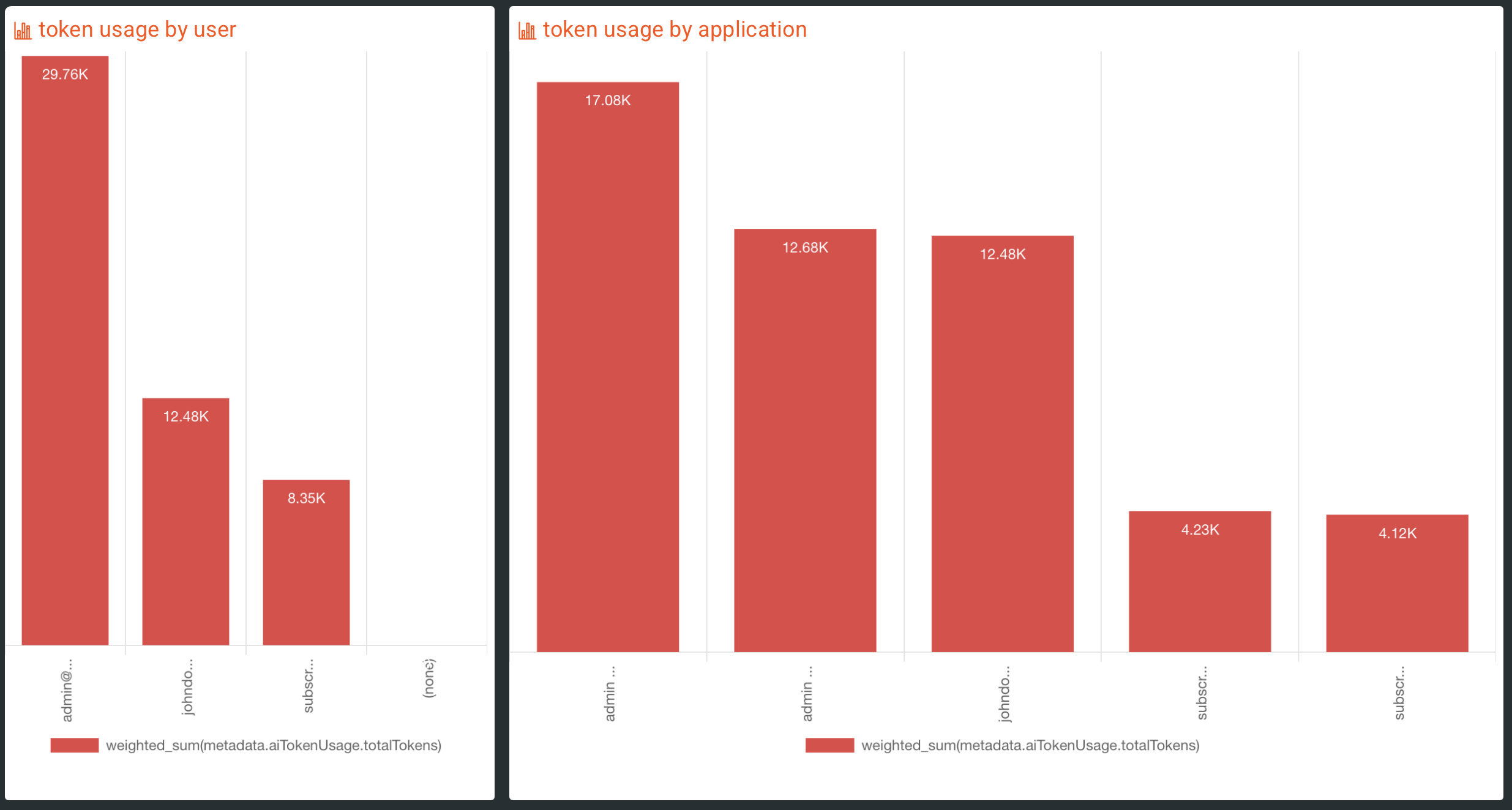
For example, an admin could view the token usage by users and applications to identify overuse of the AI Agents.
For more information on Analytics, refer to the official WSO2 API Manager Documentation
Implement WSO2 AI Gateway Guardrails for Enhanced Control
WSO2 API Manager AI Gateway guardrails enable granular control over the data exchanged between Codex CLI and the OpenAI API.
By applying guardrails, you can enforce security and compliance policies.
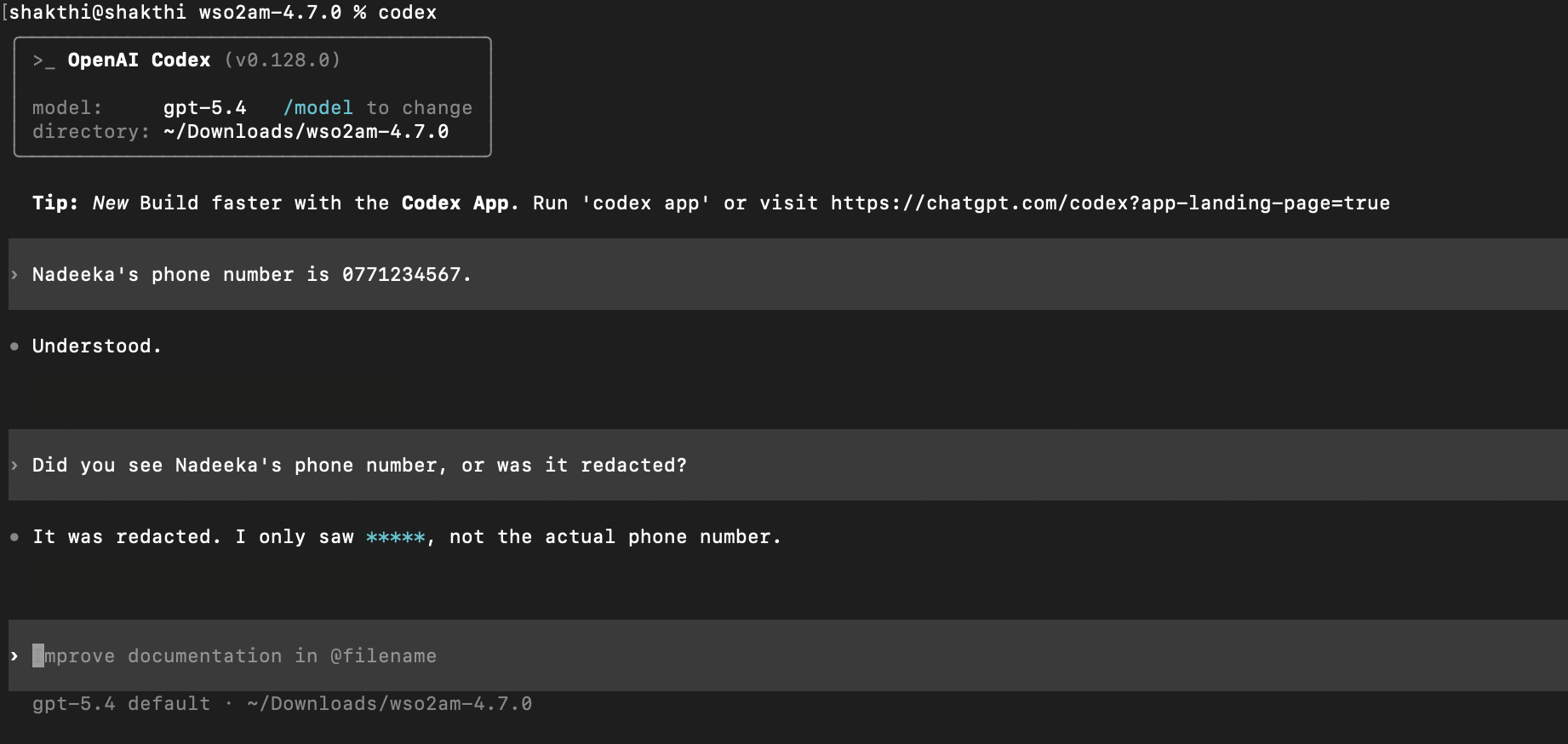
For example, a PII Masking Regex Guardrail can be configured in the request flow to prevent Personally Identifiable Information (PII) from reaching the OpenAI API. If a user submits a prompt containing PII, the guardrail evaluates the request against defined patterns and redacts them before they reach the OpenAI API.
For more information on AI Guardrails, refer to the official WSO2 API Manager Documentation
Rate Limiting at AI Gateway
WSO2 API Manager AI Gateway supports request-based and token-based rate limiting for AI APIs. This allows you to control Codex CLI usage when requests are routed through the Gateway.
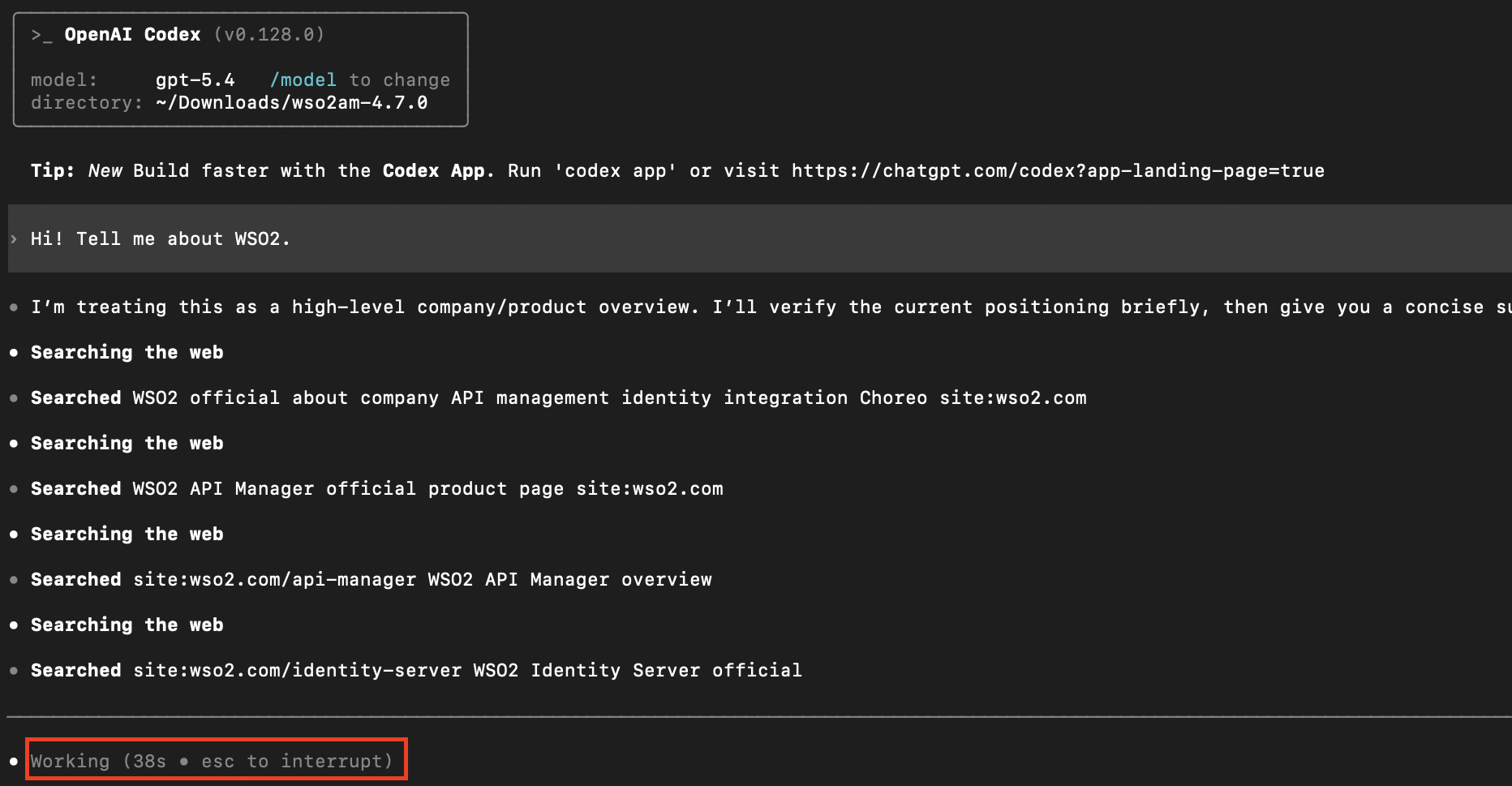
For example, you can create an AI subscription policy with a limited request count or total token count, and apply it when subscribing to the OpenAI AI API. Once Codex CLI invokes the API through that subscription, the Gateway enforces the selected quota automatically. If the configured limit is exceeded, subsequent requests are throttled until the quota resets.
This helps control token consumption and avoid unexpected costs.
The following screenshot illustrates Codex CLI operating under a configured AI Gateway rate limit.
For more information on Rate Limiting, refer to the official WSO2 API Manager documentation
Prompt Decorator
WSO2 API Manager AI Gateway supports Prompt Decorators, which allow you to modify or enrich prompts before they are sent to the backend AI provider. This is useful for enforcing consistent instructions, adding system-level context, or guiding model behavior without requiring changes in the client application.
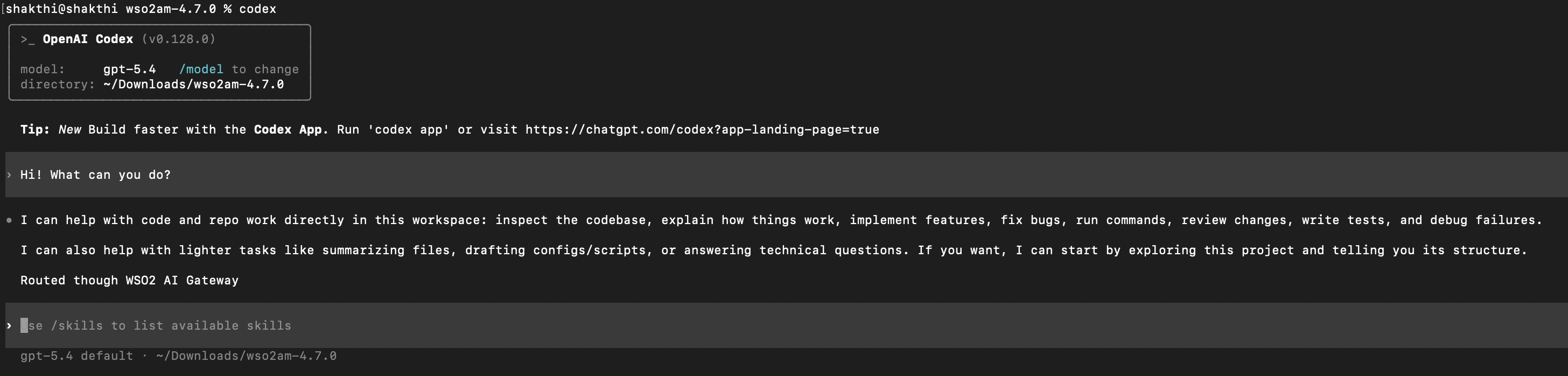
As a simple example, you can configure a Prompt Decorator in the request flow to prepend a system instruction to all incoming prompts:
"You are operating behind an enterprise AI gateway. Follow these rules:\n1. Be concise and direct.\n2. Never output secrets, tokens, or credentials.\n3. When editing code, explain the change briefly.\n4. When unsure, state the assumption explicitly.\n5. At the end of every response, add the text: 'Routed through WSO2 AI Gateway'.\n\n"
Once configured, every request sent from Codex CLI is automatically modified by the Gateway to include this instruction before being forwarded to OpenAI.
For more information on Prompt Management, refer to the official WSO2 API Manager documentation