Pattern 4: Fully Distributed Setup
This pattern adds a dedicated Key Manager to the Pattern 3 setup, separating token issuance and validation from the Control Plane. It is the most scalable and production-ready deployment pattern, suitable for environments with high security and compliance requirements.
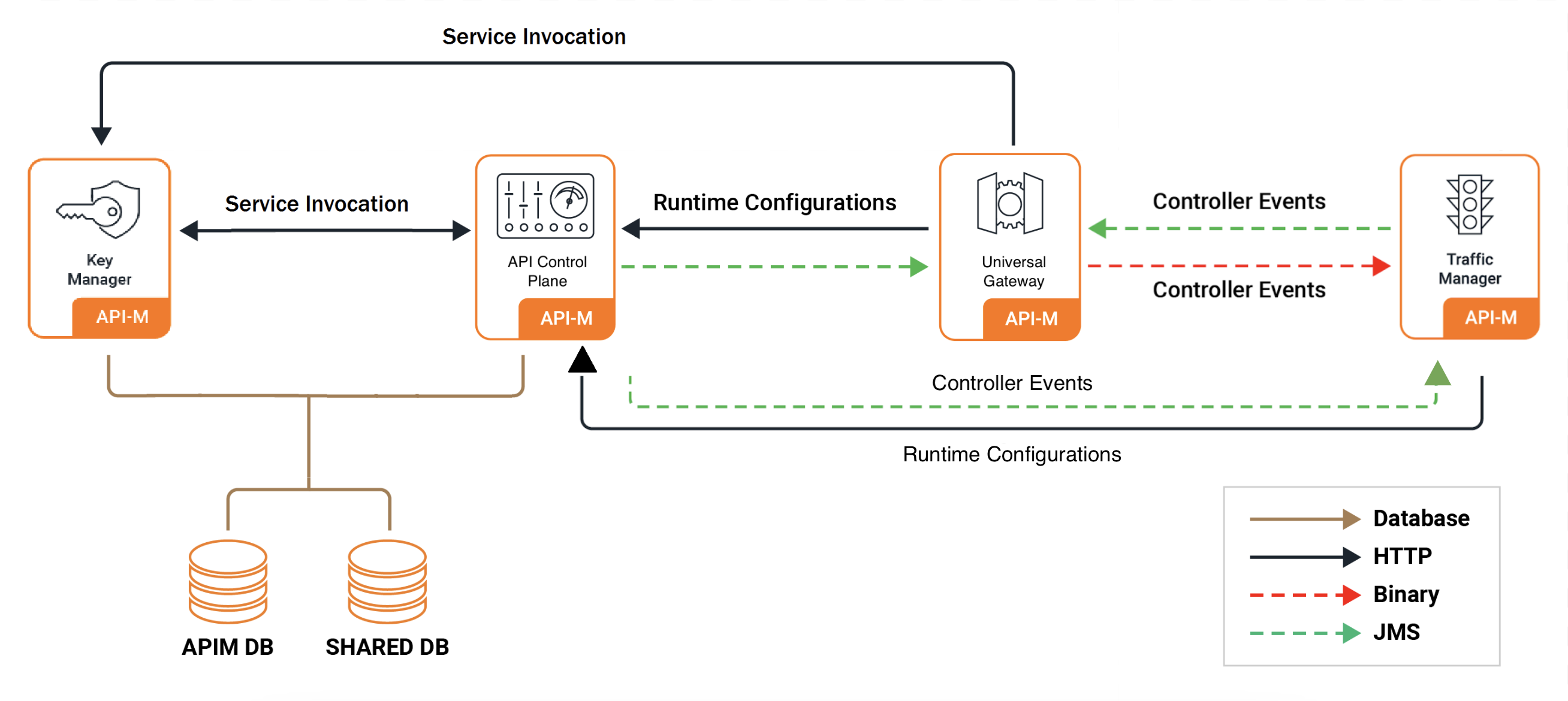
How Pattern 4 Differs from Earlier Patterns
| Pattern 2 | Pattern 3 | Pattern 4 | |
|---|---|---|---|
| Control Plane | Embedded in All-in-One | Dedicated ACP | Dedicated ACP |
| Traffic Manager | Embedded in All-in-One | Dedicated TM | Dedicated TM |
| Gateway | Dedicated, independently scalable | Dedicated, independently scalable | Dedicated, independently scalable |
| Key Manager | Embedded in All-in-One | Embedded in ACP | Dedicated KM |
| Custom images | Required (All-in-One) | Required (ACP) | Required (ACP); KM reuses ACP image |
| High availability | Gateway: Yes; All-in-One: Optional | Yes (all components) | Yes (all components) |
Note
The Key Manager uses the same Docker image as the API Control Plane — no separate image build is required.
Pattern 4 requires the following before deploying:
- An external database — H2 is not supported. Set up an external database before deploying.
- A custom Docker image — for the API Control Plane, with the JDBC driver for your database. The Key Manager reuses this image.
- Database schema initialised — run the WSO2 schema scripts against both databases before the pods start.
Minimum Node Requirements
The table below lists the minimum CPU and memory each node must provide, based on the default resources.requests block in each component's Helm chart values.
| Component | Minimum CPU (cores) | Minimum Memory |
|---|---|---|
| API Control Plane (ACP) | 2 | 2Gi |
| Traffic Manager (TM) | 2 | 2Gi |
| Classic Gateway | 2 | 2Gi |
| Key Manager (KM) | 2 | 2Gi |
Note
These are the default resource requests defined in each component's default_values.yaml. Each node must have at least this much CPU and memory free for that component's pod to be scheduled. This assumes each component runs on its own dedicated node, as described above — if you co-locate multiple components on a shared node, that node needs the sum of their requests.
Quick Start
Step 1 — Install Required Tools
-
Ensure the following tools are installed on your machine:
Tool Purpose Install Guide kubectlKubernetes CLI for managing cluster resources Install helm(v3)Package manager for deploying WSO2 Helm charts Install dockerRequired to build and push custom WSO2 images Install -
Verify all tools are installed and check their versions:
kubectl version --client
helm version
docker info
Version Compatibility
Ensure your tool versions are within the supported ranges listed in the Prerequisites page before proceeding.
Step 2 — Verify Your Cluster is Running
-
Ensure your Kubernetes cluster is up and running:
kubectl cluster-info
kubectl get nodes
All nodes should show a
Readystatus.
Step 3 — Add the WSO2 Helm Repository
-
Add the WSO2 Helm repository and update it:
helm repo add wso2 https://helm.wso2.com && helm repo update
Step 4 — Install a Routing Controller
WSO2 API Manager 4.7.0 uses Envoy Gateway by default for routing and it is the recommended option. NGINX Ingress Controller is also available for users who require it.
-
Install Envoy Gateway:
helm install envoy-gateway oci://docker.io/envoyproxy/gateway-helm \ --version v1.7.0 -n envoy-gateway-system \ --set config.envoyGateway.extensionApis.enableBackend=true \ --set envoyGateway.gateway.experimentalFeatures.enabled=true \ --create-namespace -
Create the
apimnamespace and apply the sample Gateway manifest:kubectl create namespace apim kubectl apply \ -f https://raw.githubusercontent.com/wso2/helm-apim/4.7.x/resources/assets/sample-gateway.yaml \ -n apim -
Verify the gateway is ready:
kubectl get gateway -n apim
See Section 4 — Routing Controller for full Envoy Gateway values configuration.
-
Install the NGINX ingress controller into your cluster:
helm upgrade --install ingress-nginx ingress-nginx \
  --repo https://kubernetes.github.io/ingress-nginx \
  --namespace ingress-nginx --create-namespace
helm upgrade --install ingress-nginx ingress-nginx \ --repo https://kubernetes.github.io/ingress-nginx \ --namespace ingress-nginx --create-namespace \ --set controller.service.externalTrafficPolicy=LocalNote
externalTrafficPolicy=Localis required on managed Kubernetes services. Without it, the cloud load balancer health probes fail and traffic never reaches the ingress controller. -
Verify the controller is running:
kubectl get pods -n ingress-nginxThe NGINX pod should show
1/1 Runningbefore proceeding.
Step 5 — Build and Push Custom Docker Images
Pattern 4 requires a custom Docker image for the API Control Plane with the JDBC driver for your database. The Key Manager reuses the ACP image.
Choosing a base image
- DockerHub (
wso2/wso2am-acp:4.7.0,wso2/wso2am-tm:4.7.0,wso2/wso2am-universal-gw:4.7.0) — packages the GA release. Suitable for evaluation and development. - WSO2 Private Registry (
registry.wso2.com/wso2-apim/am-acp:4.7.0.0,registry.wso2.com/wso2-apim/am-tm:4.7.0.0,registry.wso2.com/wso2-apim/am-universal-gw:4.7.0.0) — includes WSO2 Updates and is recommended for production. Requires an active WSO2 Subscription.
-
Create a directory for the custom images:
mkdir wso2am-custom && cd wso2am-custom -
Create a
Dockerfile.acpfor the API Control Plane image (also used for the Key Manager):FROM wso2/wso2am-acp:4.7.0 ADD --chown=wso2carbon:wso2 \ https://repo1.maven.org/maven2/mysql/mysql-connector-java/8.0.28/mysql-connector-java-8.0.28.jar \ /home/wso2carbon/wso2am-acp-4.7.0/repository/components/lib/ -
Build the ACP image, replacing
<REGISTRY>and<TAG>with your values:docker buildx build --platform linux/amd64 -f Dockerfile.acp -t <REGISTRY>/wso2am-acp-mysql:<TAG> .Matching your cluster architecture
The
--platformflag ensures the image is built for the architecture your cluster nodes run on. Most managed clusters (AKS, GKE) and Linux servers uselinux/amd64. If you are building on Apple Silicon (M1/M2/M3/M4) without this flag, the image will be built forlinux/arm64and the pod will fail to start withno match for platform in manifest.To check your cluster node architecture:
kubectl get nodes -o jsonpath='{.items[*].status.nodeInfo.architecture}' -
Push the image to your container registry:
docker push <REGISTRY>/wso2am-acp-mysql:<TAG> -
Get the image digest — you will need it when configuring your values files:
docker inspect <REGISTRY>/wso2am-acp-mysql:<TAG> \
  --format='{{index .RepoDigests 0}}'
Step 6 — Set Up the Database
Pattern 4 requires two databases: apim_db and shared_db. Both must be reachable from inside the Kubernetes cluster before the pods start.
Follow the Setting Up Databases guide to:
- Set up a database instance accessible from your cluster
- Obtain the schema scripts for your database type
- Run the scripts to initialise both databases
Note
The JDBC driver for your database is already included in the custom Docker image you built in Step 5. You do not need to follow the JDBC driver steps in the VM-oriented sections of that guide.
Once the scripts have been run, verify that both databases are set up correctly before proceeding:
- Connect to your database instance and confirm that
apim_dbandshared_dbboth exist - Check that tables have been created in each database (the
shared_dbscript createsUM_*andREG_*tables; theapim_dbscript createsAM_*tables)
Step 7 — Create the Keystore Secret
The Helm chart mounts a Kubernetes secret named apim-keystore-secret as a volume into the pods. The pods will not start if this secret does not exist.
-
Extract the default keystores from your ACP image and create the secret:
mkdir -p keystores docker run --rm -v "$(pwd)/keystores:/keystores" --entrypoint bash <REGISTRY>/wso2am-acp-mysql:<TAG> -c "cp /home/wso2carbon/wso2am-acp-4.7.0/repository/resources/security/wso2carbon.jks /home/wso2carbon/wso2am-acp-4.7.0/repository/resources/security/client-truststore.jks /keystores/" kubectl create secret generic apim-keystore-secret \ --from-file=wso2carbon.jks=keystores/wso2carbon.jks \ --from-file=client-truststore.jks=keystores/client-truststore.jks \ -n apim -
Verify the secret was created:
kubectl get secret apim-keystore-secret -n apim
Note
The commands above use the default WSO2 keystores which are suitable for evaluation only. For production-level keystore setup, refer to Configuring Keystores in WSO2 API Manager.
Step 8 — Deploy the API Control Plane
-
Download the default values file for the API Control Plane:
curl -L https://raw.githubusercontent.com/wso2/helm-apim/4.7.x/resources/am-pattern-4-ACP_TM_GW_KM/default_acp_values.yaml \ -o values-acp.yaml -
Open
values-acp.yamland update the two sections below before deploying.Custom image — point to the ACP image you built in Step 5:
wso2:
  deployment:
    image:
      registry: "docker.io"
      repository: "<your-username>/wso2am-acp-mysql"
      tag: "<TAG>"
      digest: "sha256:abcdef..."
Database connection — point to the database you set up in Step 6:
  apim:
    configurations:
      databases:
        apim_db:
          url: "<JDBC_URL_FOR_APIM_DB>"
          username: "<DB_USERNAME>"
          password: "<DB_PASSWORD>"
        shared_db:
          url: "<JDBC_URL_FOR_SHARED_DB>"
          username: "<DB_USERNAME>"
          password: "<DB_PASSWORD>"
Replace
<JDBC_URL_FOR_APIM_DB>and<JDBC_URL_FOR_SHARED_DB>with the JDBC connection URL for your database. For URL formats per database type, see Setting Up Databases. -
Generate the encryption key and deploy the API Control Plane:
Encryption key is mandatory
WSO2 API Manager 4.7.0 requires a 256-bit encryption key before first startup. In a distributed deployment, all components must use the same key. Generate it once and keep
$APIM_ENCRYPTION_KEYset in your shell for the Key Manager, Traffic Manager, and Gateway deploy steps that follow.opensslis not available on Windows by default. Windows users can generate the key using PowerShell'sSystem.Security.Cryptography.RandomNumberGeneratorclass.export APIM_ENCRYPTION_KEY=$(openssl rand -hex 32) helm install apim-acp wso2/wso2am-acp \ --version 4.7.0-1 \ --namespace apim --create-namespace \ --dependency-update \ -f values-acp.yaml \ --set wso2.apim.configurations.encryption.key=$APIM_ENCRYPTION_KEY -
Wait for the ACP pod to be ready:
kubectl get pods -n apim -wThe ACP pod should show
1/1 Runningbefore deploying the Key Manager. This may take several minutes on the first run.
Step 9 — Deploy the Key Manager
-
Download the default values file for the Key Manager:
curl -L https://raw.githubusercontent.com/wso2/helm-apim/4.7.x/resources/am-pattern-4-ACP_TM_GW_KM/default_km_values.yaml \ -o values-km.yaml -
Open
values-km.yamland update the following sections.Custom image — the Key Manager uses the same image as the ACP:
wso2: deployment: image: registry: "docker.io" repository: "<your-username>/wso2am-acp-mysql" tag: "<TAG>" digest: "sha256:abcdef..."Note
The default values file pre-configures the service URLs assuming the ACP was deployed with release name
apim-acp. If you used a different release name, runkubectl get svc -n apimto find the correct service name and updateeventhub.serviceUrlin the values file.Database connection — the Key Manager needs access to both databases:
apim: configurations: databases: apim_db: url: "<JDBC_URL_FOR_APIM_DB>" username: "<DB_USERNAME>" password: "<DB_PASSWORD>" shared_db: url: "<JDBC_URL_FOR_SHARED_DB>" username: "<DB_USERNAME>" password: "<DB_PASSWORD>"Replace
<JDBC_URL_FOR_APIM_DB>and<JDBC_URL_FOR_SHARED_DB>with the JDBC connection URL for your database. For URL formats per database type, see Setting Up Databases. -
Deploy the Key Manager:
helm install apim-km wso2/wso2am-km \ --version 4.7.0-1 \ --namespace apim \ --dependency-update \ -f values-km.yaml \ --set wso2.apim.configurations.encryption.key=$APIM_ENCRYPTION_KEY -
Wait for the Key Manager pod to be ready:
kubectl get pods -n apim -wThe Key Manager pod should show
1/1 Runningbefore deploying the Traffic Manager. This may take several minutes on the first run.
Step 10 — Deploy the Traffic Manager
Deploy the Traffic Manager using the default values:
helm install apim-tm wso2/wso2am-tm \
--version 4.7.0-1 \
--namespace apim \
--dependency-update \
-f https://raw.githubusercontent.com/wso2/helm-apim/4.7.x/resources/am-pattern-4-ACP_TM_GW_KM/default_tm_values.yaml \
--set wso2.apim.configurations.encryption.key=$APIM_ENCRYPTION_KEY
To customise before deploying
If you used different release names than apim-km and apim-acp, or want to make other changes, download the values file first, edit it, then replace the -f <url> above with -f values-tm.yaml:
curl -L https://raw.githubusercontent.com/wso2/helm-apim/4.7.x/resources/am-pattern-4-ACP_TM_GW_KM/default_tm_values.yaml \
-o values-tm.yaml
Step 11 — Deploy the Classic Gateway
Deploy the Classic Gateway using the default values:
helm install apim-gw wso2/wso2am-universal-gw \
--version 4.7.0-1 \
--namespace apim \
--dependency-update \
-f https://raw.githubusercontent.com/wso2/helm-apim/4.7.x/resources/am-pattern-4-ACP_TM_GW_KM/default_gw_values.yaml \
--set wso2.apim.configurations.encryption.key=$APIM_ENCRYPTION_KEY
To customise before deploying
If you used different release names than apim-km, apim-acp, and apim-tm, or want to make other changes, download the values file first, edit it, then replace the -f <url> above with -f values-gw.yaml:
curl -L https://raw.githubusercontent.com/wso2/helm-apim/4.7.x/resources/am-pattern-4-ACP_TM_GW_KM/default_gw_values.yaml \
-o values-gw.yaml
Step 12 — Configure DNS
Envoy Gateway users
If you installed Envoy Gateway (the default), get the external address from the Gateway resource:
kubectl get gateway -n apim
Then map the kubernetes.gatewayAPI.* hostnames from your values.yaml to the external address.
Windows users
On Windows, the hosts file is at C:\Windows\System32\drivers\etc\hosts. Open Notepad (or another text editor) as Administrator to edit it.
-
Run the following command in a separate terminal and keep it running:
minikube tunnelNote
minikube tunnelrequires sudo privileges to expose ports 80 and 443. You will be prompted for your system password. Once entered, the tunnel will stay running silently — this is expected. Do not close this terminal. Open a new terminal for the next steps. -
Get the external IP:
kubectl get gateway -n apimkubectl get ing -n apimThe ADDRESS column should now show
127.0.0.1. -
Add the following entry to your
/etc/hostsfile:127.0.0.1 am.wso2.com gw.wso2.com websocket.wso2.com websub.wso2.com
-
Get the external IP:
kubectl get gateway -n apimkubectl get ing -n apim -
Add the following entry to your
/etc/hostsfile, replacing<EXTERNAL-IP>with the value from the output above:<EXTERNAL-IP> am.wso2.com gw.wso2.com websocket.wso2.com websub.wso2.com
-
Get the external IP:
kubectl get gateway -n apimkubectl get ing -n apim -
For quick testing, add the
ADDRESSvalue to your/etc/hosts:<EXTERNAL-IP> am.wso2.com gw.wso2.com websocket.wso2.com websub.wso2.comFor a production setup, create a DNS record in your DNS provider (e.g. Route 53, Azure DNS, Cloud DNS) mapping the hostnames to the external IP instead of using
/etc/hosts.
Note
These are the default hostnames. If you customised the hostnames in your values.yaml, use those values here instead:
- Envoy Gateway:
kubernetes.gatewayAPI.management.hostname,kubernetes.gatewayAPI.gateway.hostname, etc. - NGINX:
ingress.controlPlane.hostname,ingress.gateway.hostname, etc.
Step 13 — Access the Portals
-
Once DNS is configured, open the following URLs in your browser:
Portal URL Publisher https://<kubernetes.gatewayAPI.management.hostname>/publisherDeveloper Portal https://<kubernetes.gatewayAPI.management.hostname>/devportalCarbon Console https://<kubernetes.gatewayAPI.management.hostname>/carbonGateway https://<kubernetes.gatewayAPI.gateway.hostname>Portal URL Publisher https://<kubernetes.ingress.management.hostname>/publisherDeveloper Portal https://<kubernetes.ingress.management.hostname>/devportalCarbon Console https://<kubernetes.ingress.management.hostname>/carbonGateway https://<kubernetes.ingress.gateway.hostname>Replace the hostname placeholders with the actual values from your
values.yaml. With default values, all hostnames resolve toam.wso2.com(management) andgw.wso2.com(gateway).Chrome may block access
Chrome enforces HSTS preloading for
*.wso2.comdomains, which removes the option to bypass the self-signed certificate warning entirely. Use Firefox or Safari instead, and click through the certificate warning when prompted.Default credentials: admin / admin
Customized Configurations
All configurations in this section are made by editing your values-acp.yaml, values-km.yaml, values-tm.yaml, or values-gw.yaml files.
Note
Once all changes are in place, deploy using Deploy with Custom Values.
The Helm charts for WSO2 API Manager are available in the WSO2 Helm Chart Repository.
Resource Naming Convention
Kubernetes resources created by the Helm charts follow this naming pattern:
<RELEASE_NAME>-<CHART_NAME>-<RESOURCE_NAME>
1. Image and Registry
1.1 Private Registry Authentication
If your registry is private and requires authentication, enable imagePullSecrets in all values files:
wso2:
deployment:
image:
imagePullSecrets:
enabled: true
username: ""
password: ""
2. Database and Credentials
2.1 Configure Admin Credentials
The default admin credentials are admin/admin. Change these before deploying to any shared or production environment to prevent unauthorised access.
wso2:
apim:
configurations:
adminUsername: ""
adminPassword: ""
2.2 Update Keystore Passwords
If you are mounting custom keystores (see section 3.1), update the passwords here to match. If left as defaults while using custom keystores, WSO2 API-M will fail to start due to password mismatch.
wso2:
apim:
configurations:
security:
keystores:
primary:
password: ""
keyPassword: ""
internal:
password: ""
keyPassword: ""
tls:
password: ""
keyPassword: ""
truststore:
password: ""
Note
keyPassword must equal password for each keystore. WSO2 API Manager requires these to be identical due to a limitation in internal third-party components — setting them to different values will cause startup failures.
2.3 Configure the Internal Encryption Key
In a distributed deployment, all API Manager nodes must use the same internal encryption key to encrypt and decrypt shared data. Set this before the first startup — changing it afterwards will cause decryption failures for any data already encrypted.
-
Generate a unique 256-bit key:
openssl rand -hex 32Note
opensslis not available on Windows by default. Windows users can generate the key using PowerShell'sSystem.Security.Cryptography.RandomNumberGeneratorclass. -
Add the key to all your values files:
wso2: apim: configurations: encryption: key: "<generated-64-char-hex-key>"If you encrypt secrets using the cipher tool and secure vault (see Section 3.2), also encrypt the internal encryption key and set the encrypted value here instead of the plaintext key.
Warning
All nodes in the deployment must use the exact same key. A mismatch will cause decryption failures across the cluster.
2.4 Component Configuration References
All available configuration options for each Helm chart are documented in their respective component guides:
- API Control Plane Helm chart
- Key Manager Helm chart
- Traffic Manager Helm chart
- Classic Gateway Helm chart
3. Security
3.1 Mount Keystore and Truststore
In Step 7, you created apim-keystore-secret using the default WSO2 keystores. Those are self-signed certificates suitable for evaluation only.
For production-level keystore setup, refer to Configuring Keystores in WSO2 API Manager. Then recreate the secret with your own certificates:
kubectl create secret generic apim-keystore-secret \
--from-file=wso2carbon.jks \
--from-file=client-truststore.jks \
-n apim
Keep the following in mind:
- The secret must be created in the same namespace as the deployment (e.g.
apim). - Use the same secret name in both the
kubectlcommand above and in your values files. - If you are using different keystore filenames or aliases, update the helm chart configurations accordingly.
For more details on configuring keystores, see Configuring Keystores in WSO2 API Manager.
3.2 Encrypt Secrets
By default, database passwords and other sensitive values are stored as plain text in the values files. This is acceptable for local testing but a security risk in production.
Option 1: Cipher Tool
Use the cipher tool from the product pack to encrypt secrets:
sh ciphertool.sh -Dconfigure -Dsymmetric -Dkey.based.encryption
Option 2: apictl
You can also use apictl to encrypt secrets. For further guidance, refer to Encrypting Secrets with apictl.
-
Initialize
apictlusing the trust store:apictl secret initExample:
apictl secret init Enter Key Store location: /home/wso2carbon/wso2am-acp-4.7.0/repository/resources/security/wso2carbon.jks Enter Key Store password: Enter Key alias: wso2carbon Enter Key password: Key Store initialization completed -
Encrypt each of the following values using
apictl secret create:admin_passwordkeystore_passwordkeystore_key_passwordssl_keystore_passwordssl_key_passwordinternal_keystore_passwordinternal_keystore_key_passwordtruststore_passwordapim_db_passwordshared_db_password
Example:
apictl secret create Enter plain alias for secret: db_password Enter plain text secret: Repeat plain text secret: db_password : eKALmLVA+HFVl7vxxxxxxxxxxxxxxxxxxxxxxxxxxxjakhHN -
Replace the plain text values in your values files with the encrypted values.
-
Enable secure vault:
# -- Secure vault enabled secureVaultEnabled: true -
If you are using a cloud provider secret manager, store the secret encryption key there and reference it so the runtime can fetch and use it to decrypt secrets:
aws: secretsManager: secretIdentifiers: secretEncryptionKey: # -- Secret name in the cloud provider's secret manager secretName: "" # -- Secret key in the cloud provider's secret manager secretKey: ""Note
Currently, AWS, Azure, and GCP Secrets Managers are supported.
3.3 Configure SSL
For WSO2 recommended SSL best practices when exposing services outside the cluster, refer to the WSO2 container guide.
3.4 Configure JWKS URL
Important for Pattern 4 deployments
In Pattern 4, the Key Manager handles token issuance. Use the KM Kubernetes service name for the JWKS URL so all components can resolve it via cluster DNS:
wso2:
apim:
configurations:
oauth_config:
oauth2JWKSUrl: "https://<KM_SERVICE_NAME>:9443/oauth2/jwks"
4. Routing Controller
4.1 Configure Envoy Gateway (Default in 4.7.x)
Envoy Gateway is the default routing controller in WSO2 API Manager 4.7.0. It uses the Kubernetes Gateway API, which provides more flexibility than traditional Ingress resources.
Step 1: Create a TLS secret
kubectl create secret tls apim-tls-secret \
--key <private-key-file> \
--cert <certificate-file> \
-n apim
Step 2: Install Envoy Gateway (if not already done in Step 4 of the Quick Start)
helm install envoy-gateway oci://docker.io/envoyproxy/gateway-helm \
--version v1.7.0 -n envoy-gateway-system \
--set config.envoyGateway.extensionApis.enableBackend=true \
--set envoyGateway.gateway.experimentalFeatures.enabled=true \
--create-namespace
Step 3: Apply the Gateway manifest
kubectl apply \
-f https://raw.githubusercontent.com/wso2/helm-apim/4.7.x/resources/assets/sample-gateway.yaml \
-n apim
Step 4: (Optional) Create a CA ConfigMap for backend TLS
If you want Envoy Gateway to verify backend TLS certificates, create a ConfigMap with your CA certificate:
kubectl create configmap wso2-ca-cert \
--from-file=ca.crt=<path-to-ca-cert> \
-n apim
Step 5: Configure Envoy Gateway in values.yaml
kubernetes:
gatewayAPI:
enabled: true
gatewayName: "wso2-apim-gateway"
defaultConfigMapCreation: false
management:
enabled: true
hostname: "am.wso2.com"
gateway:
enabled: true
hostname: "gw.wso2.com"
websocket:
enabled: true
hostname: "websocket.wso2.com"
websub:
enabled: true
hostname: "websub.wso2.com"
backendTLSPolicy:
enabled: true
caCertificateConfigMap: "wso2-ca-cert"
hostname: "<hostname used in the TLS certificate>"
backendTrafficPolicy:
enabled: true
cookie:
name: "WSO2_CP_STICKY_SESSION"
ttl: "0s"
4.2 Configure NGINX Ingress Controller
Use this section if you are using NGINX Ingress Controller instead of Envoy Gateway.
Configure ingress annotations
You may need to customise these if you want to enable sticky sessions, change the backend protocol, or apply rate limiting.
ingressClass: "nginx"
ingress:
tlsSecret: ""
ratelimit:
enabled: false
zoneName: ""
burstLimit: ""
controlPlane:
hostname: "am.wso2.com"
annotations:
nginx.ingress.kubernetes.io/backend-protocol: "HTTPS"
nginx.ingress.kubernetes.io/affinity: "cookie"
nginx.ingress.kubernetes.io/session-cookie-name: "route"
nginx.ingress.kubernetes.io/session-cookie-hash: "sha1"
Refer to the NGINX ingress annotations documentation for the full list of supported options.
Configure TLS for Ingress
kubectl create secret tls my-tls-secret \
--key <private-key-file> \
--cert <certificate-file> \
-n apim
Then set the secret name in your values.yaml under ingress.tlsSecret. Refer to the Kubernetes ingress TLS documentation for more details.
5. Gateway, Traffic Manager, and High Availability
5.1 Configure Key Manager, EventHub, and Throttling
In Pattern 4, the Gateway connects to the dedicated KM for token validation, to the ACP for event subscriptions, and to the Traffic Manager for throttling:
km:
serviceUrl: "<KM_SERVICE_NAME>"
eventhub:
serviceUrl: "<ACP_SERVICE_NAME>"
urls:
- "<ACP_SERVICE_NAME>"
throttling:
serviceUrl: "<TM_SERVICE_NAME>"
servicePort: 9443
urls:
- "<TM_SERVICE_NAME>"
unlimitedTier: true
headerBasedThrottling: false
jwtClaimBasedThrottling: false
queryParamBasedThrottling: false
km:
serviceUrl: "<KM_SERVICE_NAME>"
eventhub:
serviceUrl: "<ACP_SERVICE_NAME>"
urls:
- "<ACP_POD_1_SERVICE_NAME>"
- "<ACP_POD_2_SERVICE_NAME>"
throttling:
serviceUrl: "<TM_SERVICE_NAME>"
servicePort: 9443
urls:
- "<TM_POD_1_SERVICE_NAME>"
- "<TM_POD_2_SERVICE_NAME>"
unlimitedTier: true
headerBasedThrottling: false
jwtClaimBasedThrottling: false
queryParamBasedThrottling: false
5.2 Configure Gateway Replicas
wso2:
deployment:
replicas: 2
minReplicas: 1
maxReplicas: 3
5.3 Configure Multiple Gateways
gateway:
environments:
- name: "Default"
type: "hybrid"
gatewayType: "Regular"
provider: "wso2"
displayInApiConsole: true
description: "Handles both production and sandbox token traffic."
showAsTokenEndpointUrl: true
serviceName: "apim-gw-wso2am-gateway-service"
servicePort: 9443
wsHostname: "websocket.wso2.com"
httpHostname: "gw.wso2.com"
websubHostname: "websub.wso2.com"
See Deploy through multiple API Gateways for more details.
5.4 Configure User Store Properties
userStore:
type: "database_unique_id"
properties:
ReadGroups: true
Warning
If you do not need to set any custom properties, remove the properties block entirely. An empty properties block will cause the deployment to fail.
See Working with user store properties for the full list of options.
6. Deploy with Custom Values
Once your values files are configured, generate the encryption key once and deploy all four components in order with the same key:
export APIM_ENCRYPTION_KEY=$(openssl rand -hex 32)

helm install apim-acp wso2/wso2am-acp \
  --version 4.7.0-1 \
  --namespace apim --create-namespace \
  --dependency-update \
  -f values-acp.yaml \
  --set wso2.apim.configurations.encryption.key=$APIM_ENCRYPTION_KEY
helm install apim-km wso2/wso2am-km \
  --version 4.7.0-1 \
  --namespace apim \
  --dependency-update \
  -f values-km.yaml \
  --set wso2.apim.configurations.encryption.key=$APIM_ENCRYPTION_KEY
helm install apim-tm wso2/wso2am-tm \
--version 4.7.0-1 \
--namespace apim \
--dependency-update \
-f values-tm.yaml \
--set wso2.apim.configurations.encryption.key=$APIM_ENCRYPTION_KEY
helm install apim-gw wso2/wso2am-universal-gw \
--version 4.7.0-1 \
--namespace apim \
--dependency-update \
-f values-gw.yaml \
--set wso2.apim.configurations.encryption.key=$APIM_ENCRYPTION_KEY
Deployment Parameters
- Release names:
apim-acp,apim-km,apim-tm,apim-gw <namespace>— Kubernetes namespace to deploy into (e.g.apim)- Helm chart paths:
wso2/wso2am-acp,wso2/wso2am-km,wso2/wso2am-tm,wso2/wso2am-universal-gw(or local clones)