Intelligent Model Routing
Intelligent Model Routing is an LLM-powered routing policy for WSO2 API Manager that directs AI requests to specific models based on the meaning and intent of the user's input, as determined by a configured LLM classifier. Unlike Semantic Routing, which uses vector embeddings and utterance similarity, Intelligent Model Routing asks an LLM to read each incoming request and classify it into one of your predefined routing rules — making it effective even for short, keyword-style queries.
You define each rule with a name (which can be any label you choose, such as Weather Information, Coding Questions, or test123) and a context description that tells the LLM what kinds of requests belong to that rule. The LLM then classifies each incoming request against those descriptions and routes to the matching model.
Features
- LLM-Powered Classification: Uses a configured LLM provider to understand request intent and select the appropriate routing rule.
- Flexible Rule Naming: Rule names can be any label you choose — descriptive names (e.g.,
Weather Information) or arbitrary identifiers (e.g.,test123). - Context-Driven Routing: Each rule is described by a free-text context, giving you full control over classification logic without managing utterance lists.
- Short Query Support: Works reliably with single words, short phrases, or full sentences — no minimum query length requirement.
- Default Fallback: Automatically routes to a default model when the LLM cannot confidently match any rule.
- Multi-Environment Support: Separate rule configurations for production and sandbox environments.
Configure the Environment
Before using the Intelligent Model Routing policy, you must configure an LLM provider in the deployment.toml file.
LLM Provider Configuration
Choose one of the following LLM providers and add the configuration to your <APIM_HOME>/repository/conf/deployment.toml file:
[apim.ai.llm_provider]
type = "openai"
[apim.ai.llm_provider.properties]
llm_endpoint = "https://api.openai.com/v1/chat/completions"
apikey = "<your-openai-api-key>"
llm_model = "gpt-4o-mini"
[apim.ai.llm_provider]
type = "mistral"
[apim.ai.llm_provider.properties]
llm_endpoint = "https://api.mistral.ai/v1/chat/completions"
apikey = "<your-mistral-api-key>"
llm_model = "mistral-small-latest"
[apim.ai.llm_provider]
type = "azure-openai"
[apim.ai.llm_provider.properties]
llm_endpoint = "<your-azure-openai-chat-completions-endpoint>"
apikey = "<your-azure-openai-api-key>"
How It Works
Intelligent Model Routing operates through the following process:
- Request Processing: When a user request arrives, the policy extracts the relevant content using a JSONPath expression (the Content Path).
- Prompt Construction: The policy builds a classification prompt containing all configured rule names and their context descriptions.
- LLM Classification: The prompt and extracted content are sent to the configured LLM provider, which responds with the name of the matching rule or
NONEif no rule fits. - Route Selection: The policy routes the request to the model and endpoint associated with the matched rule.
- Fallback: If the LLM responds with
NONE, or if classification fails, the request is routed to the configured default model.
When to use Intelligent Model Routing vs Semantic Routing
Use Intelligent Model Routing when:
- Users send short queries (single words, 2–3 word phrases like
"weather","recipe ideas","rain forecast") - You want to describe routing intent in plain language rather than managing lists of utterances
- You need flexible, context-aware classification without configuring an embedding provider
Use Semantic Routing when users consistently send full sentences expressing a clear intent, and you want deterministic, embedding-based similarity matching.
How to Use
Follow these steps to configure the Intelligent Model Routing policy for your AI API:
- Log in to the Publisher Portal (
https://<hostname>:9443/publisher). - Select the AI API for which you want to configure intelligent model routing.
- Navigate to API Configurations, and click Policies.
-
Look for the policy named Intelligent Model Routing listed under the Common Policies section within the policy list. Drag and drop the Intelligent Model Routing policy to the Request flow of
/chat/completionsPOST operation.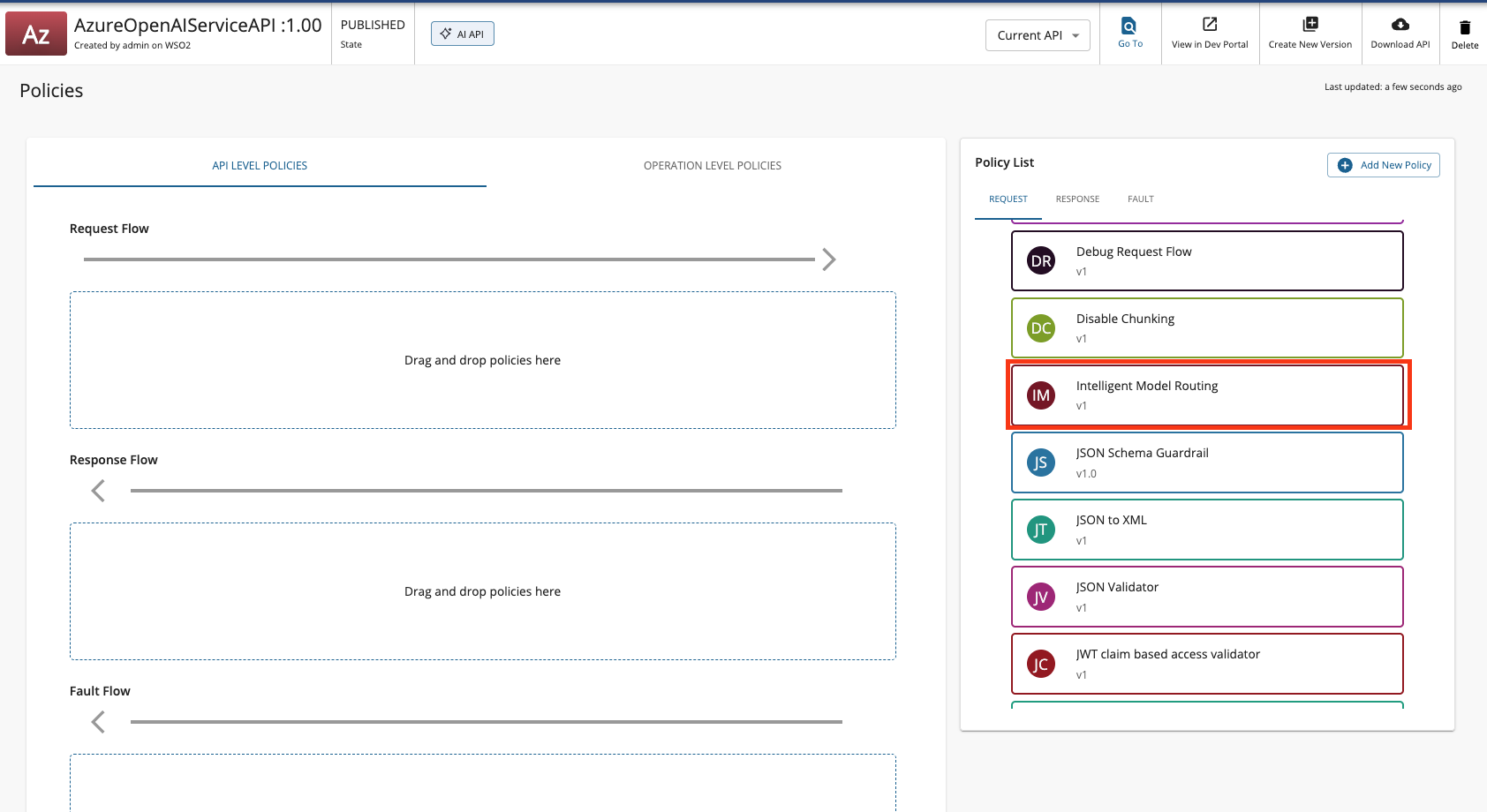
-
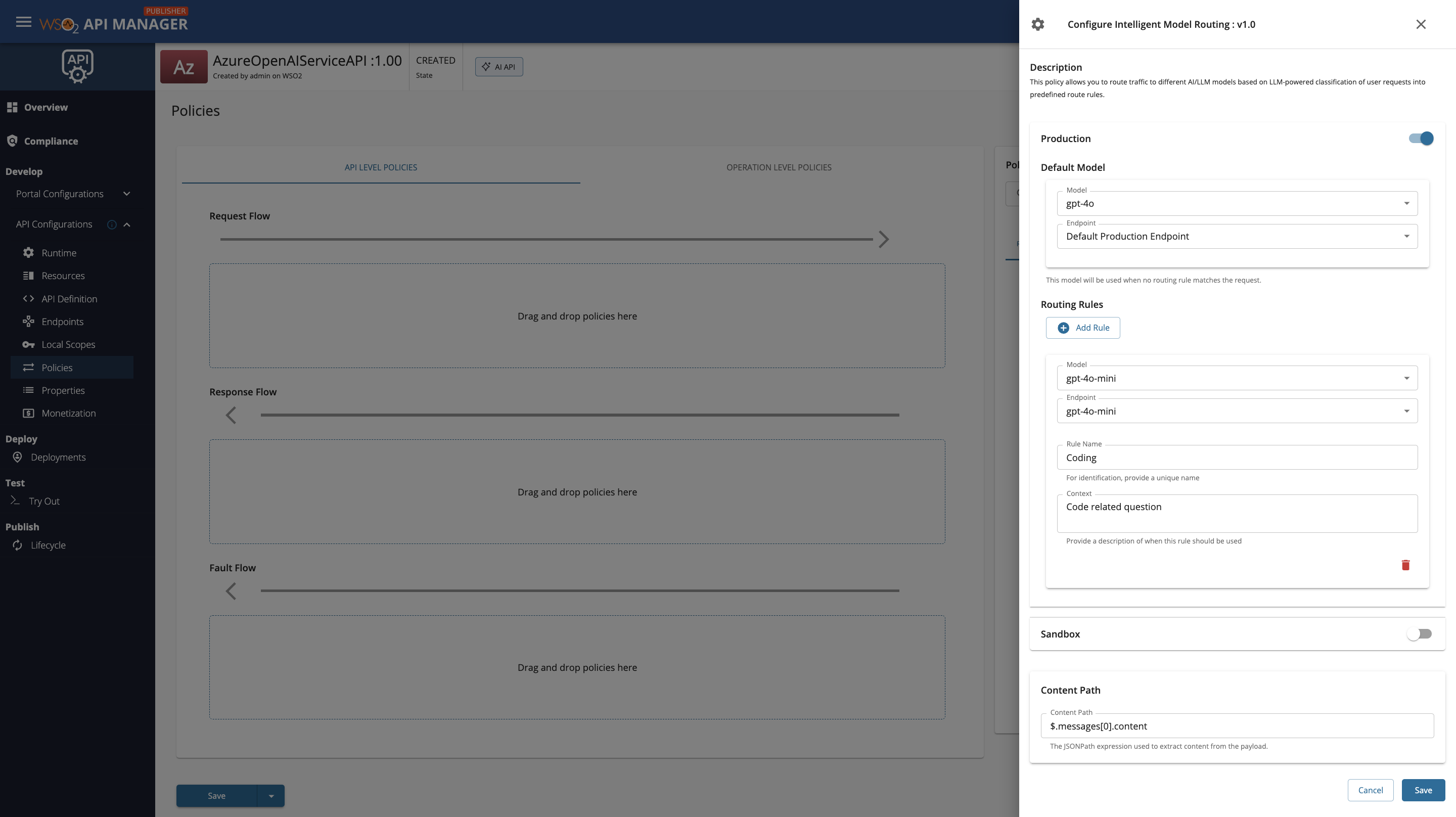
Fill in the requested details and click Save.
AWS Bedrock Configuration
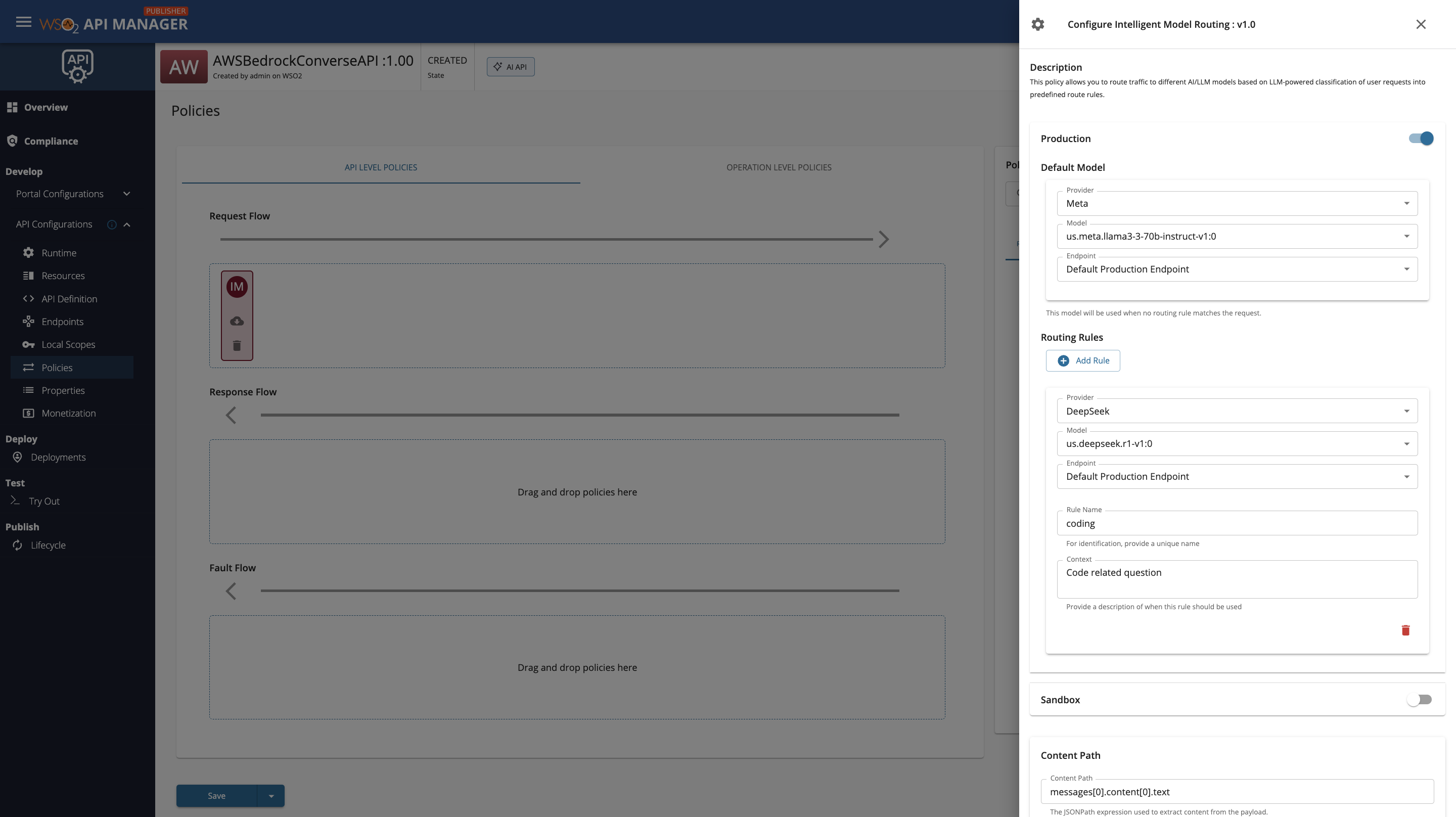
When configuring intelligent model routing with AWS Bedrock as a multi-model provider service, you must select both the Provider (model family) and the Model for each rule and the default model. The Provider dropdown lists the model families you have set up in the Admin Portal (such as Meta, Anthropic, DeepSeek, etc.), and once a provider is selected, the Model dropdown will display the specific models available under that provider.
Policy Configuration
Basic Configuration
| Field | Description | Example |
|---|---|---|
| Content Path | JSONPath expression to extract the user's request content from the payload | $.messages[-1].content |
Routing Rule Configuration
For each environment (Production/Sandbox), you can configure multiple routing rules:
| Field | Description | Required |
|---|---|---|
| Rule Name | A label for this rule. Can be any name you choose (e.g., Weather Information, Coding Questions, test123). The LLM uses this name to identify the matched rule. |
Yes |
| Context | A plain-language description of the types of requests this rule should handle. The LLM reads this description when classifying incoming requests. | Yes |
| Model | The target AI model to route matching requests to | Yes |
| Endpoint | The endpoint to route matching requests to | Yes |
Rule Names and the LLM
The Rule Name you provide is passed directly to the LLM classifier. Choose names that are meaningful to you — they do not need to follow any specific format. However, if you use a rule name like test123, ensure your context description clearly describes what requests should match, since the LLM relies on the context to make classification decisions.
Default Model Configuration
| Field | Description | Required |
|---|---|---|
| Default Model | The model to use when no routing rule matches | Yes |
| Default Endpoint | The endpoint for the default model | Yes |
Example Configuration
Click to expand configuration example
Scenario: Route weather-related queries to a specialized weather model and everything else to a general-purpose model. This example uses short keyword-style queries to demonstrate why Intelligent Model Routing is the recommended choice over Semantic Routing for such inputs.
- Create an AI API with multiple model endpoints configured.
- Add the Intelligent Model Routing policy with the following configuration:
Content Path: $.messages[-1].content
Production Routing Rules:
Rule 1
- Rule Name: Coding
- Context: Code Related Question
- Model: gpt-4o-mini
- Endpoint: gpt-4o-mini
Default Model:
- Model: gpt-4o
- Endpoint: gpt-4o
-
Save and deploy the API.
-
Test with different queries:
Request 1 (Routes to Coding):
{
  "messages": [
    {
      "role": "user",
      "content": "Generate a small HTML code"
    }
  ]
}
Request 2 — No match (Routes to Default Model):
{
  "messages": [
    {
      "role": "user",
      "content": "What is the weather forecast for tomorrow in Paris"
    }
  ]
}
Best Practices
- Write clear context descriptions: The LLM classification quality depends entirely on how well your context descriptions describe the intended request types. Be specific and list relevant topics.
- Use distinct contexts: Avoid overlapping context descriptions across rules. If two rules have similar descriptions, the LLM may classify requests inconsistently.
- Rule naming: Choose rule names that are meaningful to you. Descriptive names (e.g.,
Weather Information) make logs easier to read, but arbitrary names (e.g.,rule-A,test123) work equally well as long as the context is clear. - Default model: Always configure a capable default model to handle requests that do not match any rule.
- Testing: Test with both short keyword inputs and full sentences to verify that your context descriptions produce the expected routing behaviour.
- Monitoring: Monitor routing decisions in logs (enable debug logging) to identify rules that are being missed or incorrectly matched, and refine context descriptions accordingly.
Troubleshooting
Common Issues
| Issue | Possible Cause | Solution |
|---|---|---|
| All requests route to default model | Context descriptions are too vague or narrow | Rewrite context descriptions to more clearly cover the expected request types |
| Requests routing to wrong rule | Overlapping context descriptions | Make each rule's context more specific and distinct from other rules |
| Inconsistent routing for the same query | LLM non-determinism | Add a more explicit and detailed context description; ensure rule names are unambiguous |
| Classification fails entirely | LLM provider not configured or unreachable | Verify the LLM provider is correctly configured for the API and is reachable |
| Policy not applying | Incorrect content path | Check that the Content Path JSONPath expression correctly targets the user message field in your request payload |