Administrative Capabilities
WSO2 API Manager provides organization administrators the following administrative capabilities to manage rulesets and policies for governance.
Create and Manage Rulesets
The Rulesets Catalog provides a list of predefined governance rulesets that can be used to enforce security, compliance, and performance policies on Artifacts. Follow these steps to access the catalog and explore available rulesets.
- Log in to the API Manager Admin Portal.
- Go to the Governance section in the main menu.
- Click Rulesets Catalog to view all available rulesets.

Create a New Ruleset
To create a new ruleset, click on the Create Ruleset. When creating a new ruleset, you need to provide the following information:
| Field Name | Description | Mandatory | Options/Values |
|---|---|---|---|
| Name | The name of the ruleset. | Yes | - |
| Description | A brief description of the ruleset. | No | - |
| Documentation Link | A link to the documentation of the ruleset. | No | - |
| Ruleset Type | The type of the ruleset. | Yes | Definition, Metadata, Documentation |
| Artifact Type | The type of the Artifact. | Yes | REST API, Async API, MCP Server |
| Ruleset Content | Refer Writing Your Own Ruleset section. Define the ruleset content using the Spectral-like format. You can either write the rules manually or upload a pre-written ruleset YAML or JSON file. | Yes | - |
After providing the required information, click on the Create button to create the ruleset.
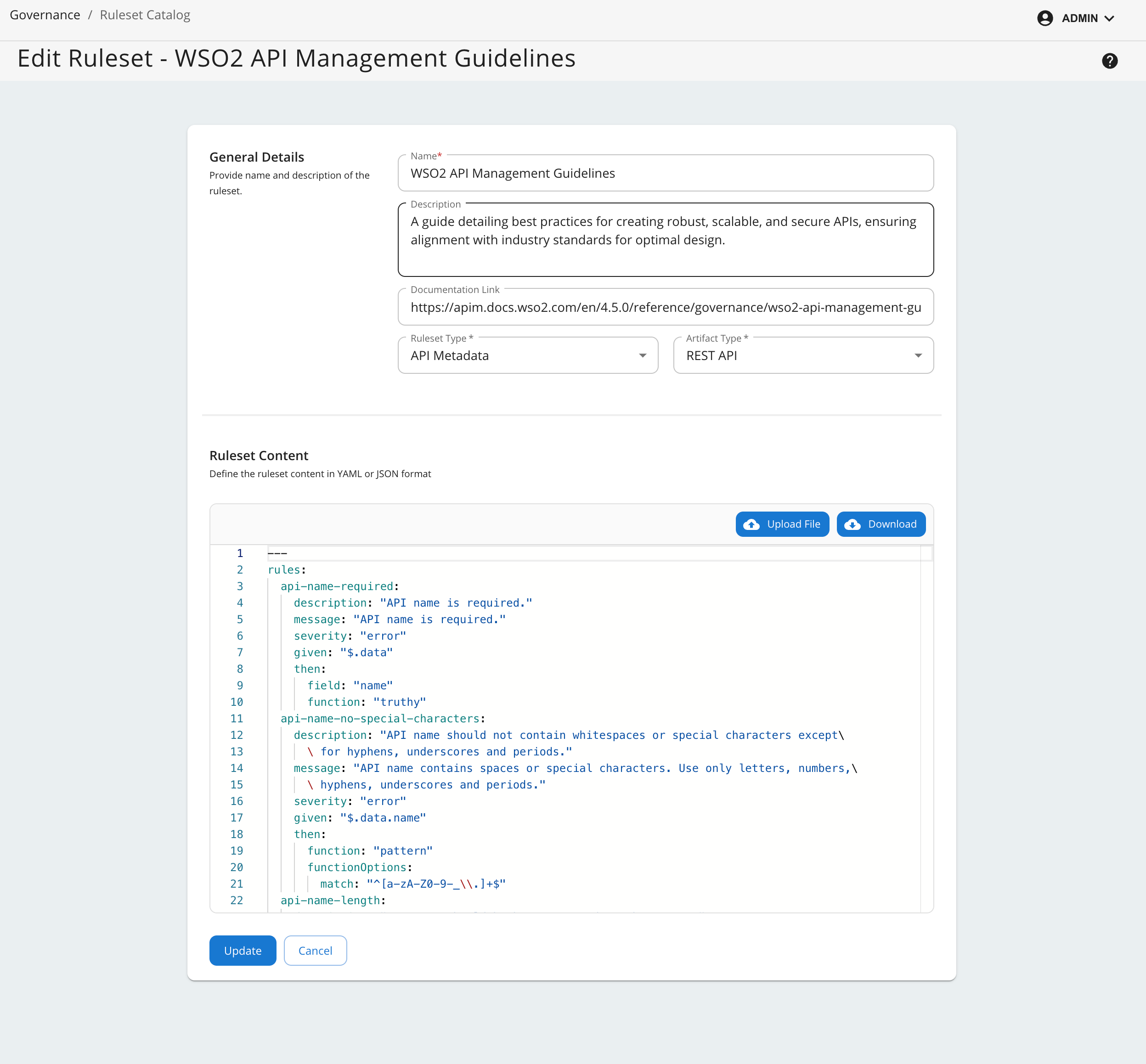
Writing Your Own Ruleset
Please refer to the WSO2 Rule Validator Documentation to understand the ruleset format and how to write your own ruleset.
- If Ruleset Type is selected as Definition, the ruleset should only contain rules that can be validated against the Artifact definition file (OpenAPI or AsyncAPI).
- If Ruleset Type is selected as Metadata, the ruleset should only contain rules that can be validated against the API's YAML Representation.
- If Ruleset Type is selected as Documentation, the ruleset should only contain rules that can be validated against the Documentation YAML Representation. This representation is common for all artifact types.
Default Rulesets
WSO2 API Manager comes with a set of default rulesets that cover common governance aspects such as security, compliance, and performance. These rulesets can be used as-is or customized to meet specific organizational requirements. These include,
- WSO2 API Management Guidelines - An API Metadata ruleset that applies to REST APIs and covers general API management guidelines.
- WSO2 REST API Design Guidelines - An API Definition ruleset that applies to REST APIs and covers design best practices.
- OWASP Top 10 - An API Definition ruleset that applies to REST APIs and covers best practices for securing APIs against OWASP Top 10 vulnerabilities.
- WSO2 MCP Server Management Guidelines - An MCP Metadata ruleset that applies to MCP Servers and covers general MCP guidelines.
Deleting Default Rulesets
Deleting default rulesets from the list of rulesets is not sufficient. You must also remove the corresponding default ruleset files located in the <APIM_HOME>/repository/resources/governance/default-rulesets directory.
Updating an Existing Ruleset
Updating an existing ruleset which is already attached to a policy will trigger a compliance check for all Artifacts associated with the policy. The compliance check will be performed in the background, and the results will be displayed in the compliance dashboard.
Create and Manage Policies
The Policies section in the API Manager Admin Portal provides a list of governance policies that can be enforced on Artifacts. Follow these steps to access the policies section and explore available policies.
- Navigate to the Governance section in the API Manager Admin Portal.
- Click Policies to view the list of available policies.
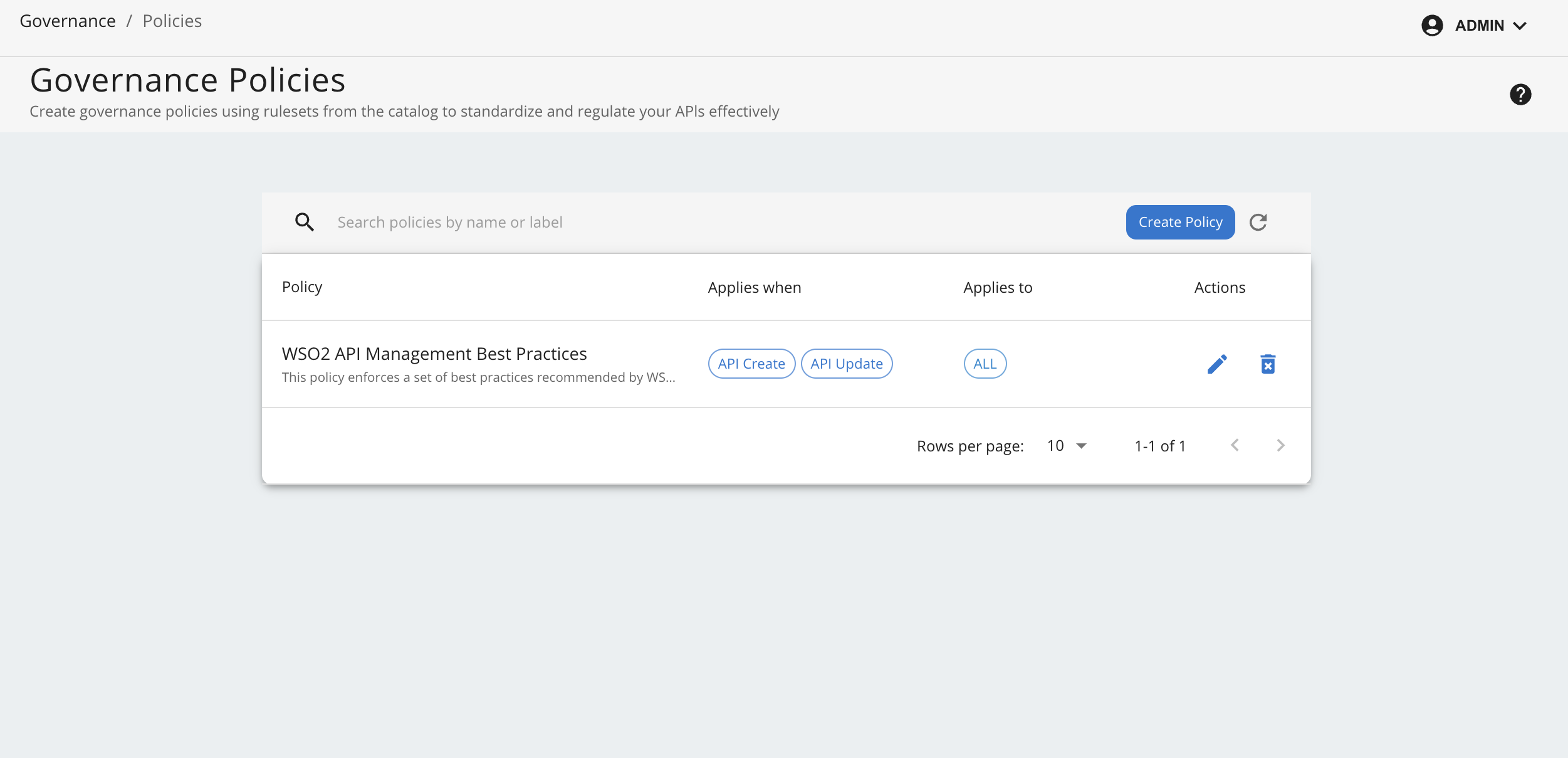
Create a new Policy
To create a new policy, click the Create Policy button and provide the following details:
| Field Name | Description | Mandatory | Options/Values |
|---|---|---|---|
| Name | The name of the policy. | Yes | - |
| Description | A brief description of the policy. | No | - |
| Attachment | The way the policy is attached to the Artifacts. | Yes | All Artifacts (REST, ASYNC and MCP Server) Artifacts with specific labels None |
| Enforcement | The detail of the policy enforcement criteria. | Yes | When to Enforce Create, Update, Deploy, Publish Actions to Take (based on severity of rule violations) Notify, Block |
| Rulesets | The list rulesets included in the policy. | Yes | - |
After providing the required information, click on the Create button to create the policy.
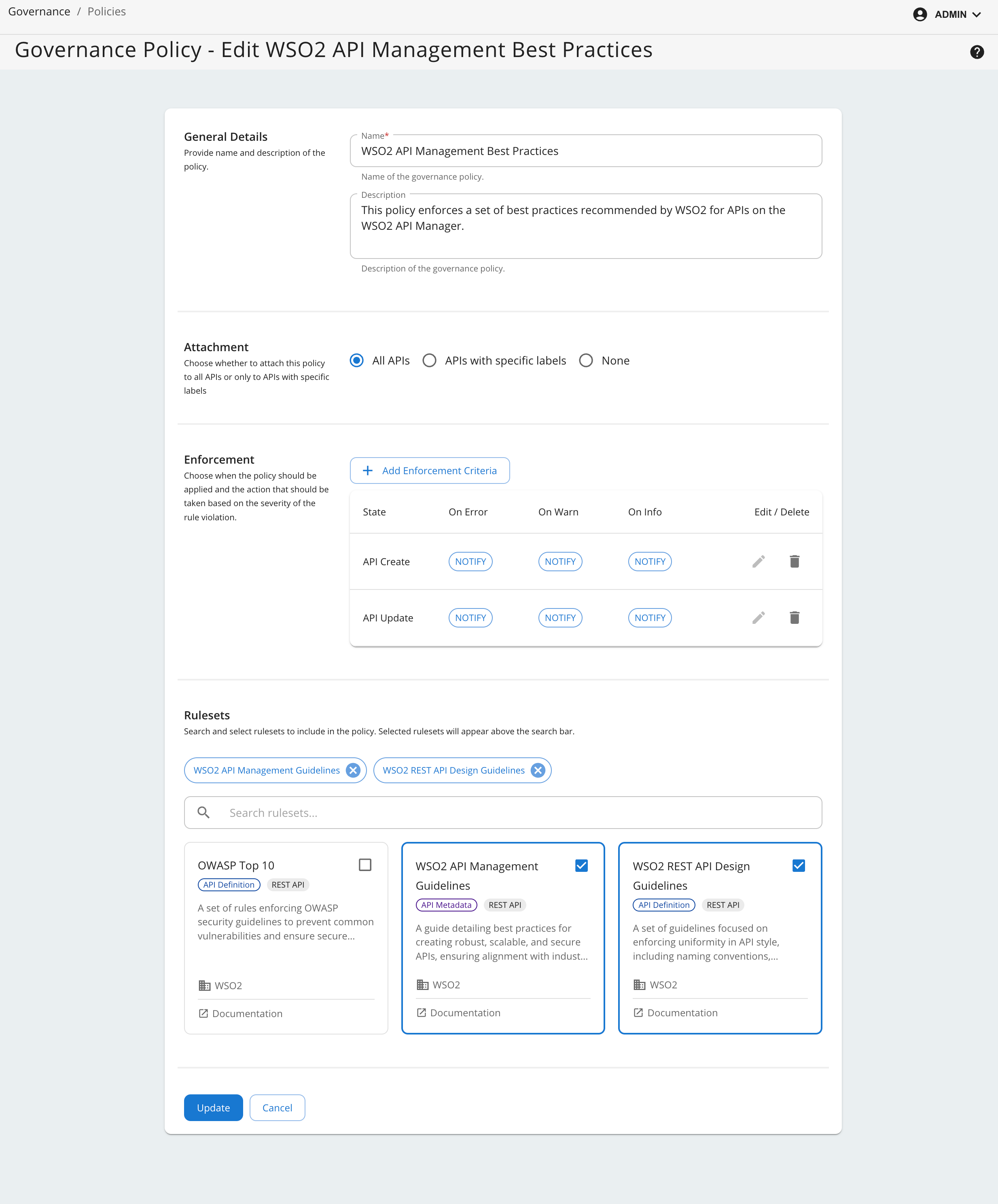
Default Policies
WSO2 API Manager comes with a default governance policy named WSO2 API Management Best Practices. This policy is a high-level policy that includes the WSO2 API Management Guidelines ruleset. This policy can be used as-is or customized to meet specific organizational requirements.
It includes the following rulesets.
- WSO2 API Management Guidelines
- WSO2 REST API Design Guidelines
- WSO2 MCP Server Management Guidelines
Deleting or Disabling Default Policies
- Deleting default policies from the policy list is not sufficient. You must also remove the corresponding default policy files located in the
<APIM_HOME>/repository/resources/governance/default-policiesdirectory. - Instead of deleting a policy, you can disable it by updating the policy settings so that it does not apply to any APIs through the publisher portal.
- During migration, it is recommended to disable the default policy by updating the
labelsfield in the default policy YAML files in the<APIM_HOME>/repository/resources/governance/default-policiesdirectory to an empty list. - After migration is complete, you can update the policy through the admin portal to apply it to all APIs as needed.
Creating or Updating a Policy
Creating a new policy or updating an existing policy will schedule a compliance check for all Artifacts associated with the policy. The compliance check will be performed in the background, and the results will be displayed in the compliance dashboard.
Compliance Monitoring
Compliance monitoring is a key aspect of governance. It ensures that artifacts adhere to the defined governance policies and rulesets. The Compliance Dashboard provides a comprehensive view of the compliance status of artifacts. Follow these steps to access the dashboard:
- Log in to the API Manager Admin Portal.
- Go to the Governance section in the main menu.
- Click Compliance to view the compliance status of Artifacts.
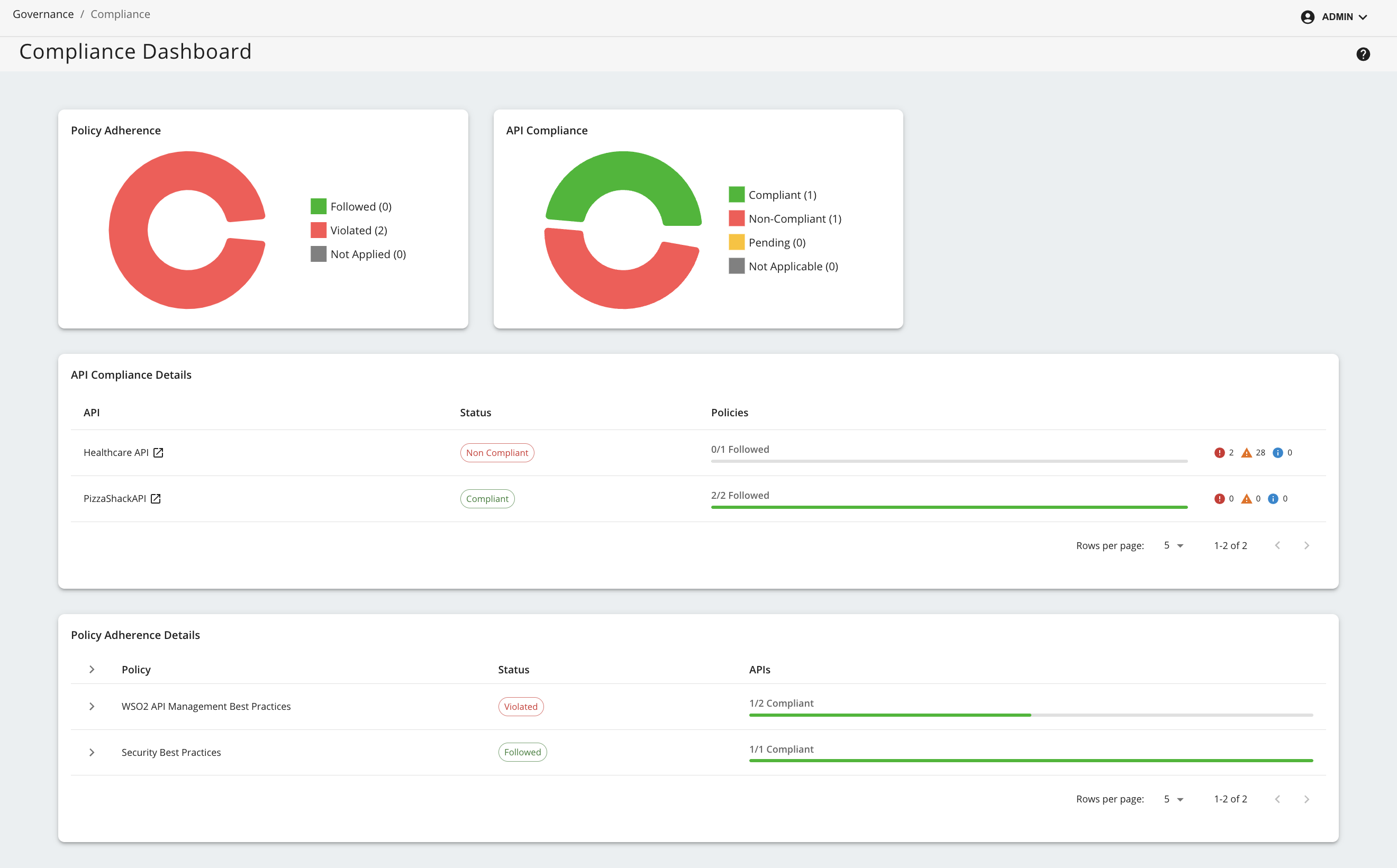
Policy Adherence
This widget gives a summary of the policies deployed in the system with a breakdown of the number of policies that are followed, violated and not applied to any Artifacts.
Artifact Compliance
This widget provides a summary of the compliance status of Artifacts with a breakdown of the number of Artifacts that are compliant, non-compliant, pending compliant results, and not applied to any policies.
Artifact Compliance Details
This widget provides a detailed overview of an Artifact's compliance status, including compliance level of associated policies.
Policy Adherence Details
This widget offers a detailed overview of each policy's compliance, including the overall policy status and the compliance status of each Artifact governed by the policy.
Artifact-Specific Compliance View
By clicking on each Artifact listed in Artifact Compliance Details widget, an Artifact compliance page will be displayed. This page provides a detailed view of the Artifact's compliance status, including a breakdown of the compliance status for each policy attached to the Artifact.
Configuration Options
The background compliance evaluation tasks are conducted by a scheduler which by default runs every 2 minutes and consists of a thread pool of 20 threads and a queue size of 20. These values can be updated by updating the following configuration in the deployment.toml file located in the <APIM_HOME>/repository/conf directory.
For more information refer the configuration catalog.
[apim.governance.scheduler]
thread_pool_size = 20 # Number of threads in the thread pool, be cautious when changing this value as it can affect the performance
queue_size = 20 # Size of the queue, be cautious when changing this value as it can affect the performance
task_check_interval_minutes = 2 # Interval in minutes to check for compliance tasks
task_cleanup_interval_minutes = 30 # Interval in minutes to clean up any stale tasks