B2B API Consumption
Before API-M 4.5.0, WSO2 API Manager operated without a defined organizational structure, maintaining a flat hierarchy. This led to limitations, including a lack of control over API visibility, business-specific subscriptions, and business-level insights. With the introduction of B2B features, you can now achieve a more structured approach.
Note
This release only provides support for organization-based restrictions in the Developer Portal.
Set Up an Organization-Supported Identity Server
The WSO2 API Manager B2B Organization feature is compatible with any Identity Server that supports organization hierarchies. To utilize the Identity Server's organization hierarchy within API Manager, we need to configure it as a federated identity provider. This documentation uses WSO2 Identity Server 7.1.0 as an example, due to its built-in organization support.
For more information on setting up WSO2 Identity Server 7.1.0, see Setup WSO2 Identity Server as a federated authenticator
Set Up WSO2 API Manager
-
Import the Key Manager certificate into the WSO2 API Manager
client-truststore.jksfile.Export the WSO2 Identity Server certificate.
openssl s_client -connect localhost:9444 -servername wso2is7 | openssl x509 > is7.certImport this certificate into the
client-truststore.jksfile inAM_HOME/repository/resources/security/.keytool -import -alias wso2is7cert -file is7.cert -keystore client-truststore.jks -storepass wso2carbon -
Add a new local claim to store the organization ID. Go to Home > Identity > Claims > Add, select
Add Local Claim, and fill in the form. Usehttp://wso2.org/claims/organizationIdas the claim URI.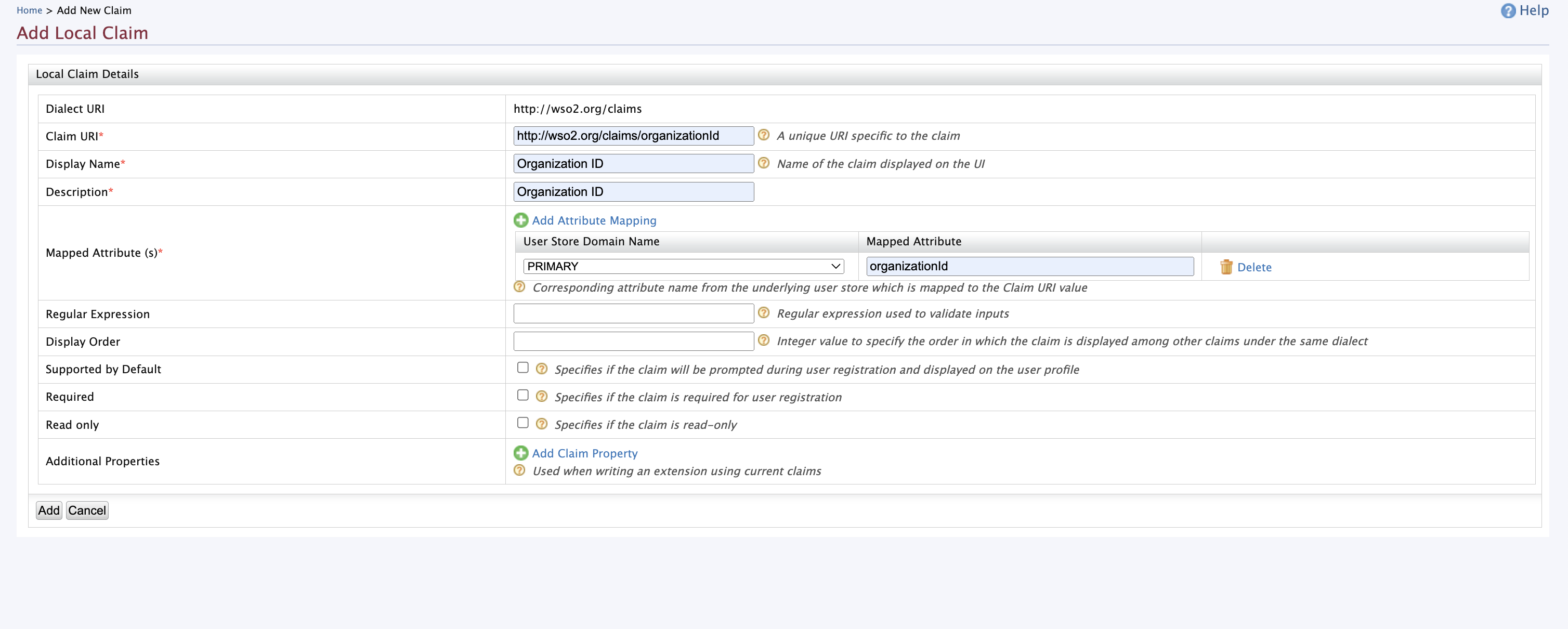
-
Add
org_idandorg_nameto the OIDC claims and map them to the local claimshttp://wso2.org/claims/organizationIdandhttp://wso2.org/claims/organization(this claim is pre-defined in API-M). To do this, go to Home > Identity > Claims > Add and selectAdd External Claim.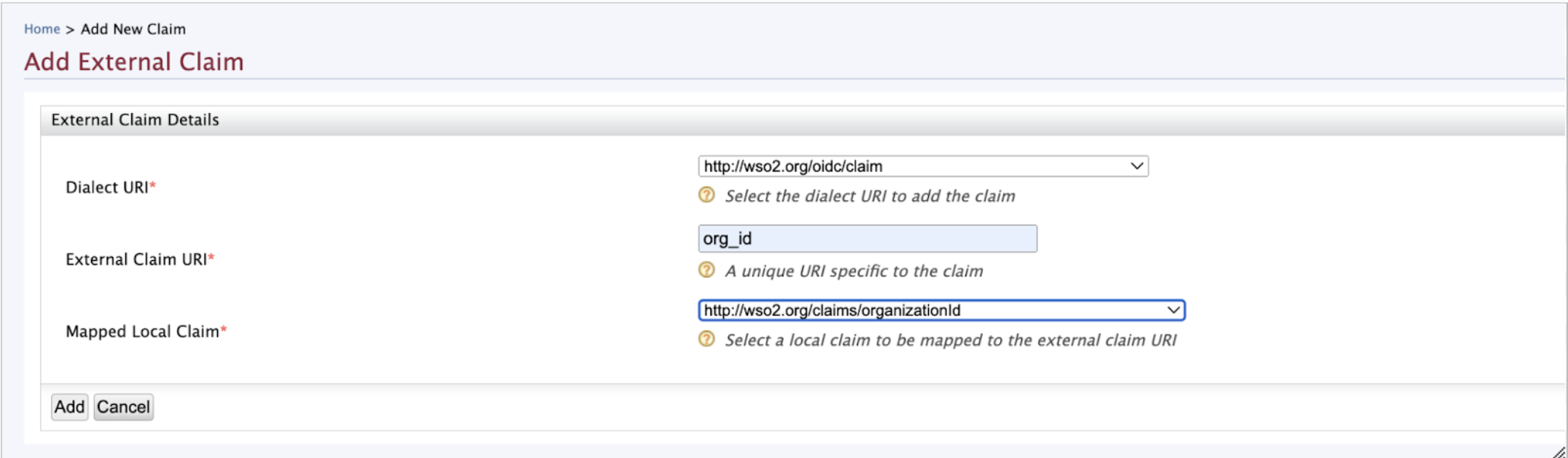

-
Once added, the claims will be visible under the
http://wso2.org/oidc/claimclaim dialect.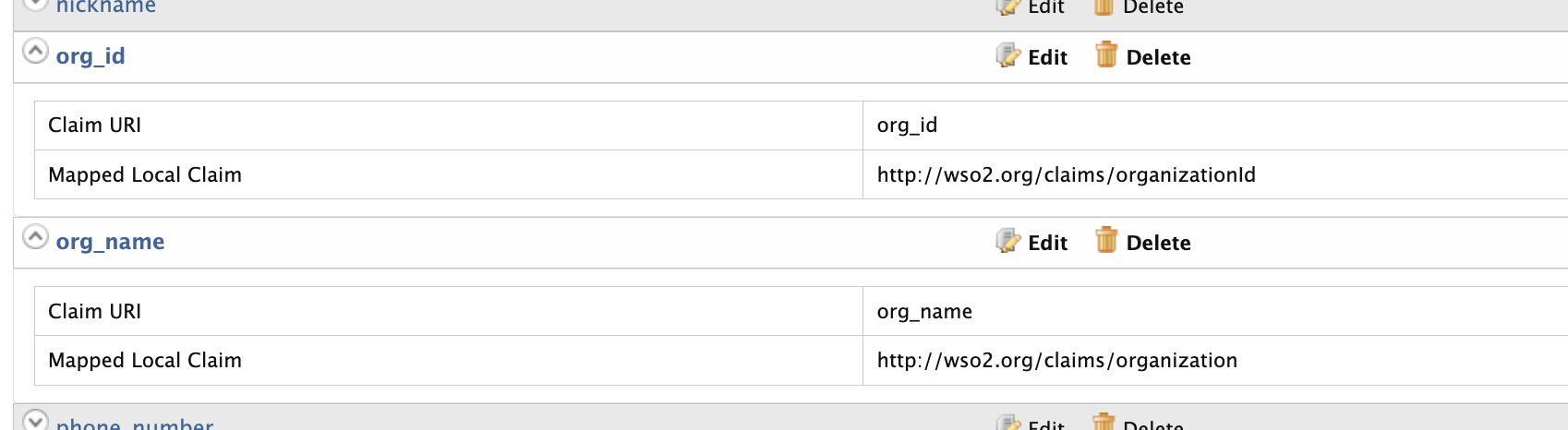
-
Configure WSO2 IS 7.1 as a federated identity provider for API Manager. Create a new identity provider by selecting
Identity Providers→Add, and then set a name for the IDP. -
Expand
Claim Configurationand thenBasic Claim Configuration. Select theDefine Custom Claim Dialectradio button, and add the required claim mappings using theAdd Claim Mappingbutton. -
Set the
User ID Claim URItousernameand theRole Claim URItogroups.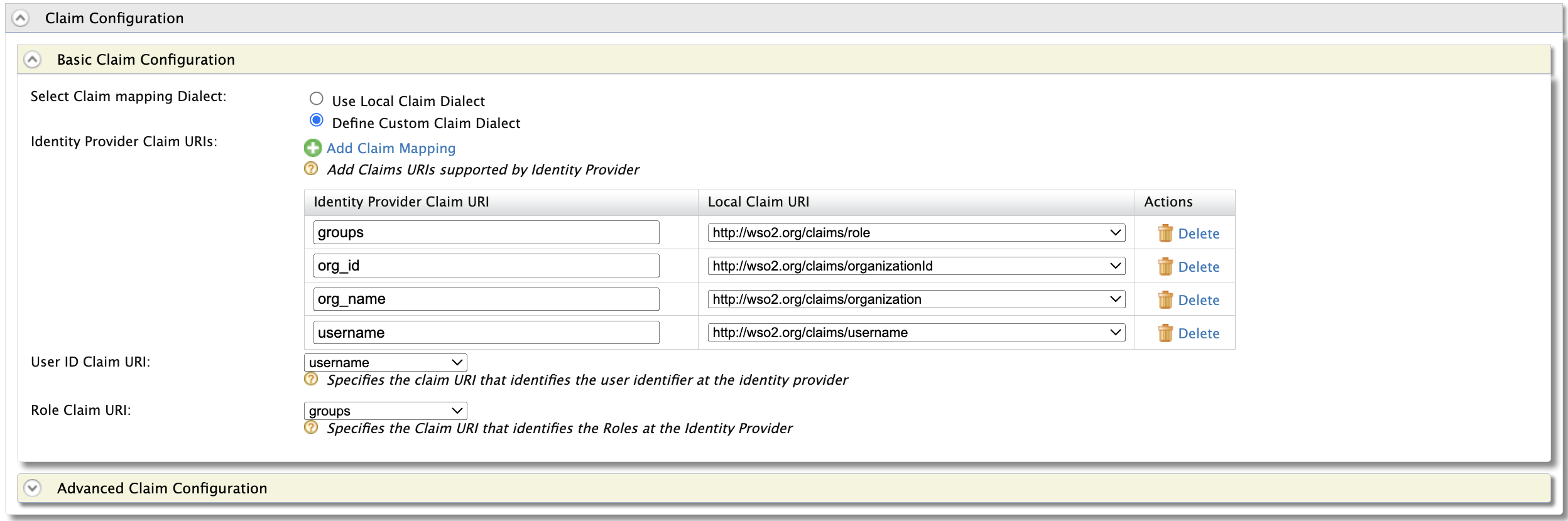
Note
org_name,org_id,username, andgroupsare OIDC claims sent from WSO2 IS. If an external IDP is configured, map the corresponding claims. -
Under
Role Configuration, map the IDP groupdeveloperto the local roleInternal/subscriber. Configure the other groups similarly.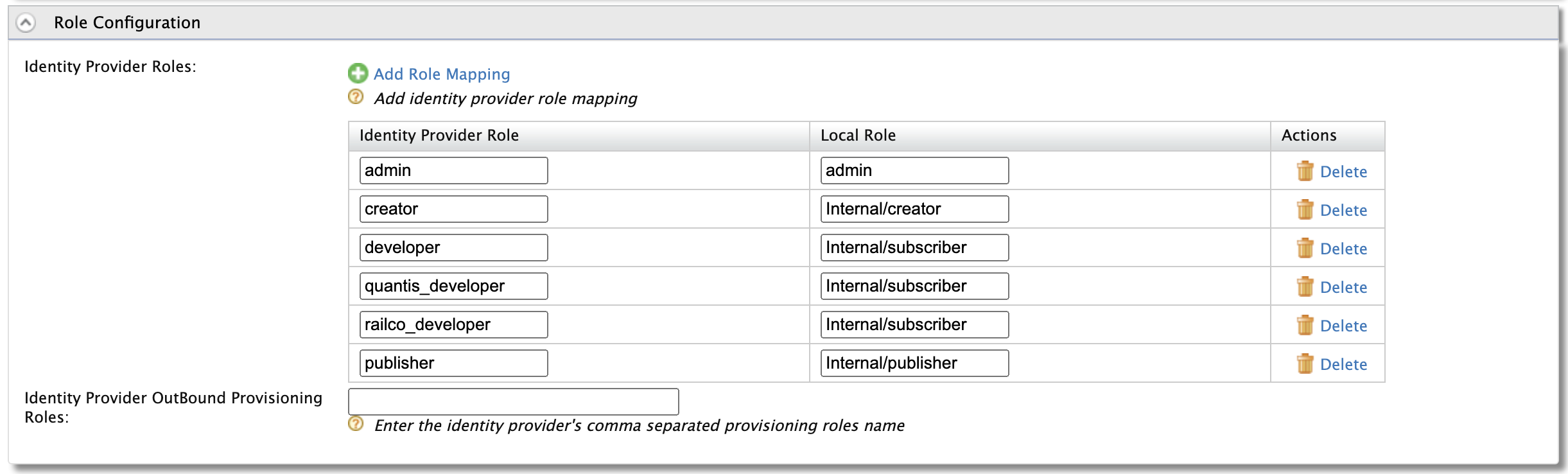
-
Under the
Federated Authenticatorssection, configure IS 7 as the federated authenticator using the OAuth2 application details.Setting Value Enable OAuth2/OpenIDConnect true (check the checkbox) Scopes openid groups Callback URL https://localhost:9443/commonauth 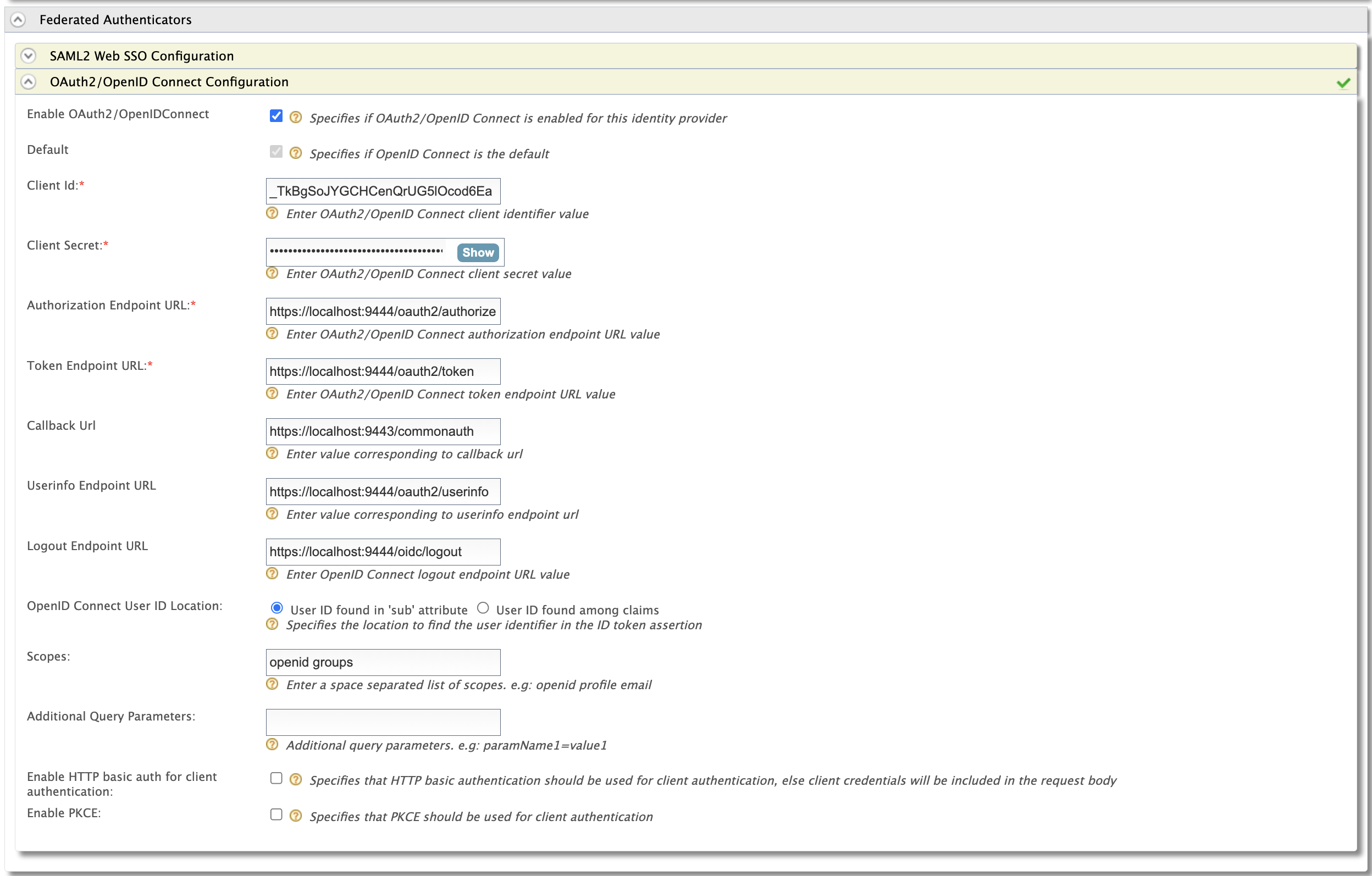
You can find the URLs for the other endpoints in the
Infotab of the application created in Identity Server.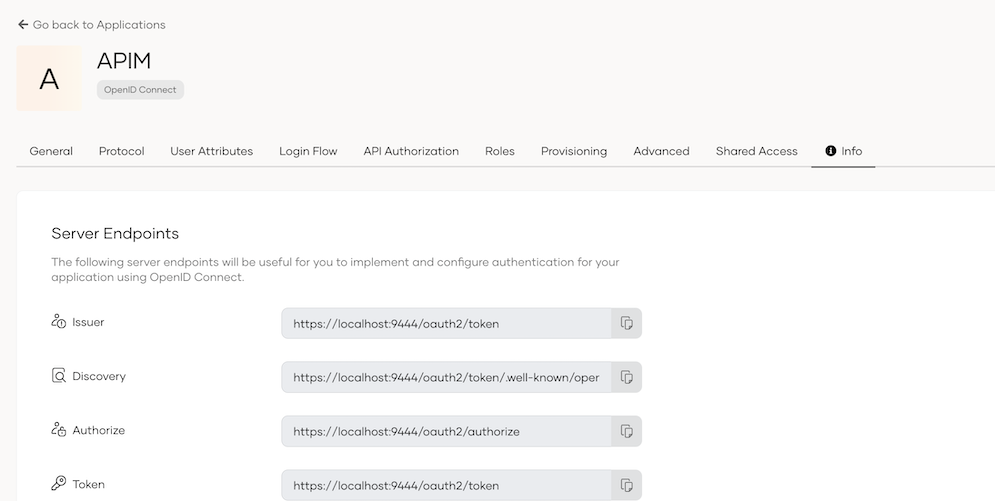
-
Under
Just-in-Time Provisioning, configure provisioning as shown below. Finish the IDP configuration by clickingRegister.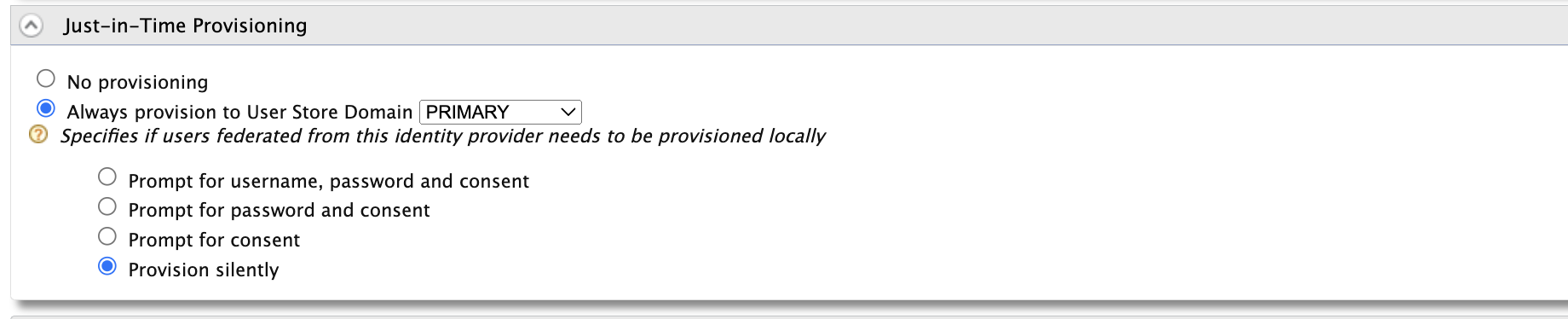
-
Next, configure authenticators for the service providers. Go to the
Service Providerssection and select the edit button forapim_devportal.
Note
If these service providers are not available, first log in to the respective portal. They will be created automatically.
-
Under the
Local & Outbound Authentication Configurationsection, set the identity provider you created earlier under theFederated Authenticationsection.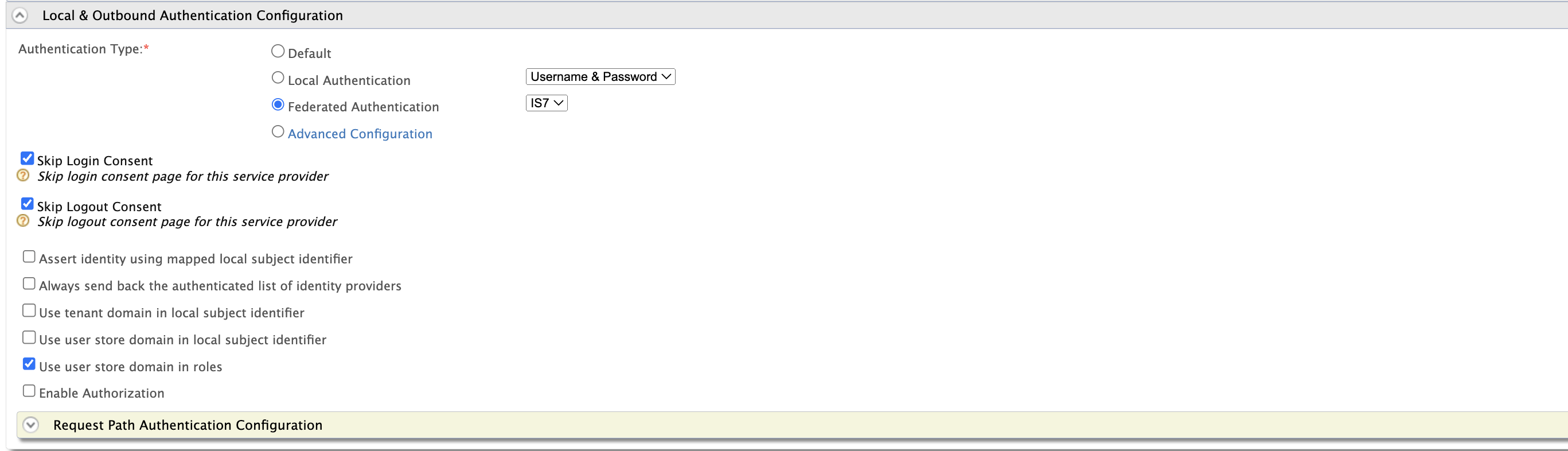
-
Repeat the same configuration for the service providers of the other portals.
Register Organizations in API Manager
First, map the organizations in the Identity Server to API Manager.
-
Log in to the Admin Portal at https://localhost:9443/admin/ using
orgadmin.Note
You cannot use
admin/adminfor this step because the locally created admin user does not belong to any organization. -
Go to the
Organizationstab and selectRegister Organization. Use the organization IDs that you obtained during the organization registration step in WSO2 IS.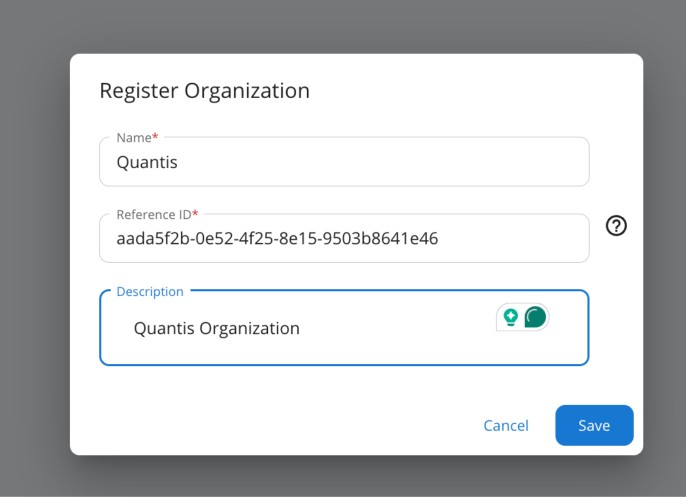
Register Organization-specific key managers
WSO2 IS 7.1 provides the capability to register OAuth applications within organizations. As a result, it will have organization-specific URLs for OAuth-related operations. We will register organization-specific key managers and set visibility exclusively for users within the organization.
- Log in to the Admin Portal using
orgadmin, go to theKey Managerssection, and add a new key manager. - Provide a name and display name. Select the key manager type as
WSO2 Identity Server 7. -
Fill in the form as follows. Replace
org_idwith the external reference ID used during organization registration. You can use https://localhost:9444/oauth2/token/.well-known/openid-configuration as the well-known URL and then update the following endpoints.Endpoint URL Issuer https://localhost:9444/oauth2/tokenClient Registration Endpoint https://localhost:9444/t/carbon.super/o/<org_id>/api/identity/oauth2/dcr/v1.1/registerIntrospect Endpoint https://localhost:9444/t/carbon.super/o/<org_id>/oauth2/introspectToken Endpoint https://localhost:9444/t/carbon.super/o/<org_id>/oauth2/tokenToken Display Endpoint https://localhost:9444/t/carbon.super/o/<org_id>/oauth2/tokenRevoke Endpoint https://localhost:9444/t/carbon.super/o/<org_id>/oauth2/revokeDisplay Revoke Endpoint https://localhost:9444/t/carbon.super/o/<org_id>/oauth2/revokeAuthorize Endpoint https://localhost:9444/t/carbon.super/o/<org_id>/oauth2/authorizeScope Management Endpoint https://localhost:9444/api/identity/oauth2/v1.0/scopesWSO2 Identity Server 7 API Resource Management Endpoint https://localhost:9444/api/server/v1/api-resourcesWSO2 Identity Server 7 Roles Endpoint https://localhost:9444/scim2/v2/Roles -
Under the
Available Organizationssection, select the organization.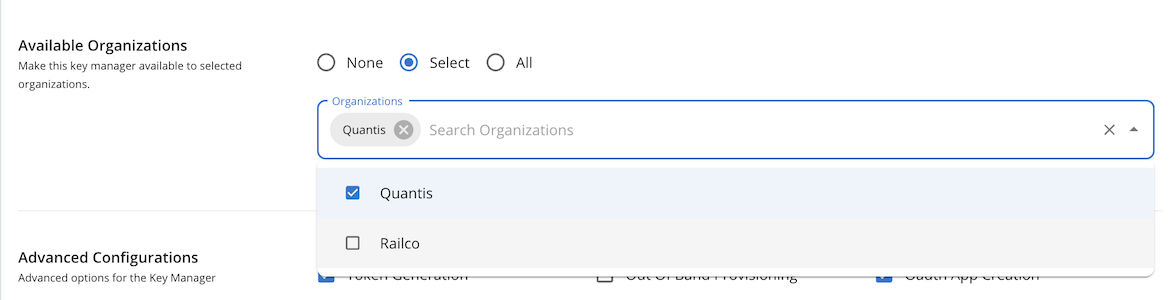
-
Under
Advanced Configurations, setToken Handling Optionsto JWT and set the organization ID used previously for key manager registration as shown below.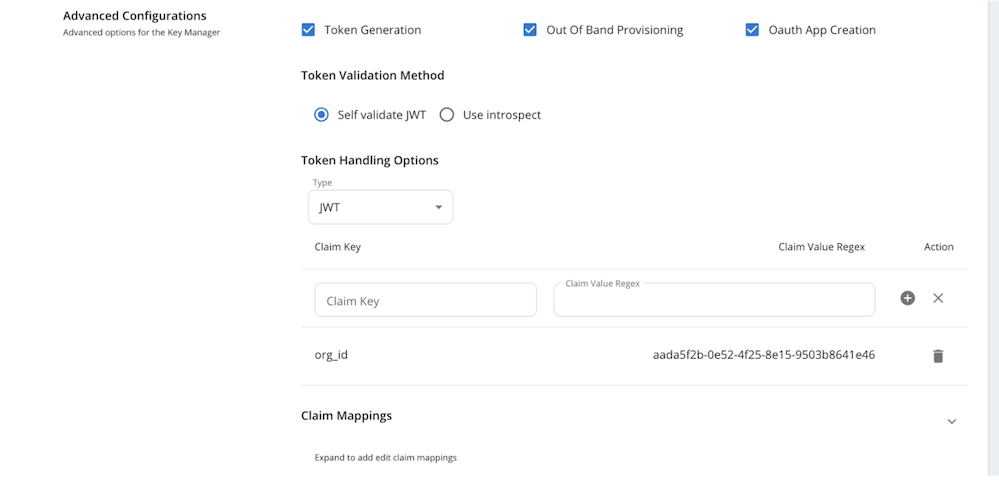
Set Organization Visibility for APIs
You can set APIs to be visible to users in all organizations, the current organization, or a selected set of organizations.
- Log in to the Publisher Portal using a user with the creator and publisher roles. In this example,
larry. - Create an API and fill the required data.
- Go to the
Lifecyclepage and publish the API. -
On the top bar, click
Share.
-
Select the organizations to share the API with, choose the organization-specific business plans, and save the changes.
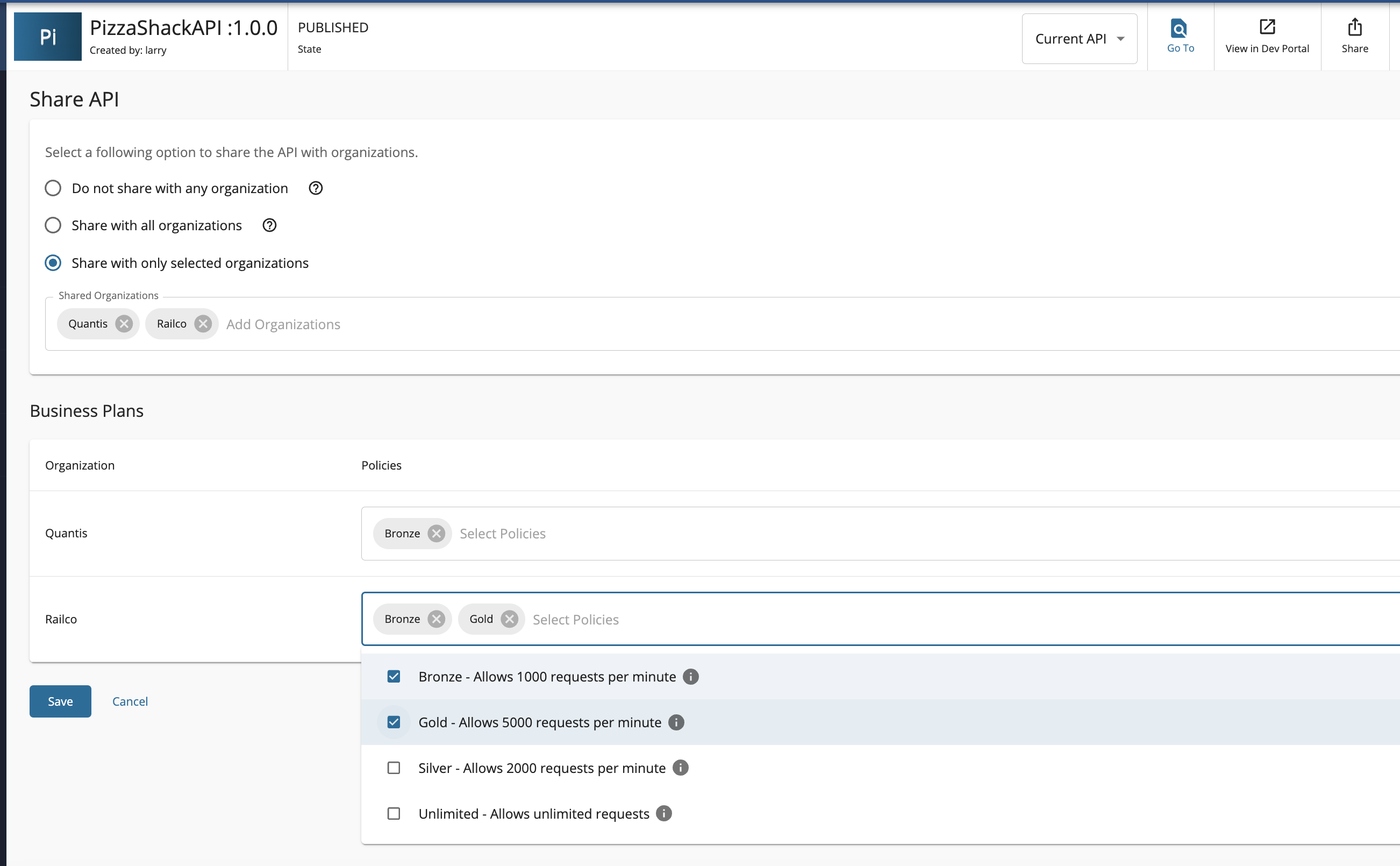
Note
APIs with Developer Portal visibility set to
publicare still not visible on the anonymous Developer Portal page if they have been shared with an organization. To make them visible in the Developer Portal without user login, set the organization visibility toAll Organizations.Note
Organization visibility is not supported for API products in this release.
Log in to the Developer Portal and invoke the API
-
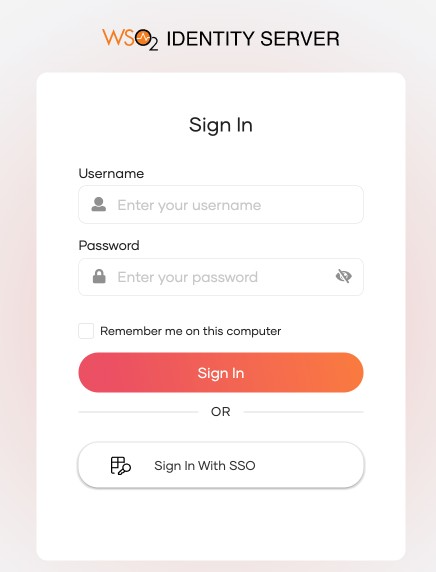
Go to the Developer Portal and click the login button.
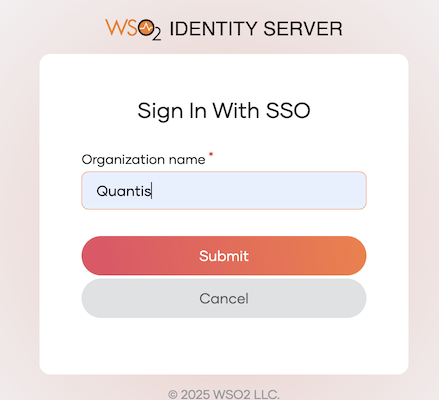
-
Use the SSO option and enter the organization name.
-
You should be able to see APIs shared with this organization.
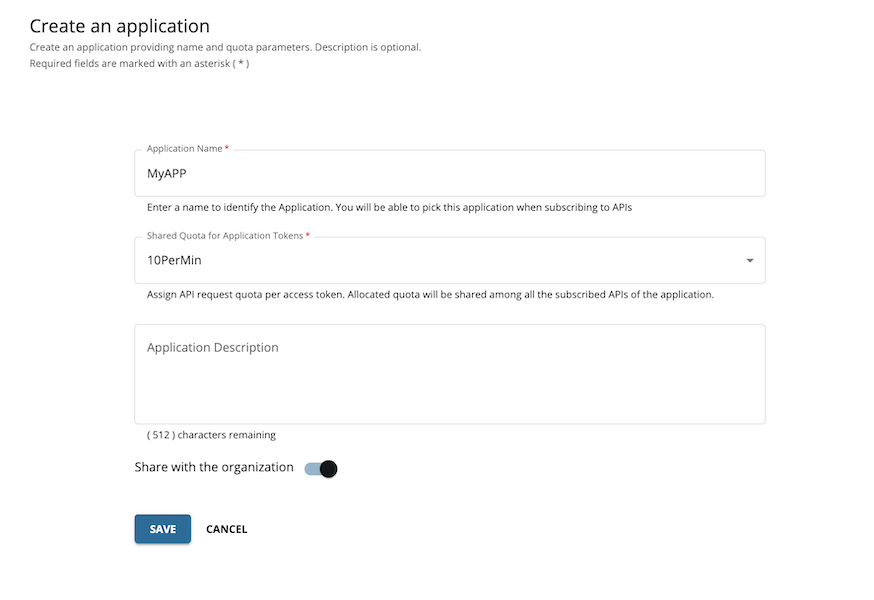
-
Create an application. You also have the option to share the application with all users within the organization.
-
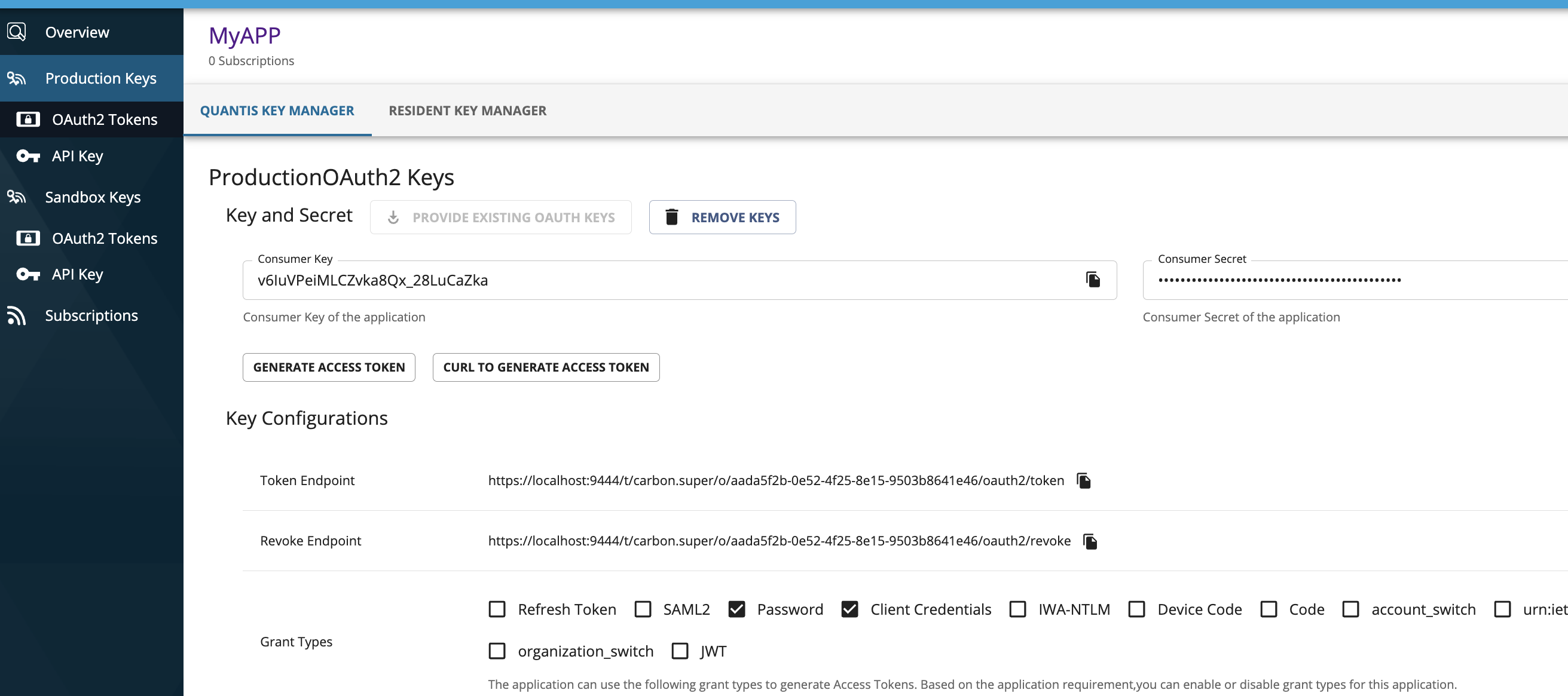
Under the application keys section, you will see the key manager configured specifically for this organization.
-
You should be able to generate an access token and invoke the API now.
-
Logout and attempt to log in again with a different user from another organization.
Note
When running both API Manager and WSO2 Identity Server on the same host (localhost), you may encounter an issue where a Developer Portal user does not log out when switching between two users within the same organization. This occurs due to both servers sharing the same host. In a production setup, this issue does not arise as the servers are hosted separately. To overcome this issue, you can use a private browser window for testing locally or set up WSO2 Identity Server on a different host.
If the Identity Server is running on a different host and you encounter an issue with logout session removal, set
logoutSessionStateAppenderto an empty value in the following files.<AM_HOME>/repository/deployment/server/webapps/publisher/site/public/conf/settings.json <AM_HOME>/repository/deployment/server/webapps/admin/site/public/conf/settings.json <AM_HOME>/repository/deployment/server/webapps/devportal/site/public/theme/settings.json
Tip
Although this feature is enabled by default, organization visibility features are available only after you register organizations. You can explicitly disable this feature by adding the following configuration.
[apim.organization_based_access_control]
enable = false