Setup WSO2 Identity Server as a Federated Authenticator
WSO2 Identity Server 7.1.0 includes B2B organization support. The following instructions detail how to configure it as a federated authenticator for WSO2 API Manager.
Configure WSO2 Identity Server
- Download WSO2 Identity Server 7.1.0.
- Add the following configuration to the
<IS7_HOME>/repository/conf/deployment.tomlfile.[oauth] authorize_all_scopes = true [oauth.oidc.user_info] remove_internal_prefix_from_roles=true [[resource.access_control]] context="(.*)/scim2/Me" secure=true http_method="GET" cross_tenant=true permissions=[] scopes=[] [role_mgt] allow_system_prefix_for_role = true -
Start WSO2 Identity Server with a port offset. Port offset is required only if you are running both API-M and IS 7.x in the same JVM.
sh wso2server.sh -DportOffset=1 -
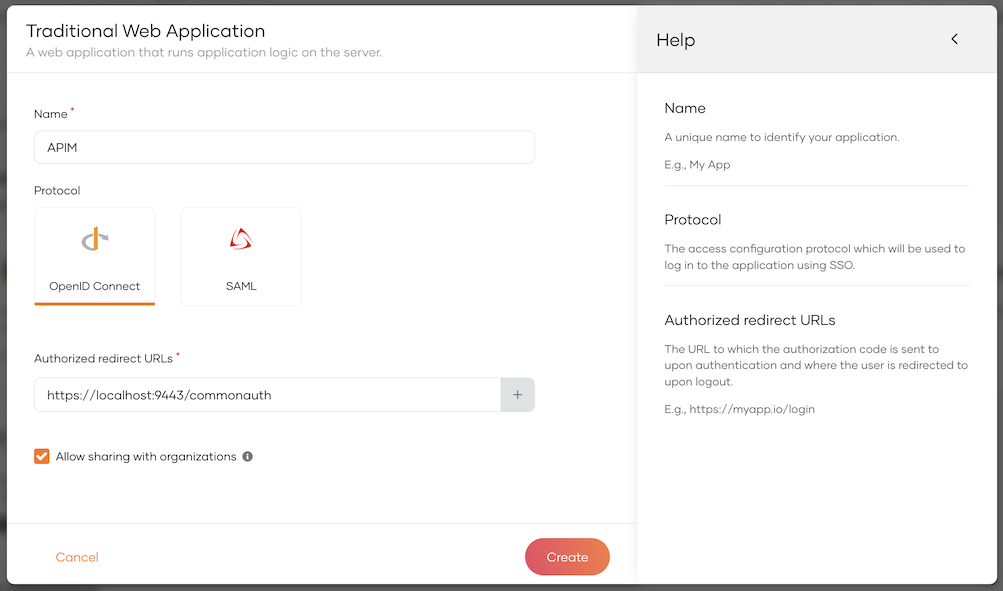
Log in to the IS Console at https://localhost:9444/console and create a new application.
- Select
Traditional Web Applicationand complete the form. - Set the Redirect URL to https://localhost:9443/commonauth.
- Select
-
Select the
Allow sharing with organizationsoption.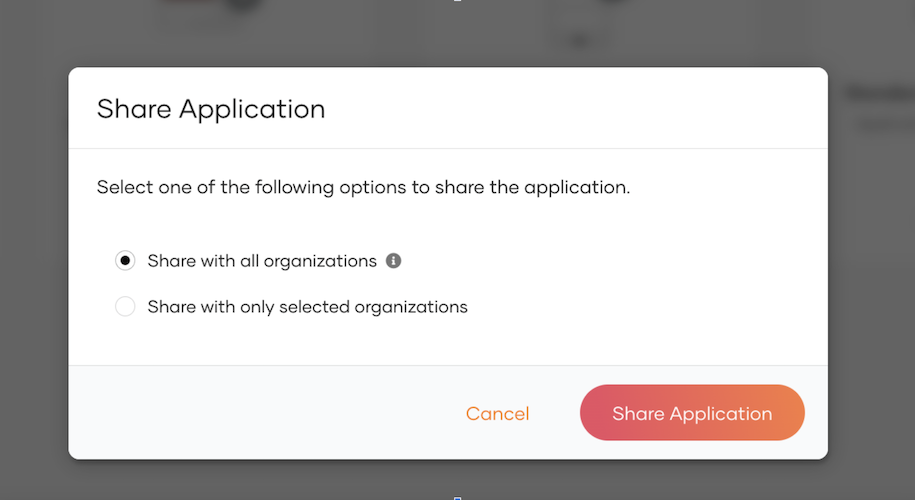
-
Once the application is created, go to the
Protocoltab and copy the Client ID and Client Secret for later use. -
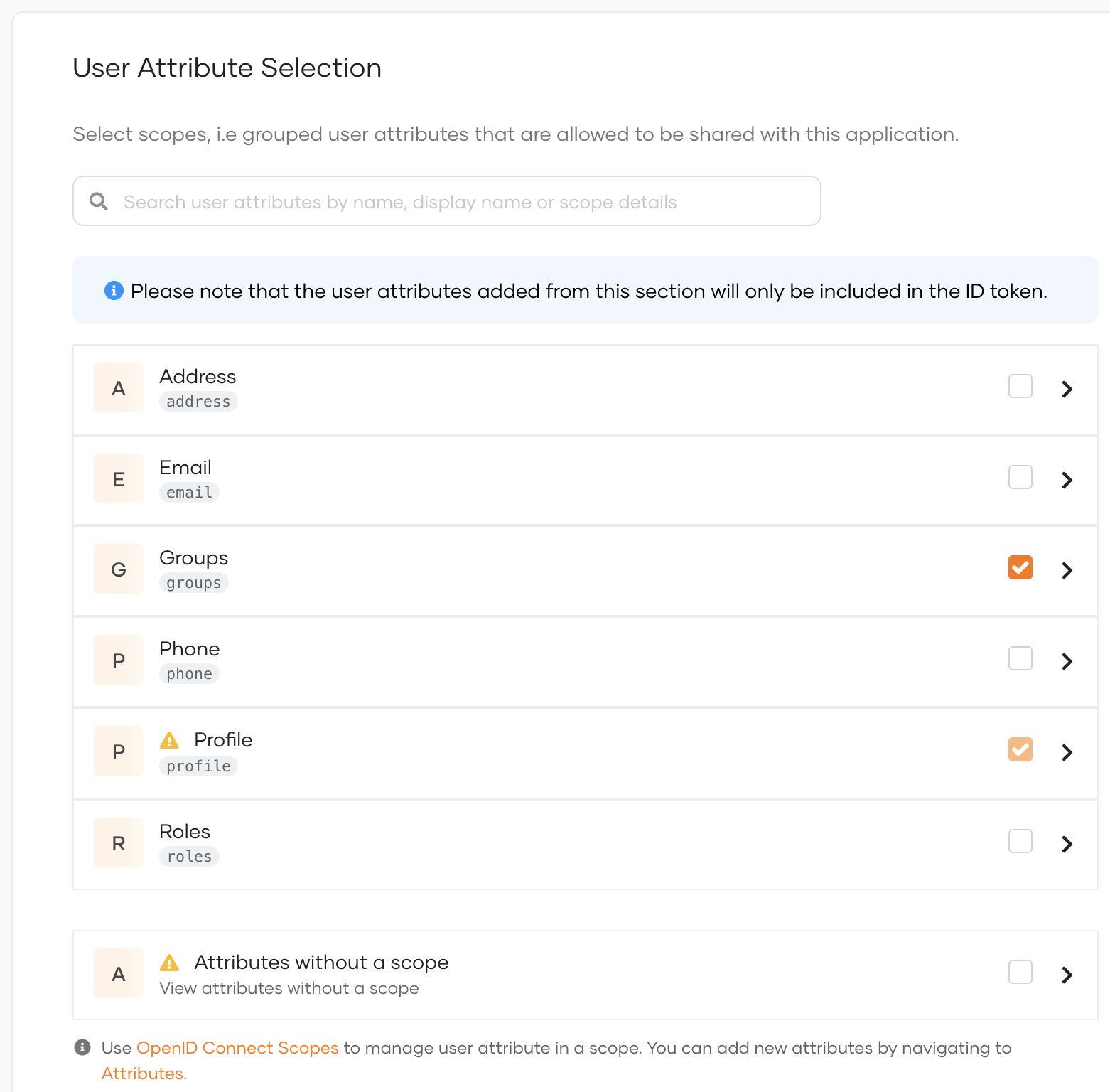
Go to the User Attributes tab and select Groups.
-
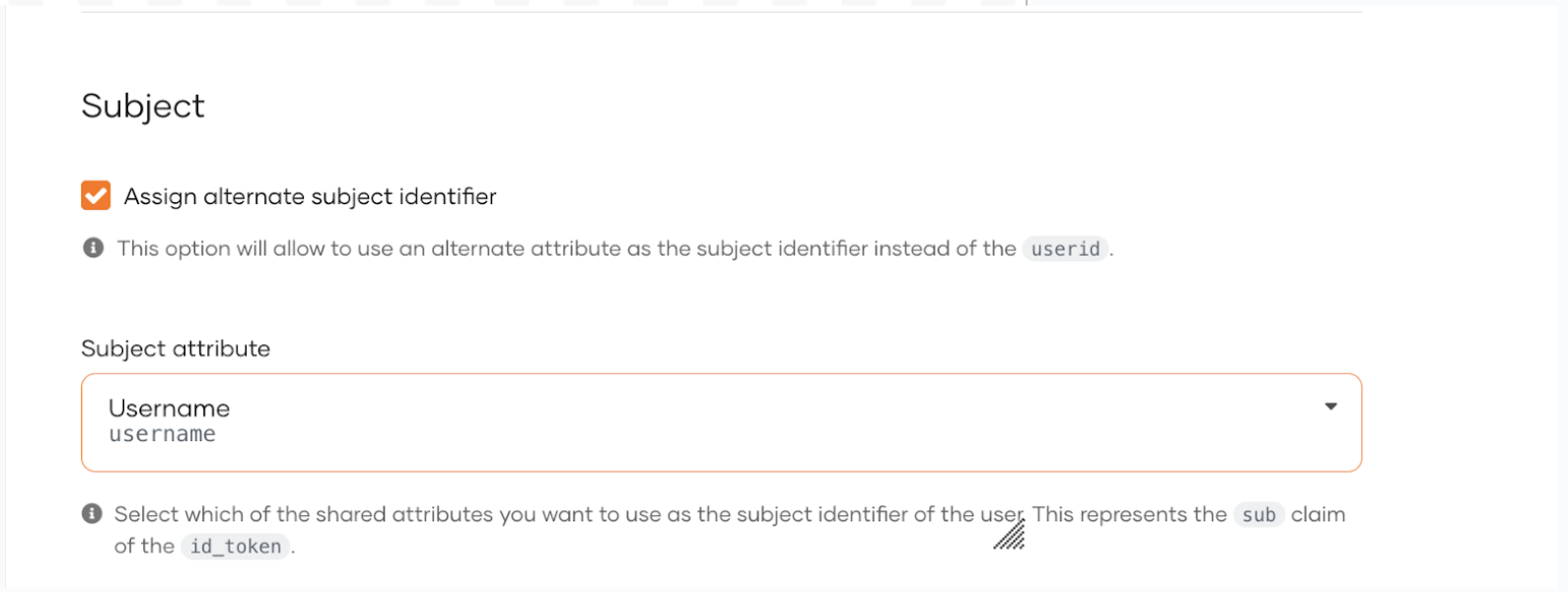
Under the Subject sub-section, select Assign alternate subject identifier and then select Username.
-
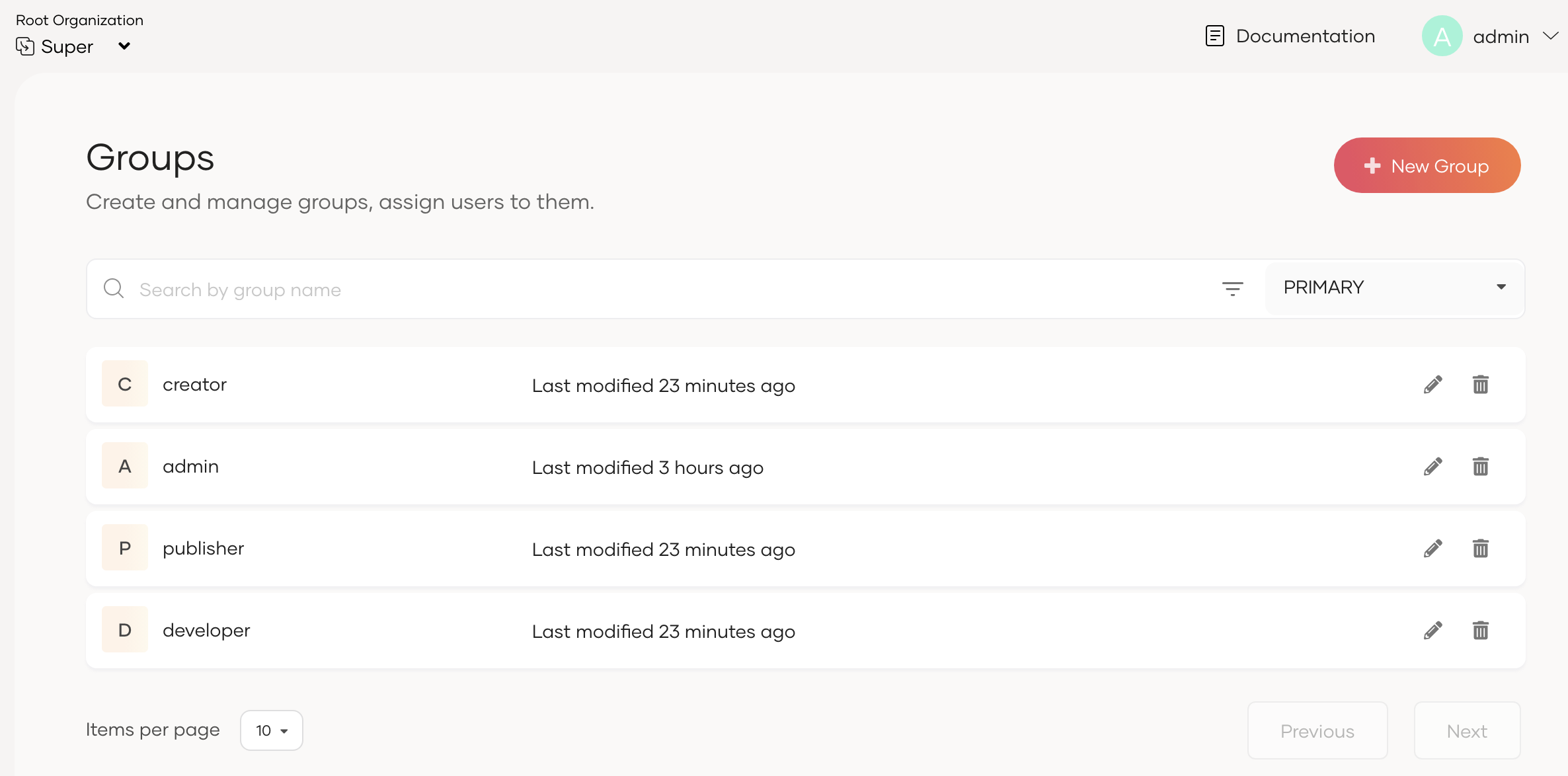
Go to the User Management menu item, navigate to the Groups sub-menu item, and add the following groups: developer, publisher, and creator.
-
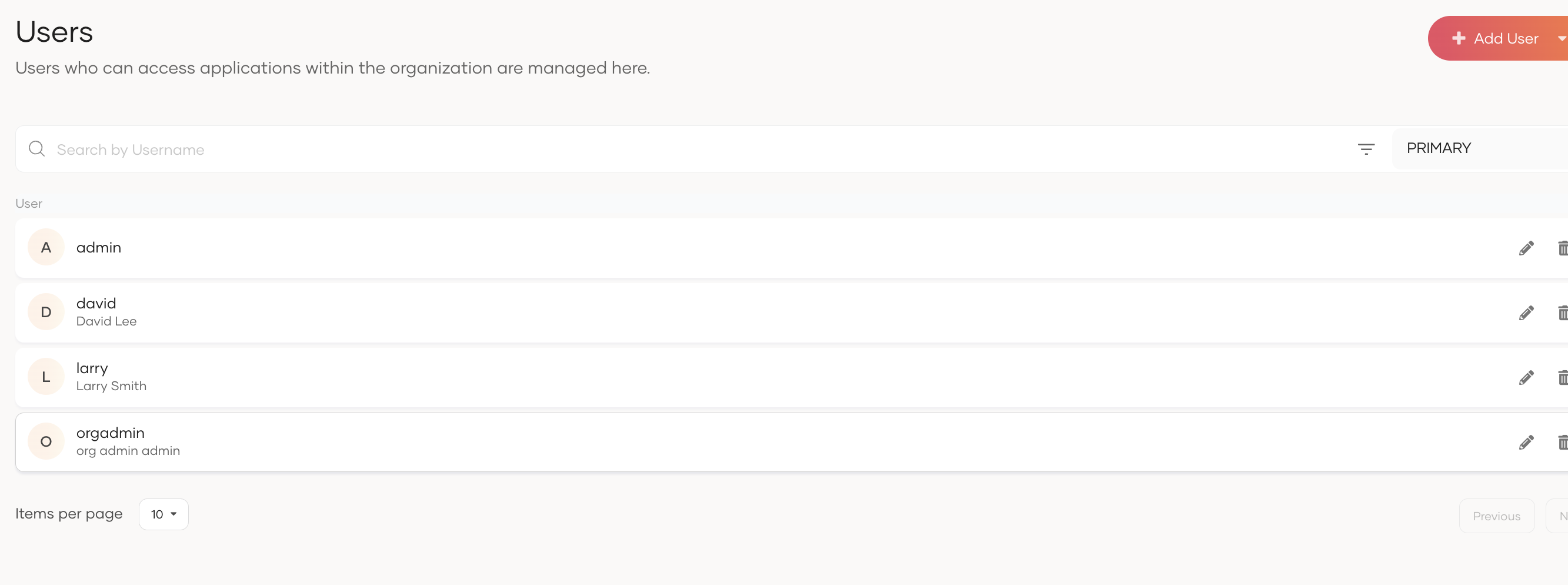
Go to the User Management menu item, navigate to the Users sub-menu item, and create three users—one for each portal. Make sure to assign the respective group to each user during user creation.
In this example:
orgadmin→ admin (Assign predefined admin group, or create a new group intended for administrative access in API-M)larry→ publisher, creatordavid→ developer
-
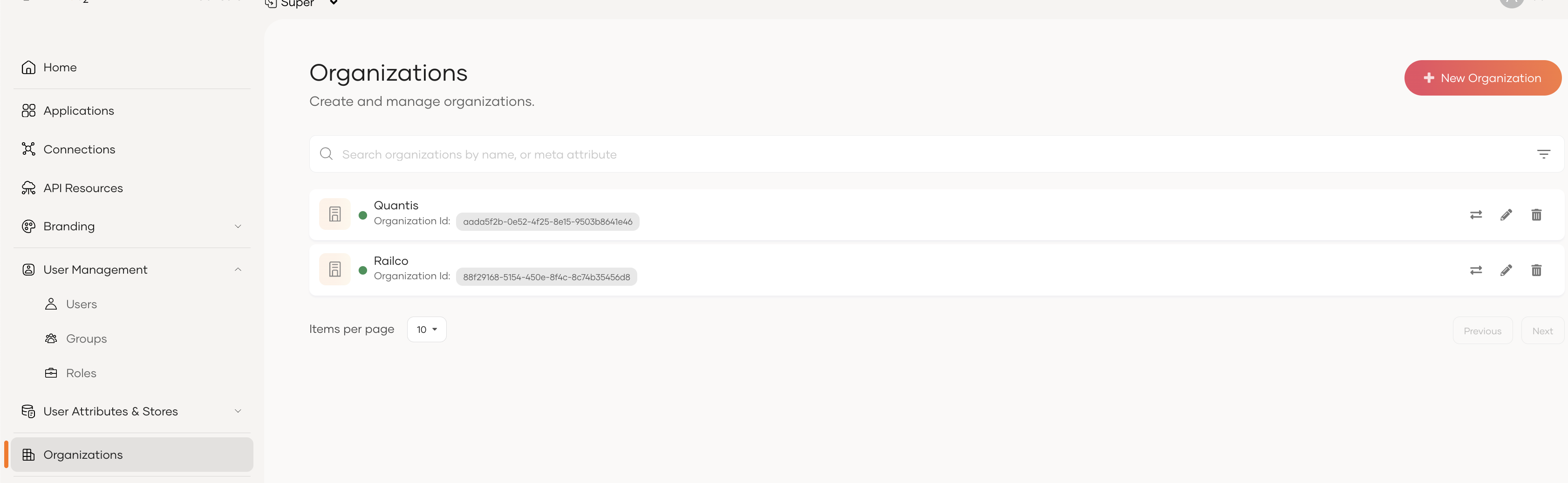
Next, create organizations. Select Organization and create a few new organizations. Note down the organization IDs.
-
Select the organization and click Switch to Organization.

-
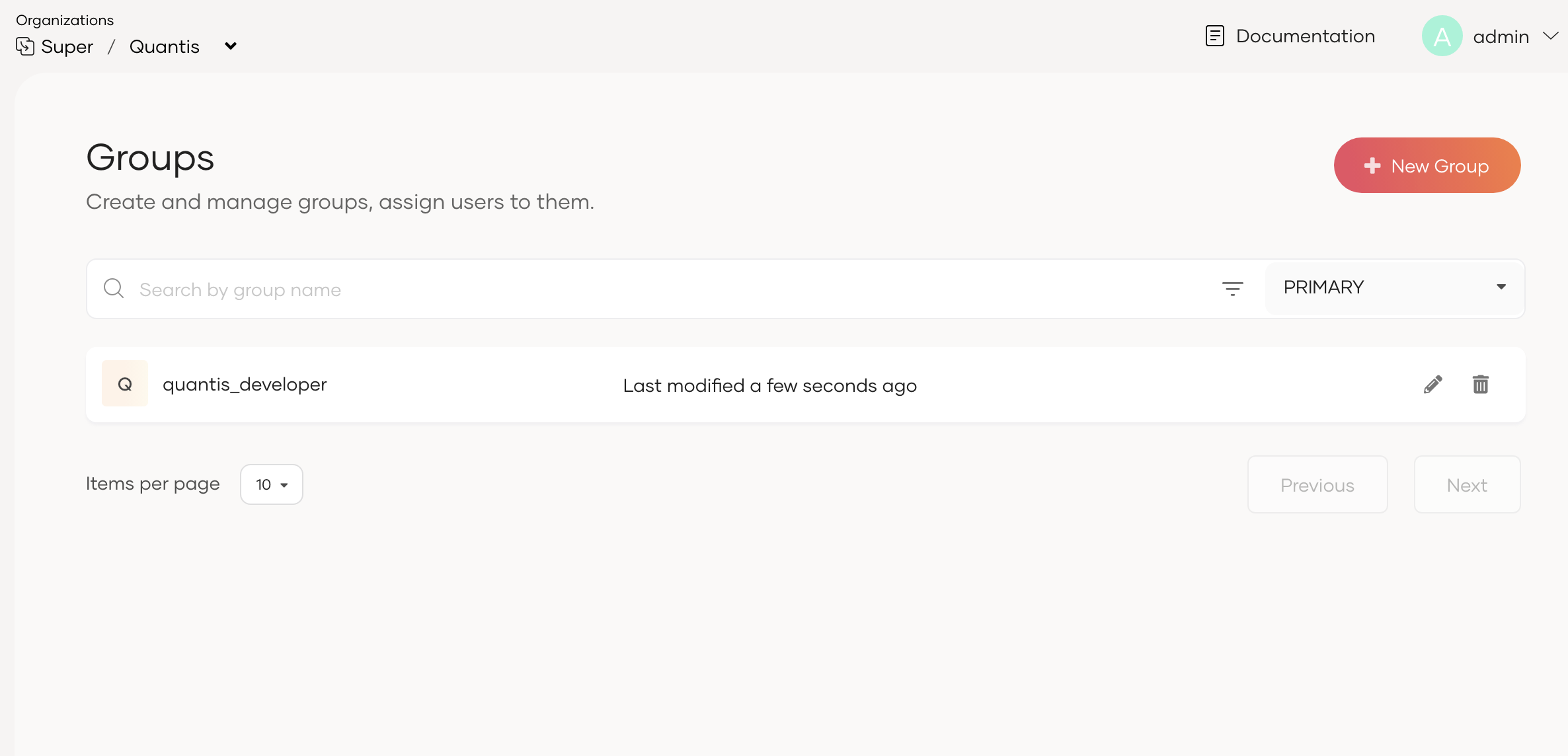
Navigate to the Groups sub-menu item under User Management, and add a new group that will be assigned to users who access the API-M Developer Portal.
-
Under the Users menu item in User Management, add new users such as
emilyandrobert. Make sure to assign the group created previously to each user during user creation.Note
Organization restriction capability is not supported in the Admin and Publisher portals in this release. To prevent organization users from logging in to these portals, do not assign Admin or Publisher/Creator groups to users in sub-organizations.
-
Similarly, create a user in another organization and assign the developer group created in that sub-organization.