Control API Visibility, Subscription Availability and API documentation visibility in the Developer Portal
By default, the APIs created in the API Publisher Portal are visible to anyone (even anonymous users) who visits the Developer Portal. However, API Publishers can control the visibility of APIs using two approaches. API Publishers can select as to which users can view their APIs and which users can subscribe to their APIs.
Control API visibility in the Developer Portal
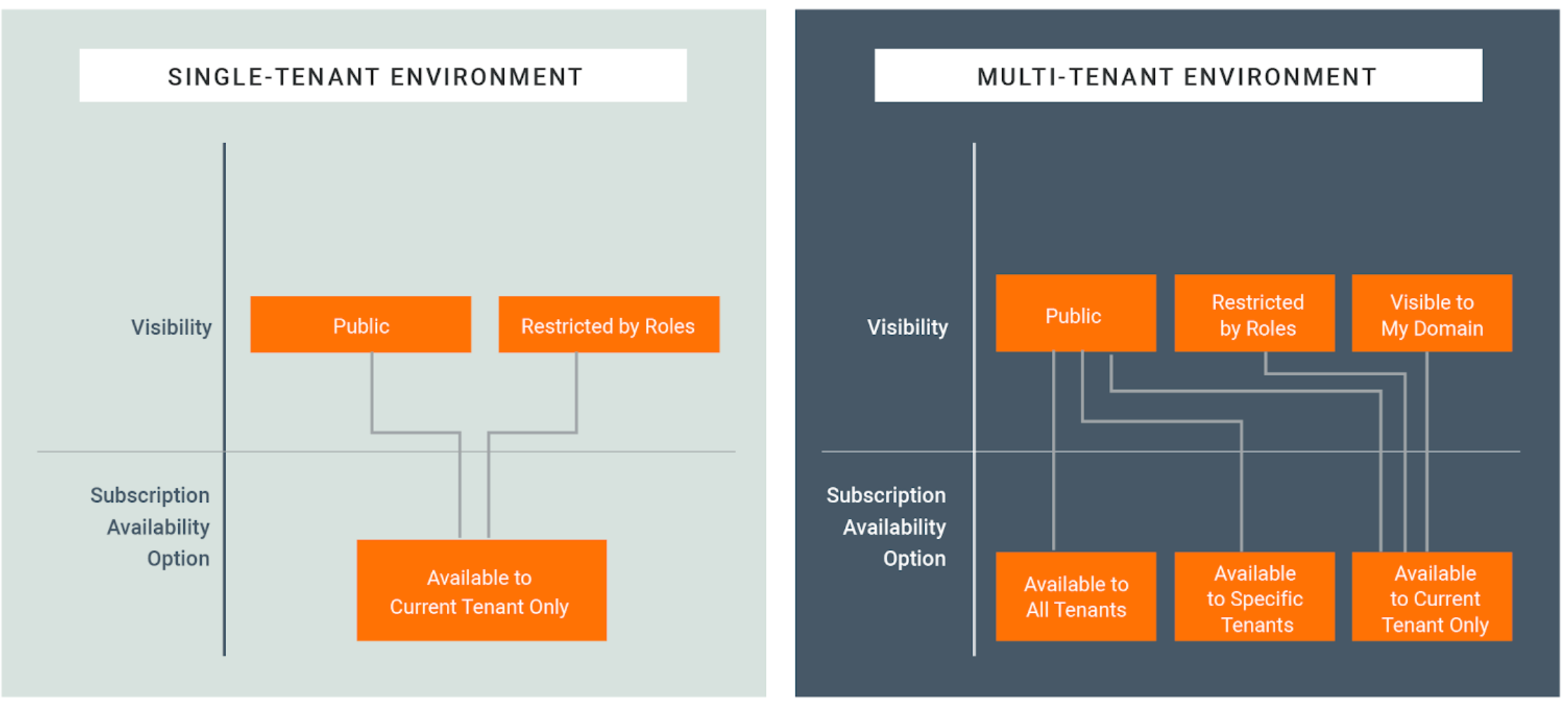
Visibility settings prevent certain user roles from viewing and modifying APIs created by another user role. API visibility can be one of the following options:
- Public: The API is visible to all users who are registered and anonymous (who use APIs without signing in to the Developer Portal, for example testing and demonstration), and can be advertised in multiple Developer Portals (central and non-WSO2 stores).
- Restricted by roles: The API is visible to it's tenant domain and only to the user roles that you specify. You should provide the roles separated by commas in the UI or as a cURL parameter when creating or editing the API.
- Visible to my domain: The API is visible to all users who are registered to the API's tenant domain. This option is available only in a multi-tenanted environment. It's not applicable when there is only one active tenant (super tenant) in the system.
Given below is how visibility levels work for users in different roles:
- The API Creator and Publisher roles can see all APIs in their tenant Developer Portal even if you restrict access to them. This is because those roles have permission to view and edit all APIs in the API Publisher, and therefore, do not have to be restricted in the Developer Portal.
- Anonymous users can only see APIs that have the visibility set as Public.
- Registered users can see,
- public APIs of all tenant domains.
- all APIs in the registered user's tenant domain as long as the API is not restricted to a role that the user is assigned to.
Control API visibility using the API Publisher
-
Sign in to the API Publisher as an API creator using the following URL:
https://<localhost>:9443/publisher -
Create a new API or edit an existing API.
-
Go to Portal Configurations from the left menu and click Basic Info. Then under Developer Portal Visibility select the desired visibility option.

-
Save the API.
Control API visibility using the REST API
You can use the existing REST API to control the visibility of the API. Add the following element to the request body, including the relevant visibility,
"visibility" : "PUBLIC"
When using the REST API directly, the visibility options are available as public, private, and restricted.
| API visibility level specified in the UI | API visibility level specified in the REST API |
|---|---|
| Public | public Example: "visibility": "PUBLIC" |
| Restricted by roles | restricted Example: "visibility" :"RESTRICTED" , visibleRoles :["role1","role2", "role3"] |
| Visible to my domain | private Example: "visibility": "PRIVATE" |
Control Subscription Availability in Developer Portal
Subscription availability can be one of the following options:
- Available to current Tenant Only: only users in the current organization/tenant domain can subscribe to the API.
- Available to All the Tenants: users of all organizations/tenant domains can subscribe to the API.
- Available to Specific Tenants: users of the organizations/tenant domains that you specify, as well as the current tenant domain, can subscribe to the API.
The diagram below depicts the relationship between the API's visibility and subscription availability:
Note
The experience of cross tenant subscriptions is different to what it was in previous versions. For example, if a tenant named "A" visits the Developer Portal of a tenant named "B", the tenant "A" user will need to generate keys again with the key manager of tenant "B". Therefore, a given application created in the Developer Portal by tenant "A" can have different consumer keys for a given key manager type as they generate keys in different tenants.
Info
When using cross-tenant subscriptions, if you are generating access tokens with the Password grant or Code grant, add the following configuration to the <API-M_HOME>/repository/conf/deployment.toml file
[oauth.access_token]
generate_with_sp_tenant_domain = "true"
Control subscription availability using the API Publisher
Note
The subscription availability option will only be displayed if there are tenants in your environment.
Important
By default, the Subscription Availability dropdown list is not displayed in the publisher portal. Add the following configuration to the <API-M_HOME>/repository/conf/deployment.toml file in order to display the Subscription Availability dropdown list.
[apim.devportal]
enable_cross_tenant_subscriptions = true
-
Sign in to the API Publisher as an API creator using the following URL:
https://<localhost>:9443/publisher -
Create a new API or edit an existing API.
-
Go to Portal Configurations from the left menu and click Subscriptions, click the Subscription Availability dropdown, and select the desired subscription availability option.

-
Save the API.
Control subscription availability using the REST API
You can use the existing REST API to control the subscription availability of the API. Add the following element to the request body including the relevant subscription availability.
"subscriptionAvailability" : "ALL_TENANTS"
When using the REST API directly, the subscription availability options are available as follows:
| Subscription visibility level specified in the UI | Subscription visibility level specified in the REST API |
|---|---|
| Available to current tenant only | CURRENT_TENANT Example: "subscriptionAvailability": "CURRENT_TENANT" |
| Available to all the tenants | ALL_TENANTS Example: "subscriptionAvailability" :"ALL_TENANTS" |
| Available to specific tenants | SPECIFIC_TENANTS Example: "subscriptionAvailability": "SPECIFIC_TENANTS", subscriptionAvailableTenants : ["tenant1.com","tenant2.com", "tenant3.com"] |
Control cross organization subscription visibility in the Developer Portal
When an application subscribes to an API that is owned by another organization, the subscription is listed in the Developer Portal of the organization that owns the API. In the Applications > Subscriptions view of the organization that owns the application, the subscription is neither listed nor counted. Subscription listings are scoped to the organization of the signed-in user.
If you are upgrading from WSO2 API Manager 4.0.0 or earlier and you have a Developer Portal customization that depends on the previous behavior, you can restore it using the configuration given below.
Deprecated feature
This configuration is deprecated. It is provided only for deployments that are migrating a Developer Portal customization which depended on the behavior in WSO2 API Manager 4.0.0 and earlier. Do not enable it in new deployments.
Add the following configuration to the <API-M_HOME>/repository/conf/deployment.toml file and restart the server.
[apim.devportal]
enable_cross_tenant_subscriptions = true
enable_deprecated_cross_tenant_subscription_visibility = true
enable_cross_tenant_subscriptions is a prerequisite, as cross organization subscriptions have to be possible before the Developer Portal has any such subscription to list.
Once the above configuration is enabled,
- An application's subscriptions to APIs and API Products that are owned by other organizations are listed and counted in the Applications > Subscriptions view.
- A Provider Organization column indicates the organization that owns each subscribed API.
- A cross organization subscription is listed with an empty Lifecycle State, and the Edit and Delete actions for that subscription are disabled. This is because the API details cannot be resolved from the organization of the signed-in user.
To revert to the default behavior, where subscription listings are scoped to the organization of the signed-in user, either set enable_deprecated_cross_tenant_subscription_visibility to false or remove it from the deployment.toml file, and restart the server.