Administrative Capabilities
WSO2 API Manager provides organization administrators the following administrative capabilities to manage rulesets and policies for API governance.
Create and Manage Rulesets
The Rulesets Catalog provides a list of predefined governance rulesets that can be used to enforce security, compliance, and performance policies on APIs. Follow these steps to access the catalog and explore available rulesets.
- Log in to the API Manager Admin Portal.
- Go to the Governance section in the main menu.
- Click Rulesets Catalog to view all available rulesets.
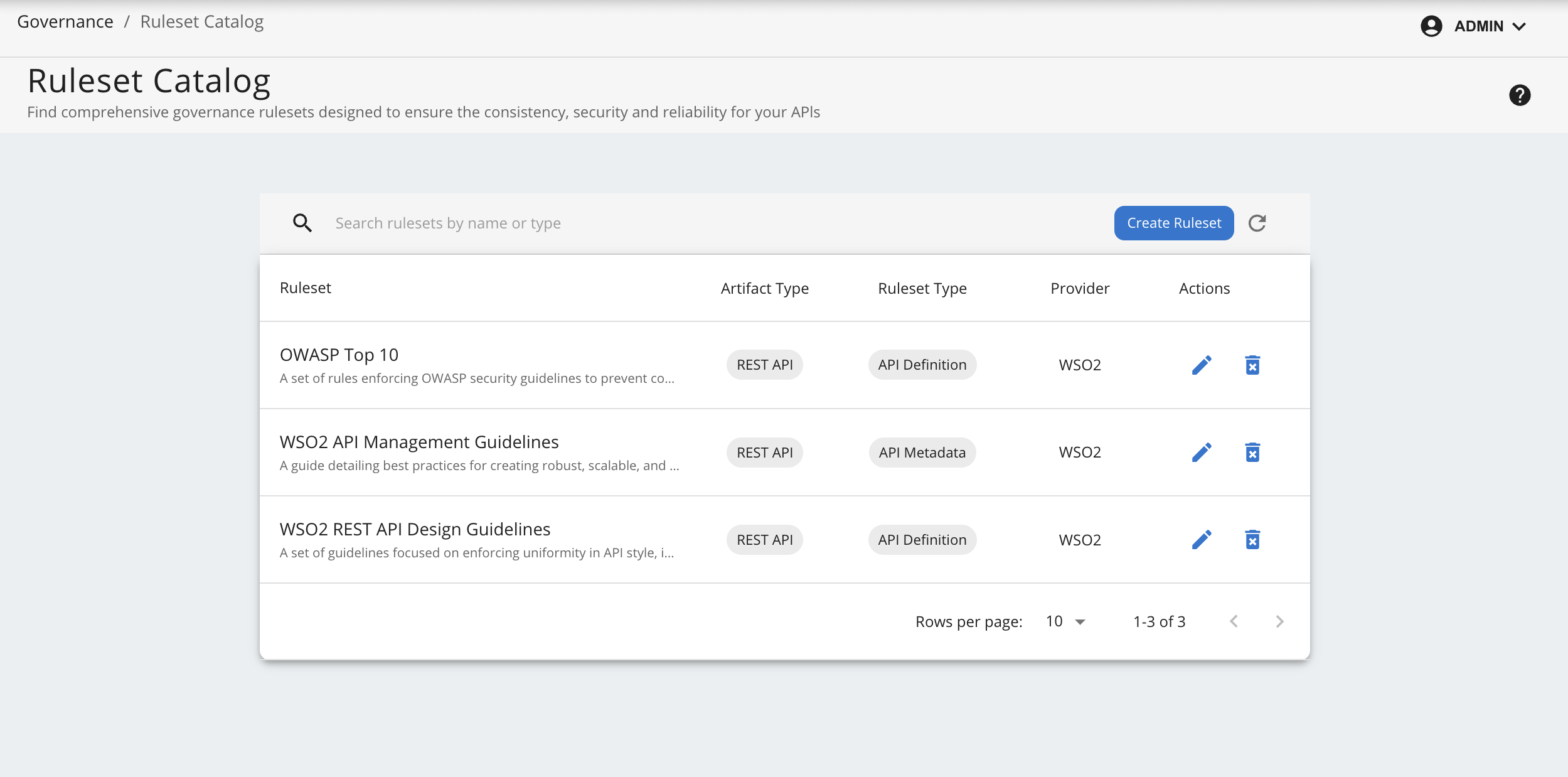
Create a New Ruleset
To create a new ruleset, click on the Create Ruleset. When creating a new ruleset, you need to provide the following information:
| Field Name | Description | Mandatory | Options/Values |
|---|---|---|---|
| Name | The name of the ruleset. | Yes | - |
| Description | A brief description of the ruleset. | No | - |
| Documentation Link | A link to the documentation of the ruleset. | No | - |
| Ruleset Type | The type of the ruleset. | Yes | API Definition, API Metadata, Documentation |
| Artifact Type | The type of the API. | Yes | REST API, Async API |
| Ruleset Content | Refer Writing Your Own Ruleset section. Define the ruleset content using the Spectral-like format. You can either write the rules manually or upload a pre-written ruleset YAML or JSON file. | Yes | - |
After providing the required information, click on the Create button to create the ruleset.
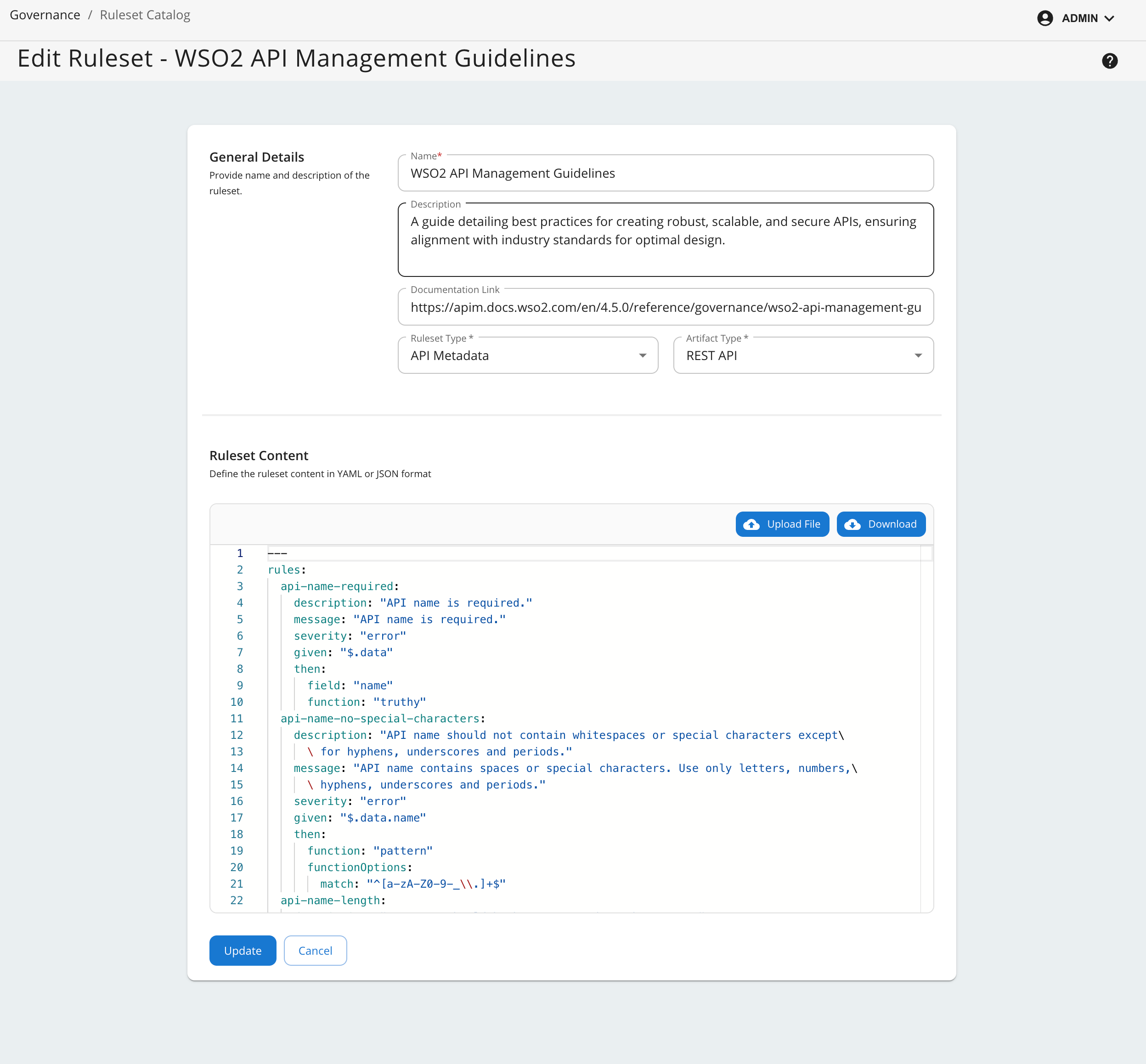
Writing Your Own Ruleset
Please refer to the WSO2 Rule Validator Documentation to understand the ruleset format and how to write your own ruleset.
- If Ruleset Type is selected as API Definition, the ruleset should only contain rules that can be validated against the API definition file (OpenAPI or AsyncAPI).
- If Ruleset Type is selected as API Metadata, the ruleset should only contain rules that can be validated against the API's YAML Representation. This representation is common for REST and Async APIs.
- If Ruleset Type is selected as Documentation, the ruleset should only contain rules that can be validated against the Documentation YAML Representation. This representation is common for REST and Async APIs.
Default Rulesets
WSO2 API Manager comes with a set of default rulesets that cover common governance aspects such as security, compliance, and performance. These rulesets can be used as-is or customized to meet specific organizational requirements. These include,
- WSO2 API Management Guidelines - An API Metadata ruleset that applies to REST APIs and covers general API management guidelines.
- WSO2 REST API Design Guidelines - An API Definition ruleset that applies to REST APIs and covers design best practices.
- OWASP Top 10 - An API Definition ruleset that applies to REST APIs and covers best practices for securing APIs against OWASP Top 10 vulnerabilities.
Deleting Default Rulesets
Deleting default rulesets from the list of rulesets is not sufficient. You must also remove the corresponding default ruleset files located in the <APIM_HOME>/repository/resources/governance/default-rulesets directory.
Updating an Existing Ruleset
Updating an existing ruleset which is already attached to a policy will trigger a compliance check for all APIs associated with the policy. The compliance check will be performed in the background, and the results will be displayed in the compliance dashboard.
Create and Manage Policies
The Policies section in the API Manager Admin Portal provides a list of governance policies that can be enforced on APIs. Follow these steps to access the policies section and explore available policies.
- Navigate to the Governance section in the API Manager Admin Portal.
- Click Policies to view the list of available policies.
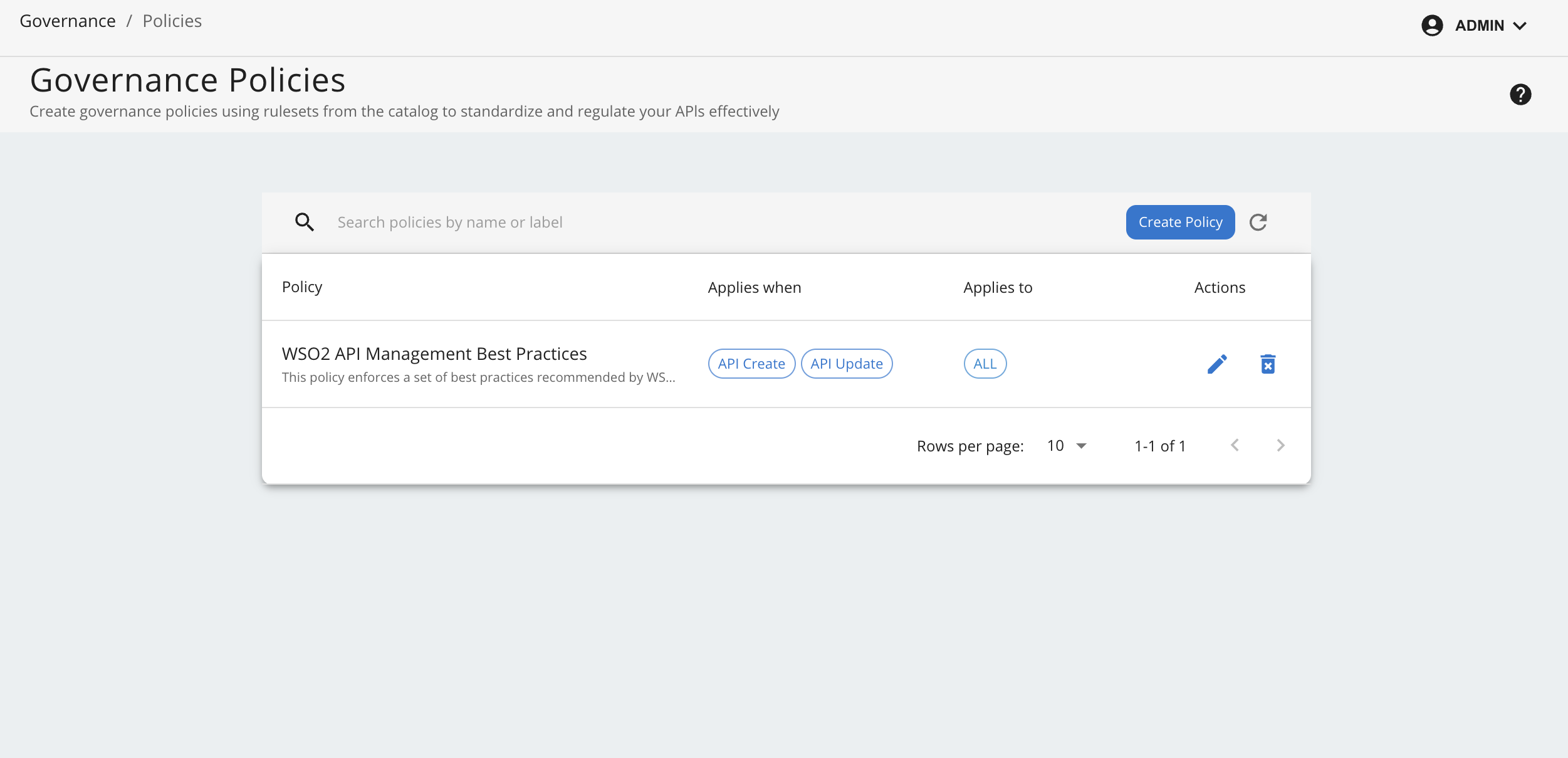
Create a new Policy
To create a new policy, click the Create Policy button and provide the following details:
| Field Name | Description | Mandatory | Options/Values |
|---|---|---|---|
| Name | The name of the policy. | Yes | - |
| Description | A brief description of the policy. | No | - |
| Attachment | The way the policy is attached to the APIs. | Yes | All APIs (REST and ASYNC) APIs with specific labels None |
| Enforcement | The detail of the policy enforcement criteria. | Yes | When to Enforce API Create, API Update, API Deploy, API Publish Actions to Take (based on severity of rule violations) Notify, Block |
| Compliance Affecting Severities | The severity level that decides whether this policy is violated. Violations of other severities are still evaluated and reported, but do not violate the policy. Shown only when severity-based compliance is enabled. | No | Minimum (Error only) Medium (Error, Warn) Maximum (Error, Warn, Info) Defaults to Maximum, which is equivalent to every severity affecting compliance |
| Rulesets | The list rulesets included in the policy. | Yes | - |
After providing the required information, click on the Create button to create the policy.
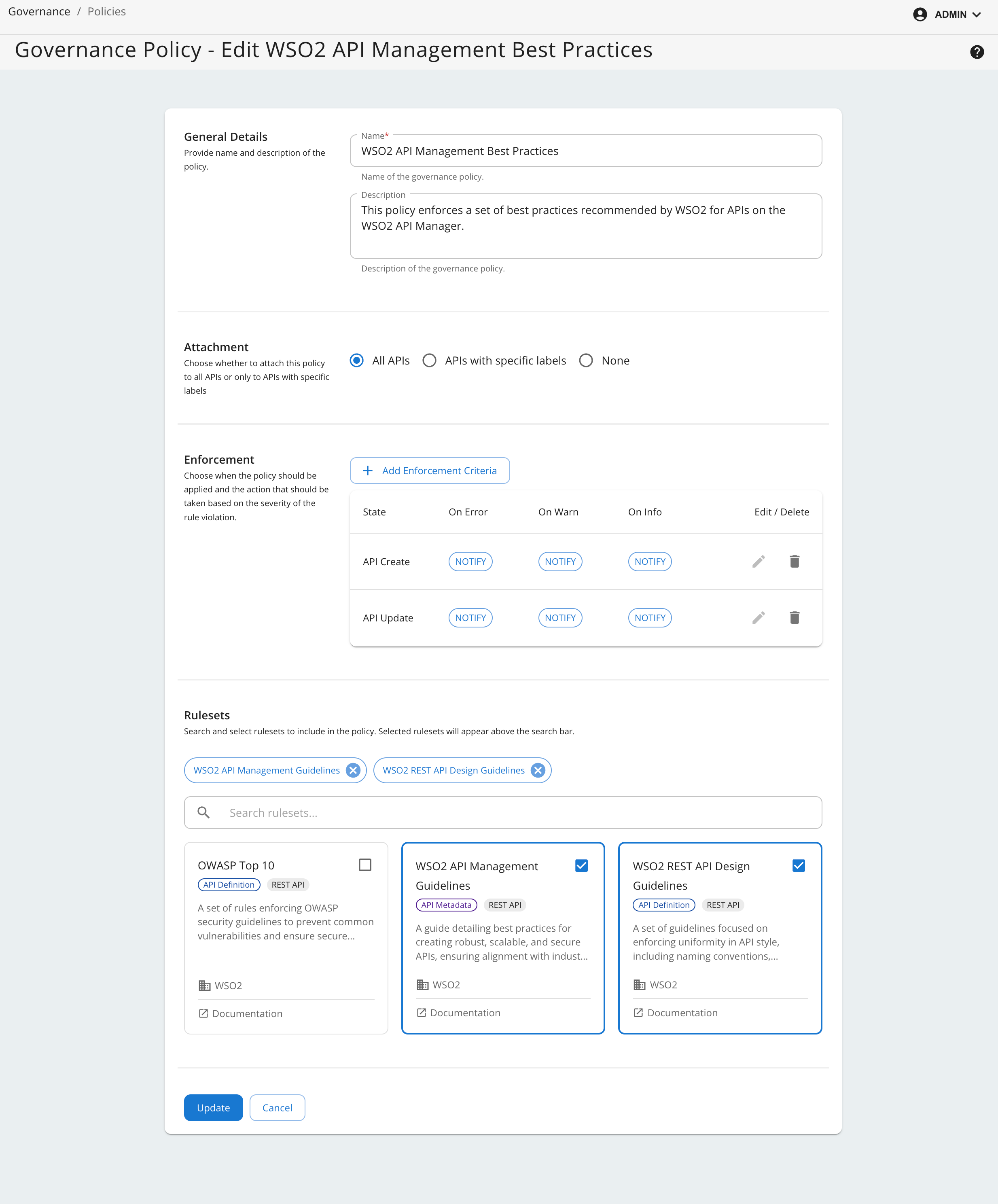
Default Policies
WSO2 API Manager comes with a default governance policy named WSO2 API Management Best Practices. This policy is a high-level policy that includes the WSO2 API Management Guidelines ruleset. This policy can be used as-is or customized to meet specific organizational requirements.
It includes, WSO2 API Management Guidelines ruleset and WSO2 REST API Design Guidelines ruleset.
Deleting or Disabling Default Policies
- Deleting default policies from the policy list is not sufficient. You must also remove the corresponding default policy files located in the
<APIM_HOME>/repository/resources/governance/default-policiesdirectory. - Instead of deleting a policy, you can disable it by updating the policy settings so that it does not apply to any APIs through the publisher portal.
- During migration, it is recommended to disable the default policy by updating the
labelsfield in the default policy YAML files in the<APIM_HOME>/repository/resources/governance/default-policiesdirectory to an empty list. - After migration is complete, you can update the policy through the admin portal to apply it to all APIs as needed.
Creating or Updating a Policy
Creating a new policy or updating an existing policy will schedule a compliance check for all APIs associated with the policy. The compliance check will be performed in the background, and the results will be displayed in the compliance dashboard.
Compliance Monitoring
Compliance monitoring is a key aspect of API governance. It ensures that APIs adhere to the defined governance policies and rulesets. The Compliance Dashboard provides a comprehensive view of the compliance status of APIs. Follow these steps to access the dashboard:
- Log in to the API Manager Admin Portal.
- Go to the Governance section in the main menu.
- Click Compliance to view the compliance status of APIs.
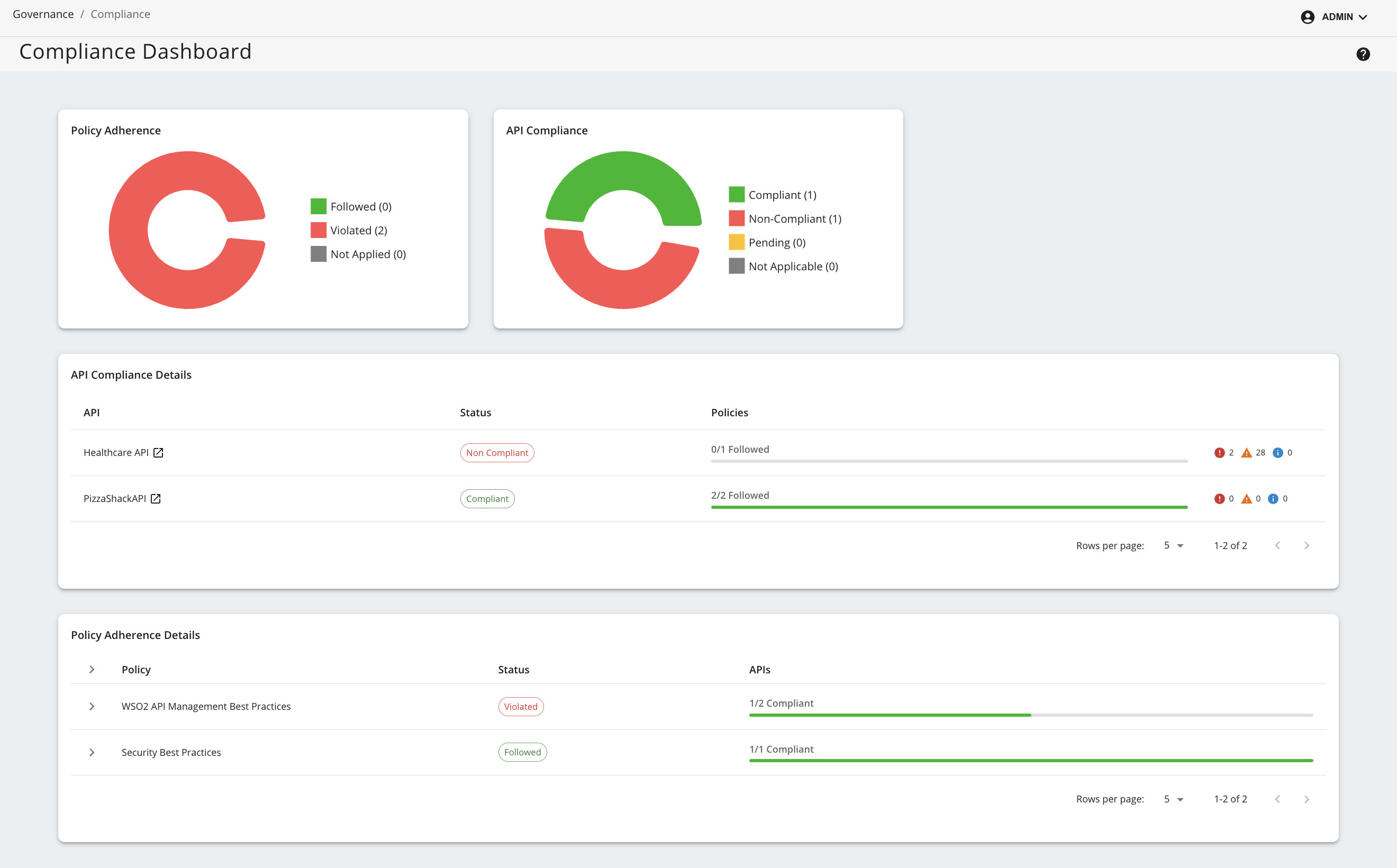
Policy Adherence
This widget gives a summary of the policies deployed in the system with a breakdown of the number of policies that are followed, violated and not applied to any APIs.
API Compliance
This widget provides a summary of the compliance status of APIs with a breakdown of the number of APIs that are compliant, non-compliant, pending compliant results, and not applied to any policies.
API Compliance Details
This widget provides a detailed overview of an API's compliance status, including compliance level of associated policies.
Policy Adherence Details
This widget offers a detailed overview of each policy's compliance, including the overall policy status and the compliance status of each API governed by the policy.
API-Specific Compliance View
By clicking on each API listed in API Compliance Details widget, an API compliance page will be displayed. This page provides a detailed view of the API's compliance status, including a breakdown of the compliance status for each policy attached to the API.
Configuration Options
The background compliance evaluation tasks are conducted by a scheduler which by default runs every 2 minutes and consists of a thread pool of 20 threads and a queue size of 20. These values can be updated by updating the following configuration in the deployment.toml file located in the <APIM_HOME>/repository/conf directory.
For more information refer the configuration catalog.
[apim.governance.scheduler]
thread_pool_size = 20 # Number of threads in the thread pool, be cautious when changing this value as it can affect the performance
queue_size = 20 # Size of the queue, be cautious when changing this value as it can affect the performance
task_check_interval_minutes = 2 # Interval in minutes to check for compliance tasks
task_cleanup_interval_minutes = 30 # Interval in minutes to clean up any stale tasks
Enabling Severity-based Compliance
Note
Requires wso2am-4.6.0 update level 51 or later.
By default every rule severity affects a policy's verdict, which means a single Info violation marks an API non-compliant. To let a policy declare which severities decide its verdict, an administrator must complete both of the following steps. Neither step is sufficient on its own.
Step 1 - Add the optional column
The selection is stored in an optional column on the GOV_POLICY table of the API Manager database. Add it using the statement for your database.
ALTER TABLE GOV_POLICY ADD COLUMN COMPLIANCE_AFFECTING_SEVERITIES VARCHAR(64) NULL;
ALTER TABLE GOV_POLICY ADD COLUMN COMPLIANCE_AFFECTING_SEVERITIES VARCHAR(64);
ALTER TABLE GOV_POLICY ADD (COMPLIANCE_AFFECTING_SEVERITIES VARCHAR2(64));
ALTER TABLE GOV_POLICY ADD COMPLIANCE_AFFECTING_SEVERITIES VARCHAR(64) NULL;
ALTER TABLE GOV_POLICY ADD COLUMN COMPLIANCE_AFFECTING_SEVERITIES VARCHAR(64);
Step 2 - Enable the configuration
Add the following to the deployment.toml file located in the <APIM_HOME>/repository/conf directory and restart the server.
[apim.governance]
per_policy_severity_filtering_enabled = true
Once both steps are complete, the Compliance Affecting Severities field appears when creating or editing a policy, offering three preset levels rather than a free choice of individual severities:
| Level | Severities that affect compliance |
|---|---|
| Minimum | Error |
| Medium | Error, Warn |
| Maximum | Error, Warn, Info |
The field defaults to Maximum, which is equivalent to every severity affecting compliance, so a policy that does not set it continues to count every severity and existing policies are unaffected until you change them.
If only one step is completed
Every severity affects compliance, exactly as before, and the product continues to operate normally.
- With the configuration disabled, the field is not offered and nothing is stored.
- With the configuration enabled but the column not yet added, policy listings and compliance results are still shown with every severity counting, with nothing written to the log. Attempting to save a severity selection fails with an HTTP 500 error instead of a validation error, because the write references a column that does not exist. Add the column before enabling the configuration to avoid this.
The selection is stored per policy. Two policies that share a ruleset are judged independently, so narrowing one of them does not affect the other.
Setting the severities over the REST API
The field is also available on the Governance API as complianceAffectingSeverities, a comma separated string.
{
  "name": "Security Policy",
  "complianceAffectingSeverities": "ERROR,WARN"
}