Google Vertex AI
Note
- This feature is available in WSO2 API Manager 4.6.0 starting from update level 47.
- This feature is available in WSO2 API Manager Control Plane 4.6.0 starting from update level 48.
- This feature is available in WSO2 API Manager Universal Gateway 4.6.0 starting from update level 46.
Google Cloud's Vertex AI is a platform that hosts foundation models from a range of providers. WSO2 API Manager integrates with Vertex AI as a default AI Service Provider, so you can expose and govern Vertex AI models through the AI Gateway.
Supported Vertex AI models
WSO2 API Manager 4.6.0 supports only Anthropic Claude models on Vertex AI, through the built-in VertexAI-Anthropic service provider.
Unlike the other default providers, Vertex AI is not accessed with a simple API key — every request is authenticated with a Google Cloud service account using OAuth 2.0, and the Gateway obtains and injects the access token on your behalf. See Authentication.
Configuring Google Vertex AI
Follow these steps to review and customize the Vertex AI provider in your API Manager environment.
Step 1: Access Configuration
- Login to the Admin Portal (
https://<hostname>:9443/admin). - Navigate to the AI Service Providers section in the left navigation pane.
- Find VertexAI-Anthropic in the list and click on it to edit the configuration.
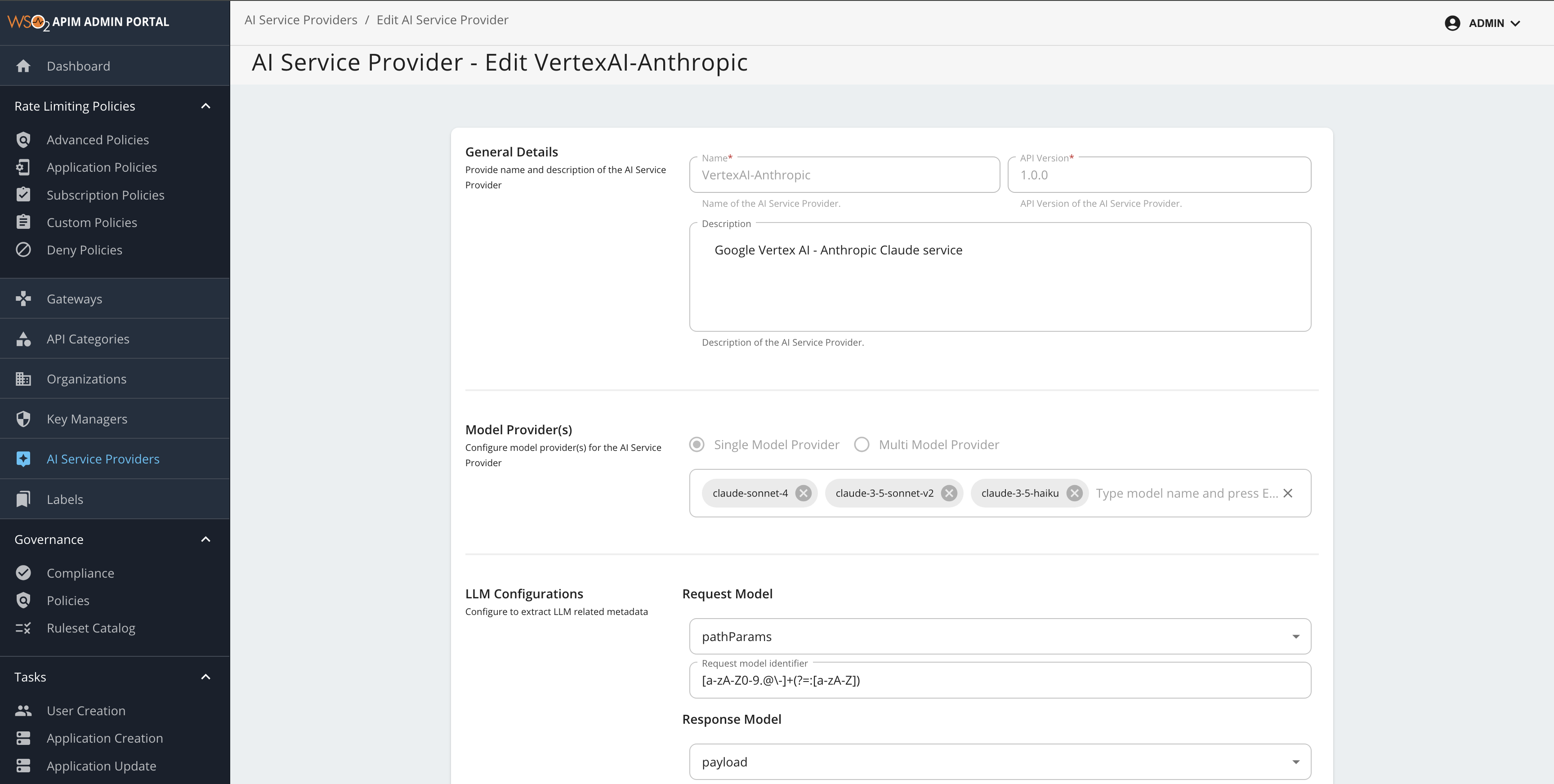
Step 2: Configure Models
Read-Only Configurations
The following configurations are read-only and cannot be modified:
| Category | Fields |
|---|---|
| General Details |
• Name • API Version • Description |
| LLM Configurations |
• Request Model • Response Model • Prompt Token Count • Completion Token Count |
| LLM Provider Auth Configurations |
• Auth Type: gcp (Google Cloud service-account OAuth 2.0)
|
| Connector Type for AI Service Provider | • Connector Type |
Editable Configurations
The following configurations can be updated:
| Category | Description |
|---|---|
| API Definition | AI service provider exposed API definition file. |
| Model List | Add the list of models supported by the AI service provider. This list enables you to configure routing strategies within your AI APIs. |
- By default, the following models are included:
claude-sonnet-4andclaude-3-5-sonnet-v2. - To add available models supported by Claude on Vertex AI, type the model name and press enter.
- This enables model-based load balancing and failover capabilities. For more details, see Multi-Model Routing Overview.
Note
Make sure the models you add are available — and enabled in Vertex AI Model Garden — in the Google Cloud region you configure on the AI API endpoint. See Step 1: Grant Vertex AI permissions in Google Cloud.
Step 3: Save Configuration
Click Update to apply your changes. The updated configuration is then available for use in your AI APIs.
Authentication
Every request to Vertex AI is authenticated with a Google Cloud service account over OAuth 2.0. The Gateway mints a short-lived access token for the service account (using the JWT-bearer grant), caches it, and adds it as a Bearer token on each outbound request to Vertex AI. You never send a static API key.
There are two ways for the Gateway to obtain the service-account credentials, configured per endpoint:
| Credential Mode | Behavior |
|---|---|
| Service-account key | You upload the service-account key JSON on the endpoint. The Gateway signs a JWT with the key's private key and exchanges it for an access token. The key is encrypted at rest in API Manager. Use this when the Gateway does not run on Google Cloud. |
| Keyless (attached identity) | You leave the key empty. The Gateway uses the GCP identity attached to its own workload — the equivalent of Application Default Credentials / Workload Identity — obtaining tokens from the GCP metadata server. No key is stored, mounted, or rotated. Requires the Gateway to run on Google Cloud (GCE, GKE with Workload Identity, Cloud Run, ...) with a service account attached. |
Service-account key storage
An uploaded service-account key is encrypted at rest. When you reopen the endpoint, the key is shown as already configured (masked) rather than returned in clear text. To switch an endpoint to keyless, clear the stored key.
Step 1: Grant Vertex AI permissions in Google Cloud
The service account that the Gateway uses (whether via an uploaded key or the attached identity) must be permitted to invoke the models you configured.
- Log in to the Google Cloud Console and select the project you will call Vertex AI in.
- Ensure the Vertex AI API (
aiplatform.googleapis.com) is enabled for the project. - Under IAM & Admin → Service Accounts, create (or select) a service account and grant it the Vertex AI User role (
roles/aiplatform.user), which includes theaiplatform.endpoints.predictpermission needed to invoke models. For more information, see Vertex AI access control with IAM. - Enable/accept the Claude models you intend to use in Vertex AI Model Garden — this is a one-time, project-level step, separate from the service-account role.
- Provide the credentials to the Gateway according to the credential mode:
- Service-account key — create a JSON key for the service account (Keys → Add key → Create new key → JSON) and download it. You will upload this file on the endpoint.
- Keyless (attached identity) — attach the service account to the Google Cloud workload the Gateway runs on, so the metadata server issues tokens for it. No key file is required.
- Note the Google Cloud region (for example,
us-east5) and project ID you will use. The region must be one where your chosen models are available, and it is used to build the endpoint URL.
Important
The Gateway requests the https://www.googleapis.com/auth/cloud-platform OAuth scope. Make sure the service account (and, in keyless mode, the attached identity) is authorized for Vertex AI in the project and region you target.
Step 2: Configure Authentication on the AI API Endpoints
- Sign in to the Publisher Portal (
https://<hostname>:9443/publisher) and open the AI API that uses VertexAI-Anthropic as its AI service provider. - Navigate to API Configurations → Endpoints.
-
Click the Edit icon of the endpoint you want to configure and set the Endpoint URL using the structured builder:
Field Description Endpoint Location Choose Regional (call a specific Google Cloud region) or Global (the multi-region endpoint). Region The Google Cloud region for a regional endpoint (for example, us-east5). The region is written into both the host prefix and thelocationspath of the URL, so it is entered once and kept consistent for you. Not required for a global endpoint.Project ID Your Google Cloud project ID. The builder assembles the Vertex AI URL for you. For reference, the underlying templates are:
- Regional:
https://{region}-aiplatform.googleapis.com/v1/projects/{project_id}/locations/{region}/publishers/anthropic/models - Global:
https://aiplatform.googleapis.com/v1/projects/{project_id}/locations/global/publishers/anthropic/models
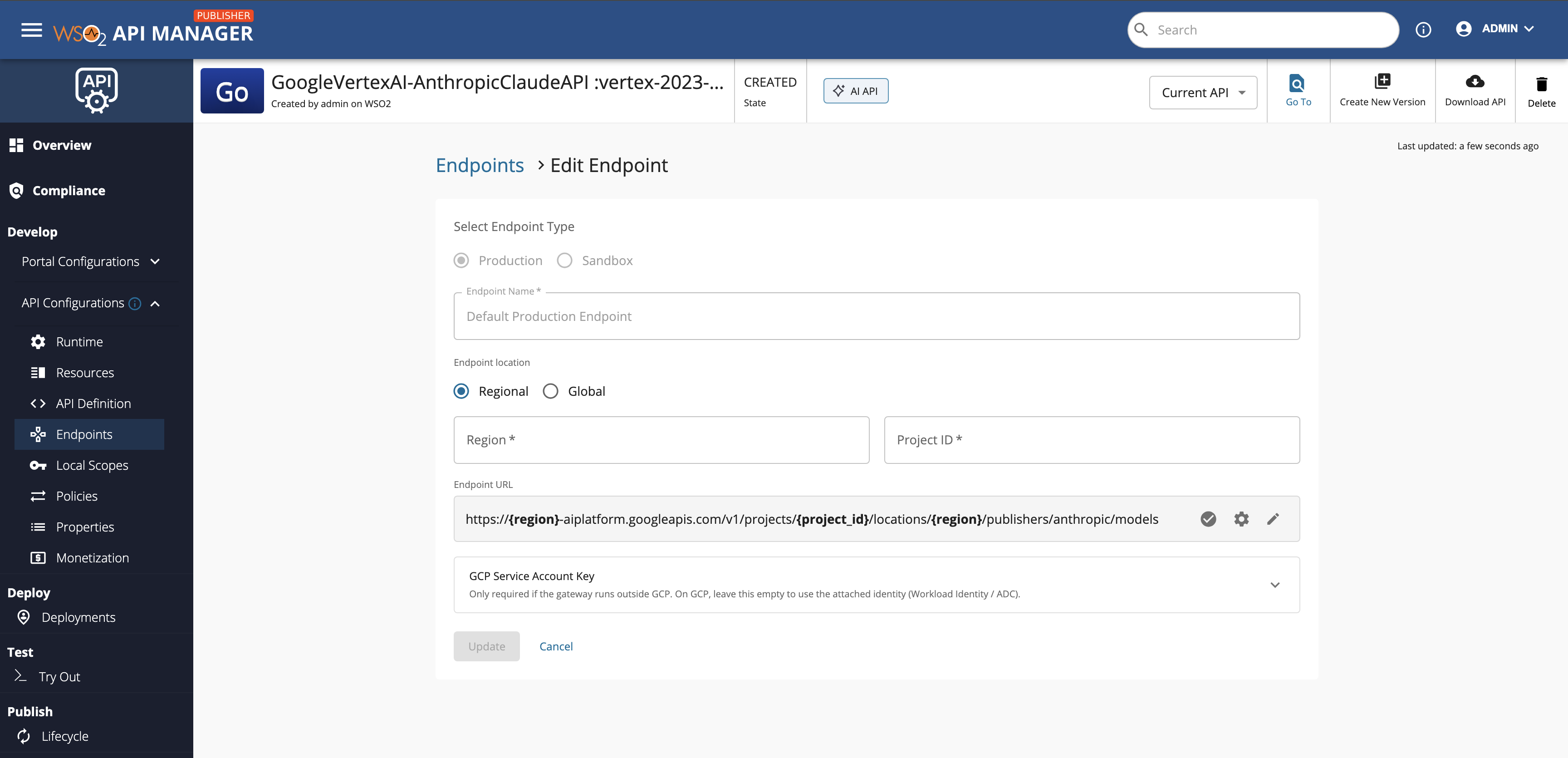
- Regional:
-
Configure the GCP Service Account Key section according to the credential mode:
Credential Mode Action Service-account key Upload the service-account key JSON (drag and drop, or browse). The key is validated and stored encrypted. Keyless (attached identity) Leave the service-account key empty. The Gateway uses its attached GCP identity at runtime. 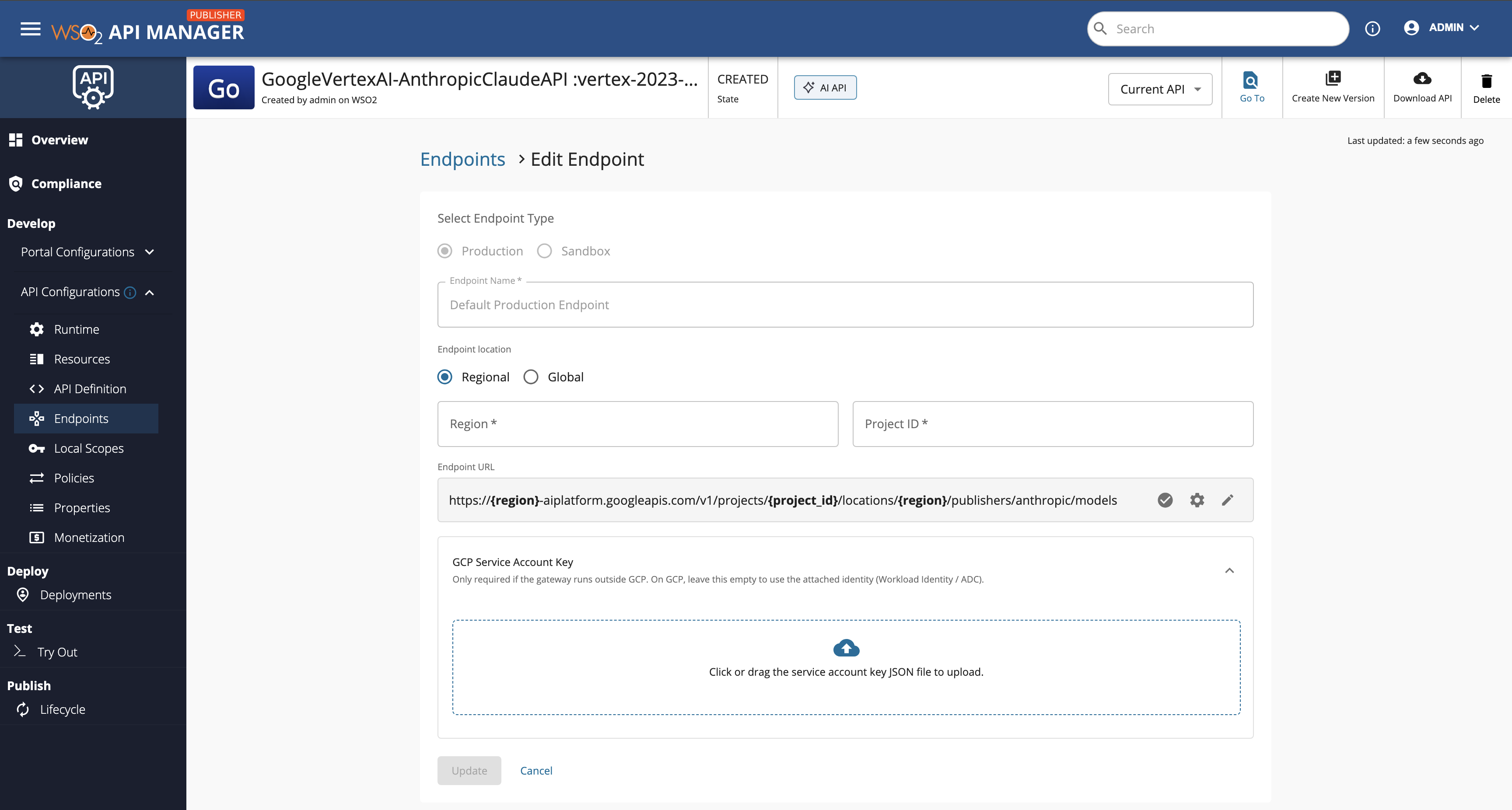
-
Click Update to save the endpoint.
- Save and deploy the API for the changes to take effect.
Note
- The endpoint URL ends at
.../models; the specific model is taken from each request's URL path and appended by the Gateway, so you do not put the model in the URL. - The Region must match a region where your models are available and enabled in Model Garden. A regional Vertex AI URL requires the same region in both the host and the
locationspath — the structured builder keeps them consistent, so prefer it over hand-editing the URL.
Required for VertexAI-Anthropic APIs: add the DISABLE_CHUNKING policy
For every AI API that uses VertexAI-Anthropic, add the DISABLE_CHUNKING policy to the request flow at the API level, then Save and deploy the API.
How to add it: In the Publisher Portal, open the API and go to API Configurations → Policies. Attach the DISABLE_CHUNKING policy to the request flow at the API level (not to an individual operation), save, and deploy the API.
Why it is needed: By default the Gateway forwards the request body to the backend using HTTP chunked transfer-encoding. The Anthropic Claude models on Vertex AI (:rawPredict / :streamRawPredict) expect the request with a fixed Content-Length header and do not reliably accept a chunked request body, so requests can be rejected by the backend. The DISABLE_CHUNKING policy makes the Gateway buffer the request and send it with a Content-Length header instead of chunked transfer-encoding, which is what the Vertex AI Anthropic endpoints require.
For more information on securing the backend of AI APIs, see AI Backend Security.