Onboarding Anthropic's Claude
This guide explains how to integrate WSO2 API Manager with Claude, allowing you to access Claude's APIs via API Manager's AI Gateway. It provides step-by-step instructions for configuring Claude as a custom AI vendor to effectively manage and track AI API interactions.
- Login to the Admin Portal
-
Navigate to the AI/LLM Vendors section and click on Add AI/LLM Vendor.
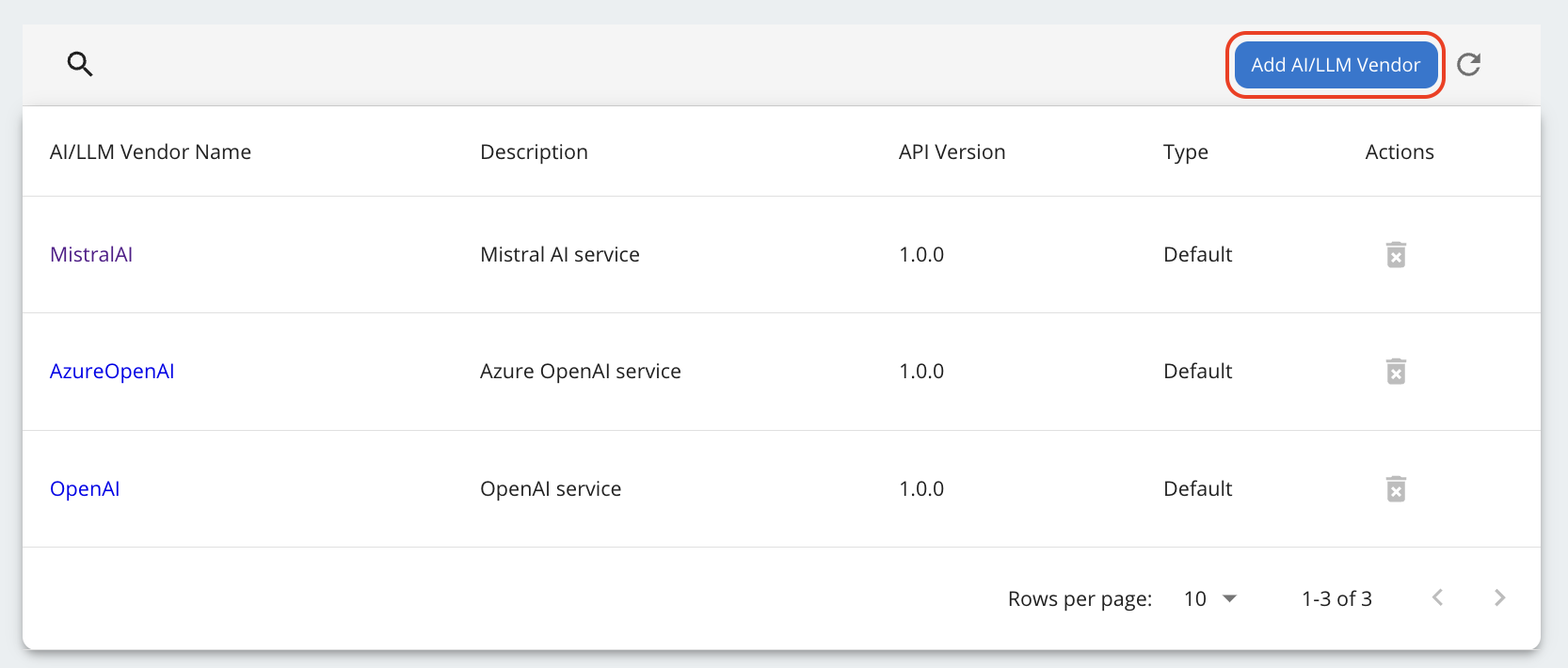
-
Fill in the general details for the AI vendor as shown below.
Field Sample value Name Anthropic Claude API Version 1.0.0 Description Anthropic Claude LLM Service -
Enter the LLM configurations as outlined below.
Attribute Name Input Source Attribute Identifier Request Model payload $.modelResponse Model payload $.modelPrompt Token Count payload $.usage.input_tokensCompletion Token Count payload $.usage.output_tokensTotal Token Count payload N/ARemaining Token Count header anthropic-ratelimit-tokens-remainingRefer the image below for the LLM configuration.
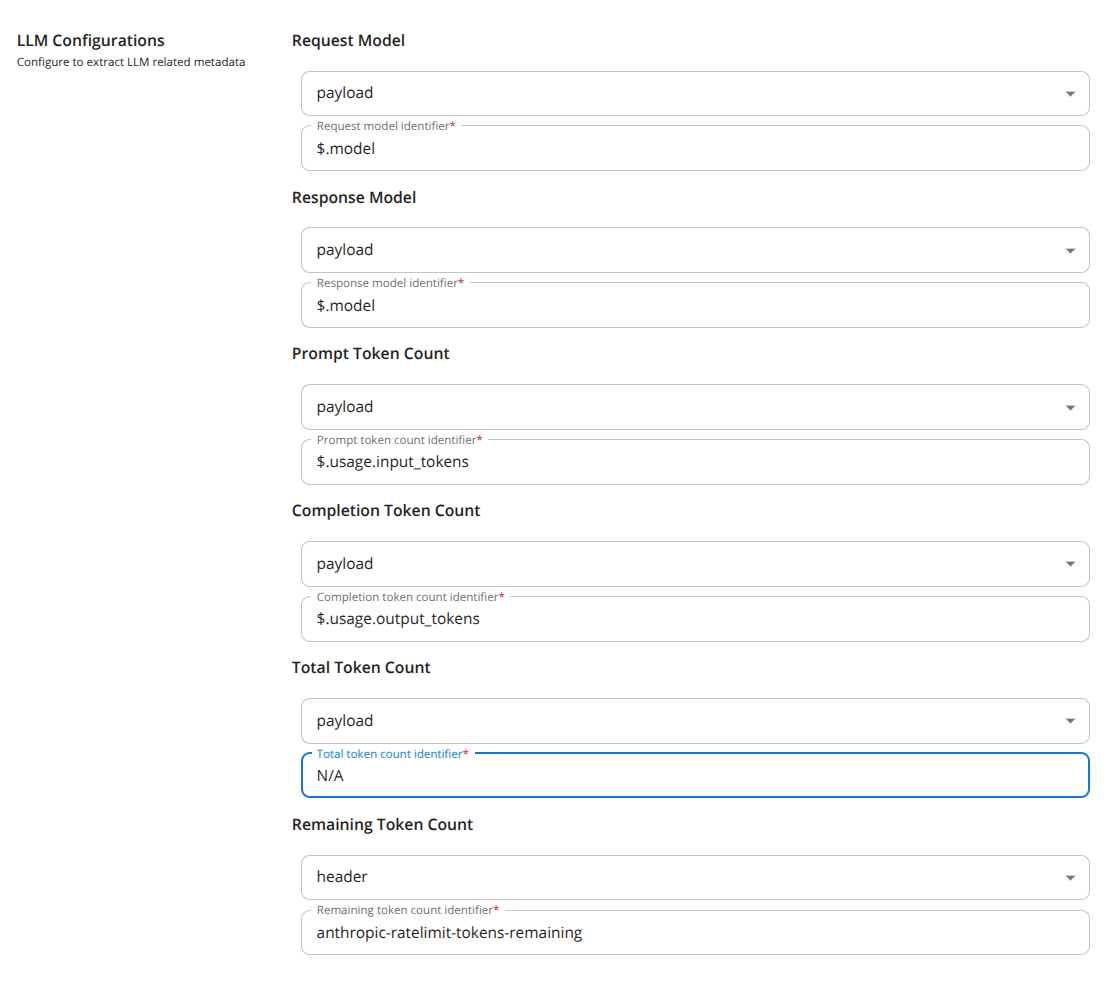
-
Download the API definition for Anthropic Claude from Anthropic Claude API Definition and upload it as the API Definition.
Note
The Anthropic Claude API definition provided above is an unofficial OpenAPI 3.0.0 schema created and shared by the community. Please be aware that this schema may not cover all features of the official API.
-
Configure the authentication configurations by setting the type to
authHeaderand the identifier tox-api-key.
-
Choose the connector type as
default. -
Next, you can add any models you prefer. For instance, add
claude-3-5-sonnet-20241022and press enter. You can always add more models later. This enables you to set up model-based load balancing and failover using Claude's APIs. -
Finally, click Add to integrate Anthropic Claude as an AI Vendor.
Once added, you'll be able to create and manage AI APIs for Anthropic Claude, allowing you to leverage its capabilities within your applications.