Securing APIs with Certificate Bound Access Tokens
While OAuth 2.0 relies on bearer tokens for securing access to protected resources, bearer tokens require Transport Layer Security between an OAuth client and the resource server when presenting the access token to get access to a resource. In this security model, it is crucial to prevent access token leakage. Therefore, access token storage and transfer have to be done with care.
WSO2 API-M supports certificate bound JWT (access token) validation only. To generate certificate bound JWTs, the IDP of your choice should provide support. API-M Gateway will then validate the JWT tokens generated by the IDP. The JWT should include the transport certificate thumbprint under the cnf claim, as per the specification provided in RFC8705.
APIs in WSO2 API Manager can be secured using Certificate Bound Access Tokens, also known as Holder of Key Tokens. The following section explains as to how the APIs in WSO2 API Manager can be secured using Certificate Bound Access Tokens.
Import client certificate to the truststore
Follow the steps given below to import the CA-signed public key certificate into API Manager's default truststore (client-truststore.jks).
- Get a copy of the
client-truststore.jksfile from the<API-M_HOME>/repository/resources/security/directory. -
Export the public key from your .jks file using the following command.
-
Import the public key you extracted in the previous step to the
client-truststore.jksfile using the following command.keytool -import -alias certalias -file <public key name>.pem -keystore client-truststore.jks -storepass wso2carbonNote
wso2carbonis the keystore password of the defaultclient-truststore.jksfile.
Enable the Certificate Bound Access Token
-
Open the
<API-M_HOME>/repository/conf/deployment.tomlfile. -
Configure the
enable_outbound_auth_headerunder the[apim.oauth_config]configuration. -
Restart the server if it is already running.
Create an API secured with OAuth 2.0
-
Sign in to the Publisher.
https://<hostname>:9443/publisher
Invoke an API secured with Certificate Bound Access Token using Postman
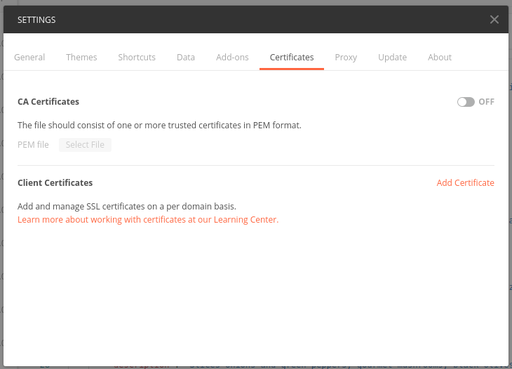
Import the certificate and private key to Postman.
-
Navigate to the certificates tab in Postman settings.
-
Add the certificate and private key.

-
Set the Certificate Bound Access Token as the Bearer token.
The token comprises of client certificate thumbprint as the cnf claim.
The
x5t#S256value is the base64url-encoded SHA-256 thumbprint of the DER-encoded client certificate, as defined in RFC 8705. -
Invoke the API from Postman.
Using MTLS Header to invoke APIs secured with Certificate Bound Access Tokens
When TLS is terminated before the Gateway, for example at a load balancer, the load balancer passes the client certificate to the Gateway in an HTTP header. By default, the Gateway reads the client certificate from the X-WSO2-CLIENT-CERTIFICATE HTTP header, and uses it only if the load balancer connects to the Gateway using mutual TLS with a certificate that is in the Gateway's client truststore.
Warning
If you set enable_client_validation = false, the Gateway accepts the header from any caller. Use false only if the Gateway is reachable exclusively through a load balancer that always overwrites this header.
Follow the instructions below to change the header:
-
Navigate to the
<API-M_HOME>/repository/conf/deployment.tomlfile. -
Configure the
certificate_headerunder the[apimgt.mutual_ssl]configuration. For details on each property, see the Configuration Catalog.The following example sets
enable_client_validation = falseso that you can send the header directly to the Gateway to try out the feature. Do not use this setting in production unless the Gateway is reachable only through a load balancer that overwrites the header.[apimgt.mutual_ssl] certificate_header = "<Header Name>" # true: use the header only if the caller's TLS certificate is in the Gateway's client truststore. false: accept the header from any caller. enable_client_validation = false # true: URL-encoded or Base64-encoded PEM certificate. false: PEM certificate with its line breaks replaced by spaces, or Base64-encoded DER certificate. client_certificate_encode = true -
Start the server.
-
Invoke the API with the custom header.
curl -k --location -X GET 'https://localhost:8243/test/1.0/foo' -H 'accept: applicaition/json' -H 'Authorization: Bearer 0ee9aa70-d631-3401-b152-521b431036ca' -H 'SSL-CLIENT-CERT: LS0tLS1CRUdJTiBDRVJUSUZJQ0FURS0tLS0tCk1JSURsakNDQW40Q0NRRDc2MUpWekluMGNUQU5CZ2txaGtpRzl3MEJBUXNGQURDQmpERUxNQWtHQTFVRUJoTUMKVTB3eEVEQU9CZ05WQkFnTUIxZGxjM1JsY200eEVEQU9CZ05WQkFjTUIwTnZiRzl0WW04eERUQUxCZ05WQkFvTQpCRmRUVHpJeEN6QUpCZ05WQkFzTUFrTlRNUkl3RUFZRFZRUUREQWxzYjJOaGJHaHZjM1F4S1RBbkJna3Foa2lHCjl3MEJDUUVXR25kaGRHaHpZV3hoYTI5eVlXeGxaMlZBWjIxaGFXd3VZMjl0TUI0WERUSXhNREV4TkRBME16VXoKTlZvWERUSXlNREV4TkRBME16VXpOVm93Z1l3eEN6QUpCZ05WQkFZVEFsTk1NUkF3RGdZRFZRUUlEQWRYWlhOMApaWEp1TVJBd0RnWURWUVFIREFkRGIyeHZiV0p2TVEwd0N3WURWUVFLREFSWFUwOHlNUXN3Q1FZRFZRUUxEQUpEClV6RVNNQkFHQTFVRUF3d0piRzlqWVd4b2IzTjBNU2t3SndZSktvWklodmNOQVFrQkZocDNZWFJvYzJGc1lXdHYKY21Gc1pXZGxRR2R0WVdsc0xtTnZiVENDQVNJd0RRWUpLb1pJaHZjTkFRRUJCUUFEZ2dFUEFEQ0NBUW9DZ2dFQgpBTWMrRjhJblZmMzAwZ2FraTh2QUZ6cUFTSGNQV0xZalQ4dmMwOUs1TzZHRjgzaXpUa2F0UDFtYW1ydWlKL2VRCk1KL2VLVGhJdzR3MWEzS3Y4cjJwc3d2bWRjdjAzZnhRNis2aFh3Ykh5VUtHWFFwbVhtL3d5VE01NzRlR1cybXAKM2toTjlIdFV0SU5uS3BzSENLcFI3MFhGKzNrTTZleHJJNnRJUUpxdTdKM2t1OEdqRVI3R1Vma2trYXI1OGs3eApibEpIWG5URkdjWXJNSXAvcS9YUENqR0pGajhub2tNbjhnL0dWTExCVGFXSWJVa3E2ejRJYjk1dHNOd2thU1dhCnh6U2t3K3JIVkZLWnpPTlV1WTdKTk16Zkp6RkllZG5lY0U3c2Y0WnFIRlF6aUpVbW9qWklDMXp5bFdZdzQ4OEUKNUZvaU9xTWpHYTlUMXhXMUpOWTBab01DQXdFQUFUQU5CZ2txaGtpRzl3MEJBUXNGQUFPQ0FRRUFSZTdrcWZlbwpjd1htazRLWlBKMmlnaGY2VU9jc2dYSEZqMnVpQTNhSWMrd2xwREJpdkdCbDJHM2gxQXl6UFNtcVpYaUcvTGttCkg1dm43VUpGQXlQRVBlQ25HdWduTk5kZGpnSFp0SEdJLzdXcm1LTHdIOEU3TWdmSWJ6dk5Hd3ZXWmRrZi9DblcKNjNDYzhhTzJQMDhYd0dHU25JSDg2cWF6NEtvZUF1aFlCdHZyekNObERraTFjZ1E1bHczU0djU3dxMlB0eEd4cApvS0xWOUJYUzlVdUNJRDRrYjFqRUo3YlplTis0Z0pDbTVGTldUbWdhWXFDcjdERWIwRkhpWitLVnBsZzJZZ3ZYCkM2Z2ZrRm9NYTVJREwvWGVja0J0dFlITzFKcWUyMElRKy9kVHB4ZWE4RjE5aDVmeDRZWVlsRFhLWS8wRmxiRXoKZ1l2UGFIUnVKWnFlV1E9PQotLS0tLUVORCBDRVJUSUZJQ0FURS0tLS0tCg=='