Application Keys
An API Access Token/Key is a string that is passed as an HTTP header of an API request. WSO2 API-M provides OAuth2.0 bearer token-based authentication for API access, and the API key has to be submitted alongside the API request in order to authenticate the access.
When an Application Developer registers an Application in the Developer Portal, a consumer key and consumer secret pair are generated, which represents the credentials of the application that is being registered. The consumer key becomes the unique identifier of the application, similar to a user's username, and is used to authenticate the application/user. When an API Key or an API Access Token is issued for the application, it is issued against the latter mentioned consumer key. When sending an API request, the access token has to be passed as the Authorization HTTP header value.
Example
Authorization: Bearer NtBQkXoKElu0H1a1fQ0DWfo6IX4a
Note
By default, an application supports a single consumer secret. Support for multiple consumer secrets can be enabled to allow seamless secret rotation. This support is available from WSO2 API Manager 4.3.0.99 update level onwards. For more details, see Enable Multiple Consumer Secrets.
Generating application keys
Follow the instructions below to generate/renew application keys:
-
Sign in to WSO2 API Developer Portal (
https://<hostname>:9443/devportal). -
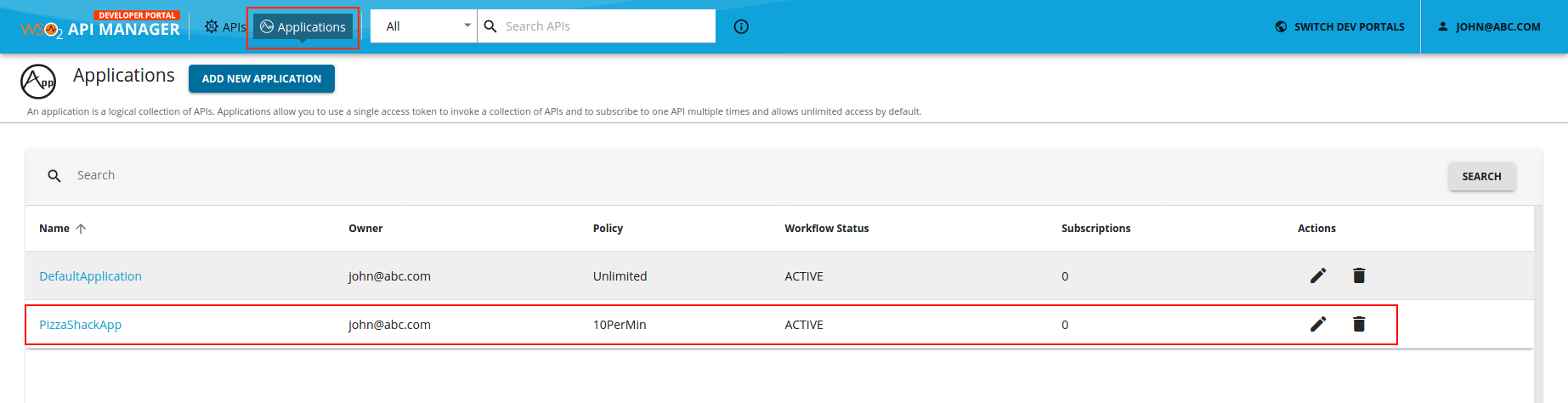
Click Applications to navigate to the applications listing page and click on the respective application for which you want to generate keys.
-
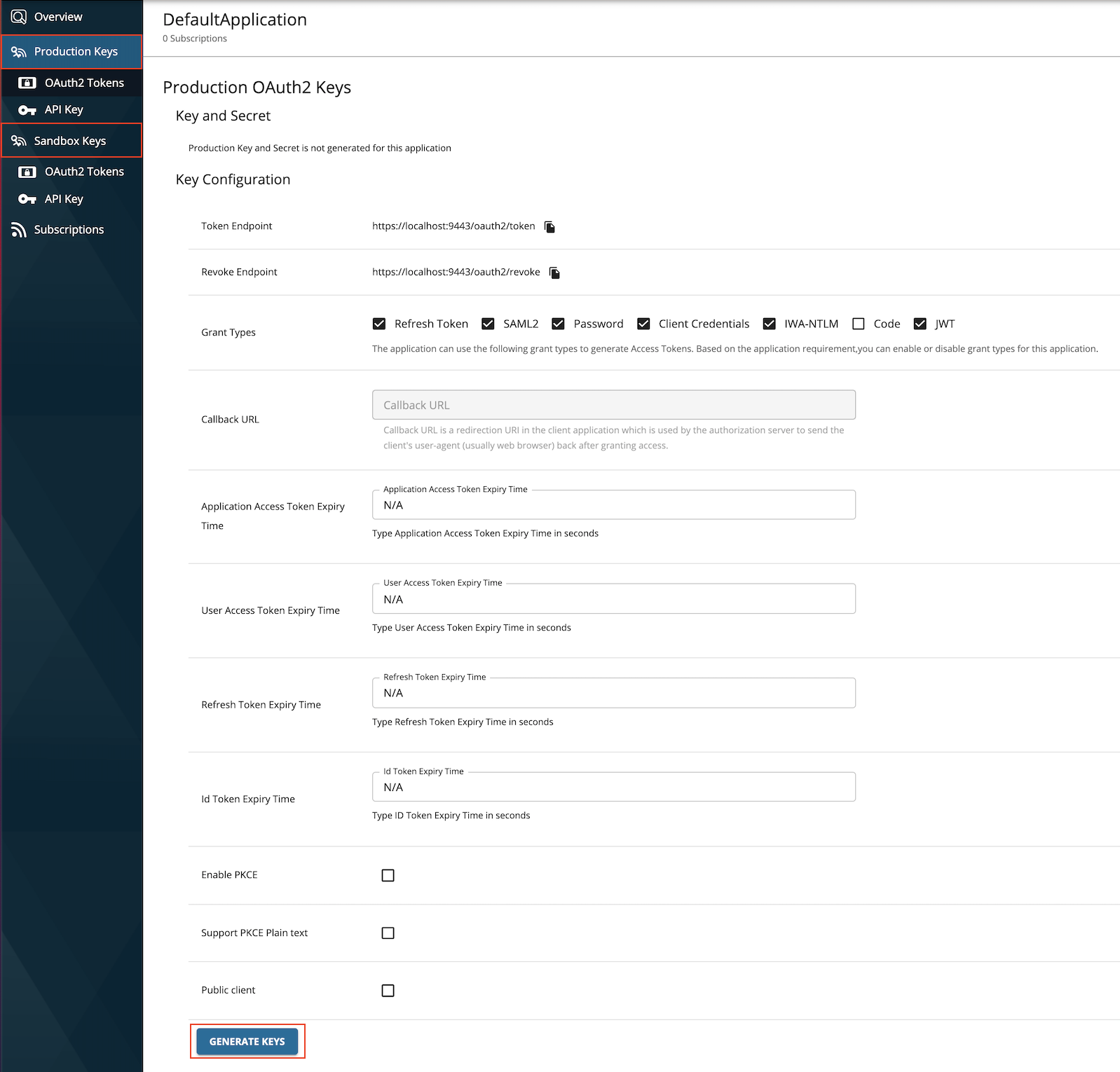
Click Production Keys or Sandbox Keys based on the environment for which you need to generate keys.
Let's assume that you are working in a production environment. Therefore, click Production Keys.
-
Click Generate Keys to create an application Access Token.
The Access Token will be generated along with the application consumer key and secret.
-
Copy the generated JWT Access Token that appears so that you can use it in the future.
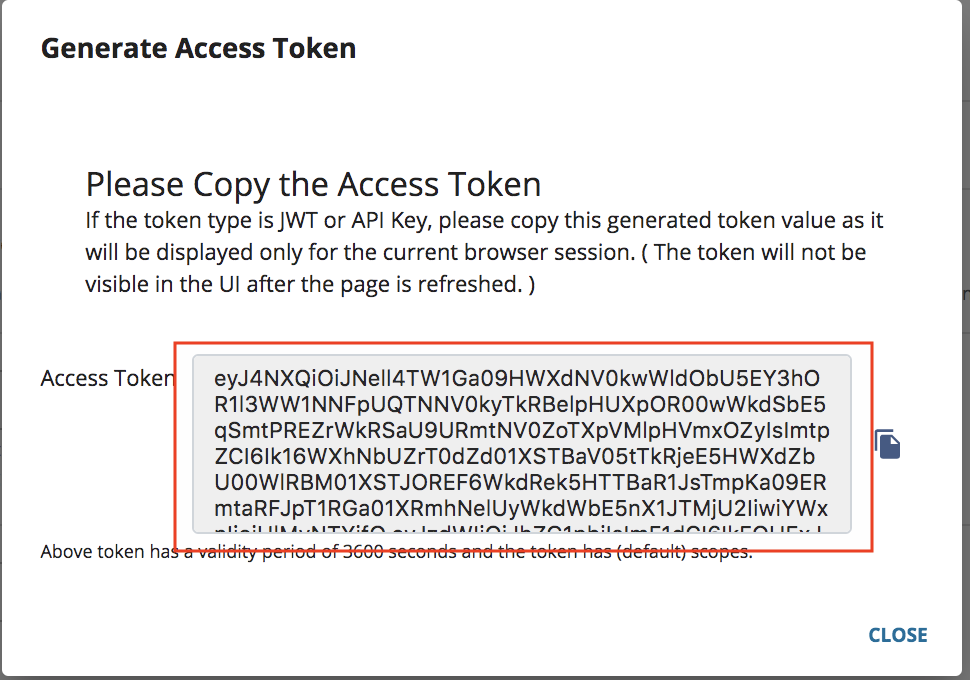
After the keys are generated, you can find the consumer key and consumer secret pair via the application details page.

Tip
When you generate Access Tokens for APIs that are protected by scopes, you can select the respective scopes and, thereafter, generate the token for it.
Generating application keys with PKCE enabled
Proof Key for Code Exchange (PKCE) is a commonly used security measure to secure the applications that are executing in the same domain. For example, two mobile applications running on a single device can get the other application's Auth code and request a token if the domain is the same. You can use PKCE to overcome the latter mentioned issue.
To enable PKCE, you need to select the Enable PKCE option as shown below when generating the keys.
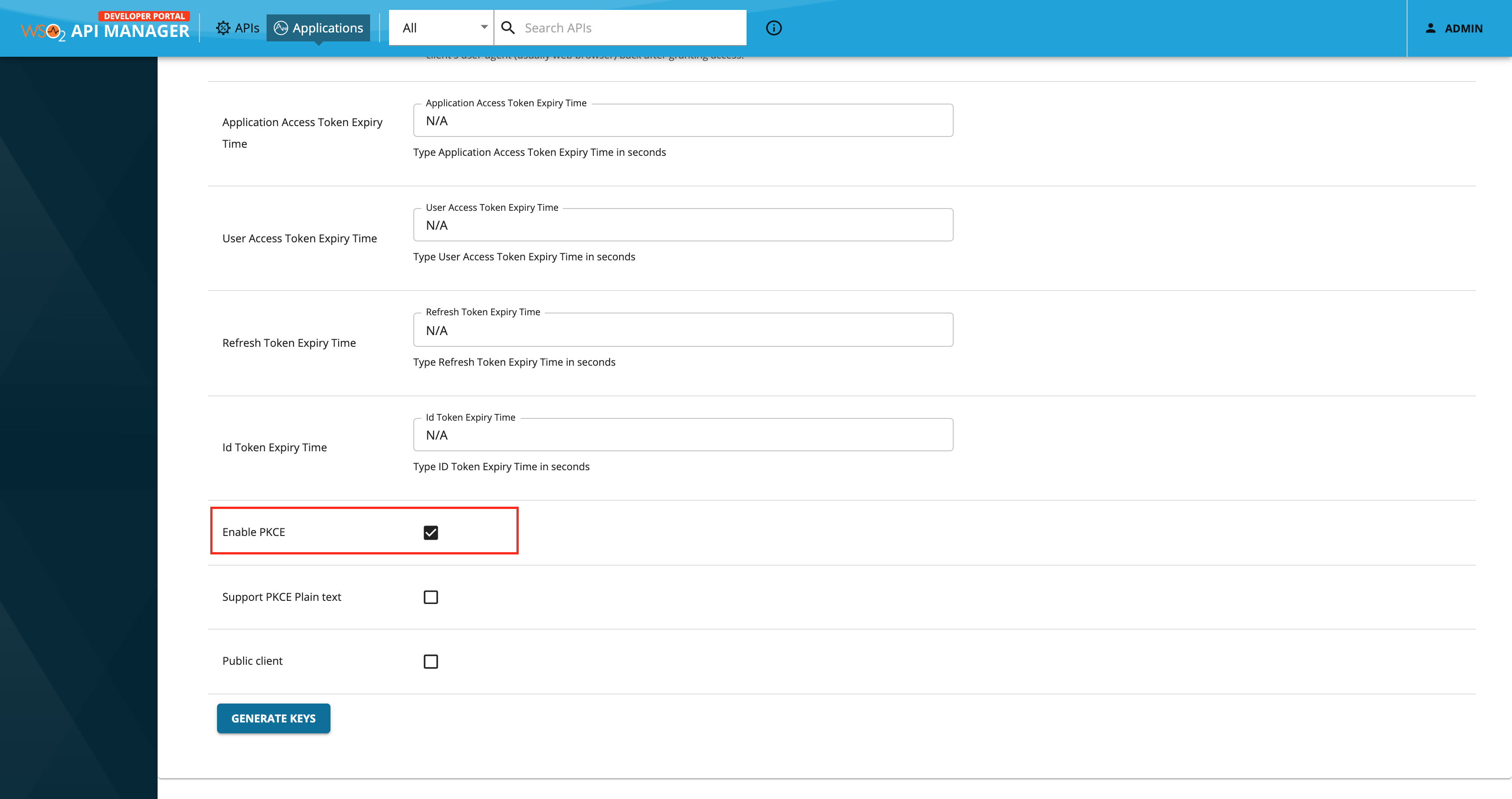
The following are the associated options when enabling PKCE.
-
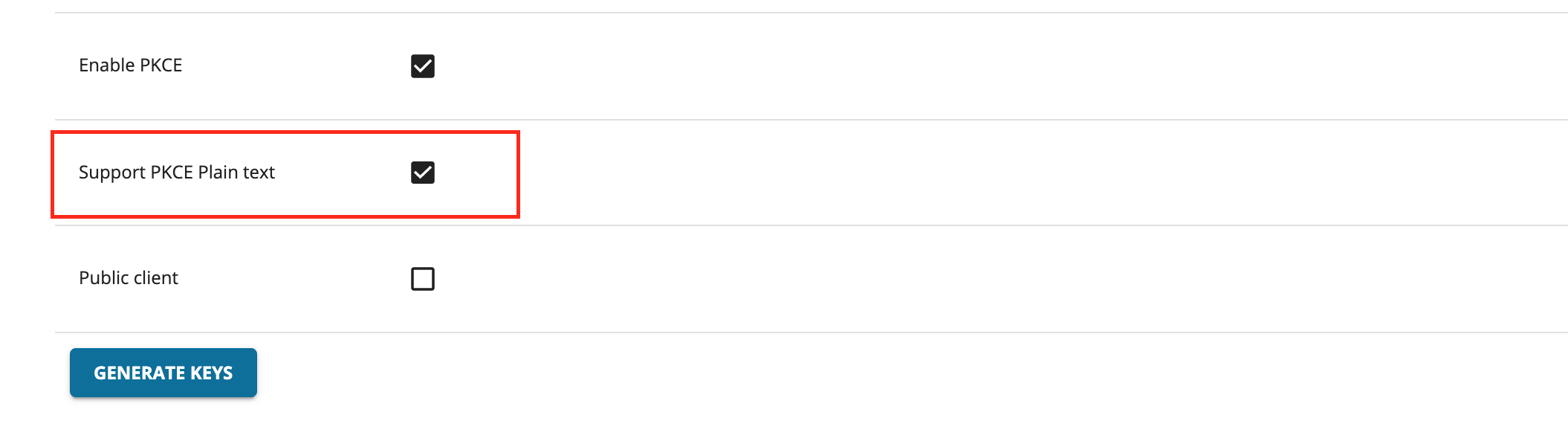
Support PKCE Plain Text
When this option is enabled, the code challenger and code verifier used will be in plain text. The recommended way is to use a SHA 256 algorithm, which is the default value when this option is not selected.
-
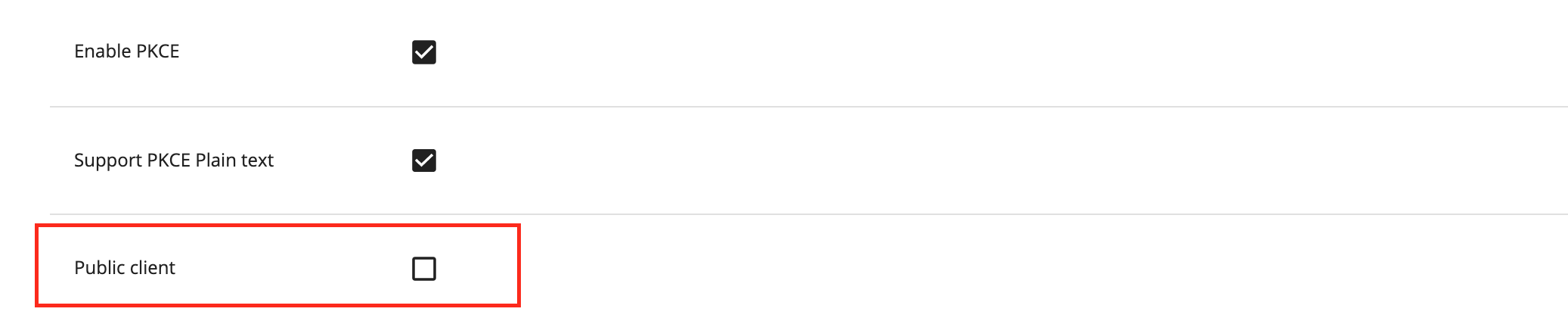
Public Client
This option will allow the client to be authenticated without the secret.
Enable Multiple Consumer Secrets
Note
Support for multiple consumer secrets for applications is available from WSO2 API Manager 4.3.0.99 update level onwards
By default, each application in WSO2 API Manager is associated with a single consumer secret. However, you can enable support for multiple consumer secrets per application.
Why use multiple secrets?
-
Seamless secret rotation: Generate a new secret while existing clients continue to operate using the current secret.
-
Gradual client migration: Clients can migrate to the new secret without downtime.
-
Environment Isolation: Use different secrets for different environments (e.g., CI/CD pipelines vs. local dev) while using the same Application logical entity.
-
Enhanced Security: Once this feature is enabled, all consumer secrets (including existing ones) are masked. Secrets are only displayed once—at the time of generation.
Important Behavior Changes
When multiple consumer secret support is enabled:
-
An application can have multiple consumer secrets associated with it.
-
Consumer secrets can have an optional description and an expiry time.
-
Consumer secrets are masked in the Developer Portal.
-
Secrets are displayed only at the time of generation.
-
After generation, the secret cannot be retrieved again.
-
Existing consumer secrets will also be masked once the feature is enabled.
Important
Since secrets cannot be viewed again after generation, ensure that you securely store the secret when it is generated. Existing client secrets will not be retrievable after enabling this feature. Therefore, ensure that all current client secrets are securely recorded before enabling the configuration
Prerequisites
-
Apply the database update
Execute the required SQL script on the
WSO2AM_DBdatabase to create the database table used for storing multiple consumer secrets.CREATE TABLE IF NOT EXISTS IDN_OAUTH_CONSUMER_SECRETS ( ID INTEGER NOT NULL AUTO_INCREMENT, SECRET_ID VARCHAR(100) NOT NULL, DESCRIPTION VARCHAR(1024), CONSUMER_KEY VARCHAR(255), SECRET_VALUE VARCHAR(2048) NOT NULL, SECRET_HASH VARCHAR(512) NOT NULL, EXPIRY_TIME BIGINT, PRIMARY KEY (ID), FOREIGN KEY (CONSUMER_KEY) REFERENCES IDN_OAUTH_CONSUMER_APPS(CONSUMER_KEY) ON DELETE CASCADE ) ENGINE INNODB;IF NOT EXISTS (SELECT * FROM SYS.OBJECTS WHERE OBJECT_ID = OBJECT_ID(N'[DBO].[IDN_OAUTH_CONSUMER_SECRETS]') AND TYPE IN (N'U')) CREATE TABLE IDN_OAUTH_CONSUMER_SECRETS ( ID INTEGER IDENTITY(1,1), SECRET_ID VARCHAR(100) NOT NULL, DESCRIPTION VARCHAR(1024), CONSUMER_KEY VARCHAR(255), SECRET_VALUE VARCHAR(2048) NOT NULL, SECRET_HASH VARCHAR(512) NOT NULL, EXPIRY_TIME BIGINT, PRIMARY KEY (ID), FOREIGN KEY (CONSUMER_KEY) REFERENCES IDN_OAUTH_CONSUMER_APPS(CONSUMER_KEY) ON DELETE CASCADE );CREATE TABLE IDN_OAUTH_CONSUMER_SECRETS ( ID INTEGER, SECRET_ID VARCHAR2(100) NOT NULL, DESCRIPTION VARCHAR2(1024), CONSUMER_KEY VARCHAR2(255), SECRET_VALUE VARCHAR2(2048) NOT NULL, SECRET_HASH VARCHAR2(512) NOT NULL, EXPIRY_TIME NUMBER(19), PRIMARY KEY (ID), FOREIGN KEY (CONSUMER_KEY) REFERENCES IDN_OAUTH_CONSUMER_APPS(CONSUMER_KEY) ON DELETE CASCADE ) / CREATE SEQUENCE IDN_OAUTH_CONSUMER_SECRETS_SEQ START WITH 1 INCREMENT BY 1 NOCACHE / CREATE OR REPLACE TRIGGER IDN_OAUTH_CONSUMER_SECRETS_TRIG BEFORE INSERT ON IDN_OAUTH_CONSUMER_SECRETS REFERENCING NEW AS NEW FOR EACH ROW BEGIN SELECT IDN_OAUTH_CONSUMER_SECRETS_SEQ.nextval INTO :NEW.ID FROM dual; END; /DROP TABLE IF EXISTS IDN_OAUTH_CONSUMER_SECRETS; CREATE TABLE IF NOT EXISTS IDN_OAUTH_CONSUMER_SECRETS ( ID SERIAL, SECRET_ID VARCHAR(100) NOT NULL, DESCRIPTION VARCHAR(1024), CONSUMER_KEY VARCHAR(255), SECRET_VALUE VARCHAR(2048) NOT NULL, SECRET_HASH VARCHAR(512) NOT NULL, EXPIRY_TIME BIGINT, PRIMARY KEY (ID), FOREIGN KEY (CONSUMER_KEY) REFERENCES IDN_OAUTH_CONSUMER_APPS(CONSUMER_KEY) ON DELETE CASCADE );CREATE TABLE IDN_OAUTH_CONSUMER_SECRETS ( ID INTEGER, SECRET_ID VARCHAR (100) NOT NULL, DESCRIPTION VARCHAR (1024), CONSUMER_KEY VARCHAR (255), SECRET_VALUE VARCHAR (2048) NOT NULL, SECRET_HASH VARCHAR (512) NOT NULL, EXPIRY_TIME BIGINT, PRIMARY KEY (ID), FOREIGN KEY (CONSUMER_KEY) REFERENCES IDN_OAUTH_CONSUMER_APPS(CONSUMER_KEY) ON DELETE CASCADE ) / CREATE SEQUENCE IDN_OAUTH_CONSUMER_SECRETS_SEQ START WITH 1 INCREMENT BY 1 NOCACHE / CREATE TRIGGER IDN_OAUTH_CONSUMER_SECRETS_TRIG NO CASCADE BEFORE INSERT ON IDN_OAUTH_CONSUMER_SECRETS REFERENCING NEW AS NEW FOR EACH ROW MODE DB2SQL BEGIN ATOMIC SET (NEW.ID) = (NEXTVAL FOR IDN_OAUTH_CONSUMER_SECRETS_SEQ); END / -
Enable the configuration
Open the
<API-M_HOME>/repository/conf/deployment.tomlfile and add the following configuration:In order to limit the number of secrets that can be created for an application, add the
secret_countconfiguration:Parameter Type Default Description enableBoolean falseEnables or disables multiple consumer secret support. secret_countInteger Unlimited Optional. Specifies the maximum number of secrets per application. -
Restart the server to apply the changes.
Steps to Generate Multiple Secrets
-
Sign in to WSO2 API Developer Portal (
https://<hostname>:9443/devportal). -
Click Applications to navigate to the applications listing page and click on the respective application for which you want to generate keys.
-
Click Production Keys or Sandbox Keys based on the environment for which you need to generate keys.
Let's assume that you are working in a production environment. Therefore, click Production Keys.
-
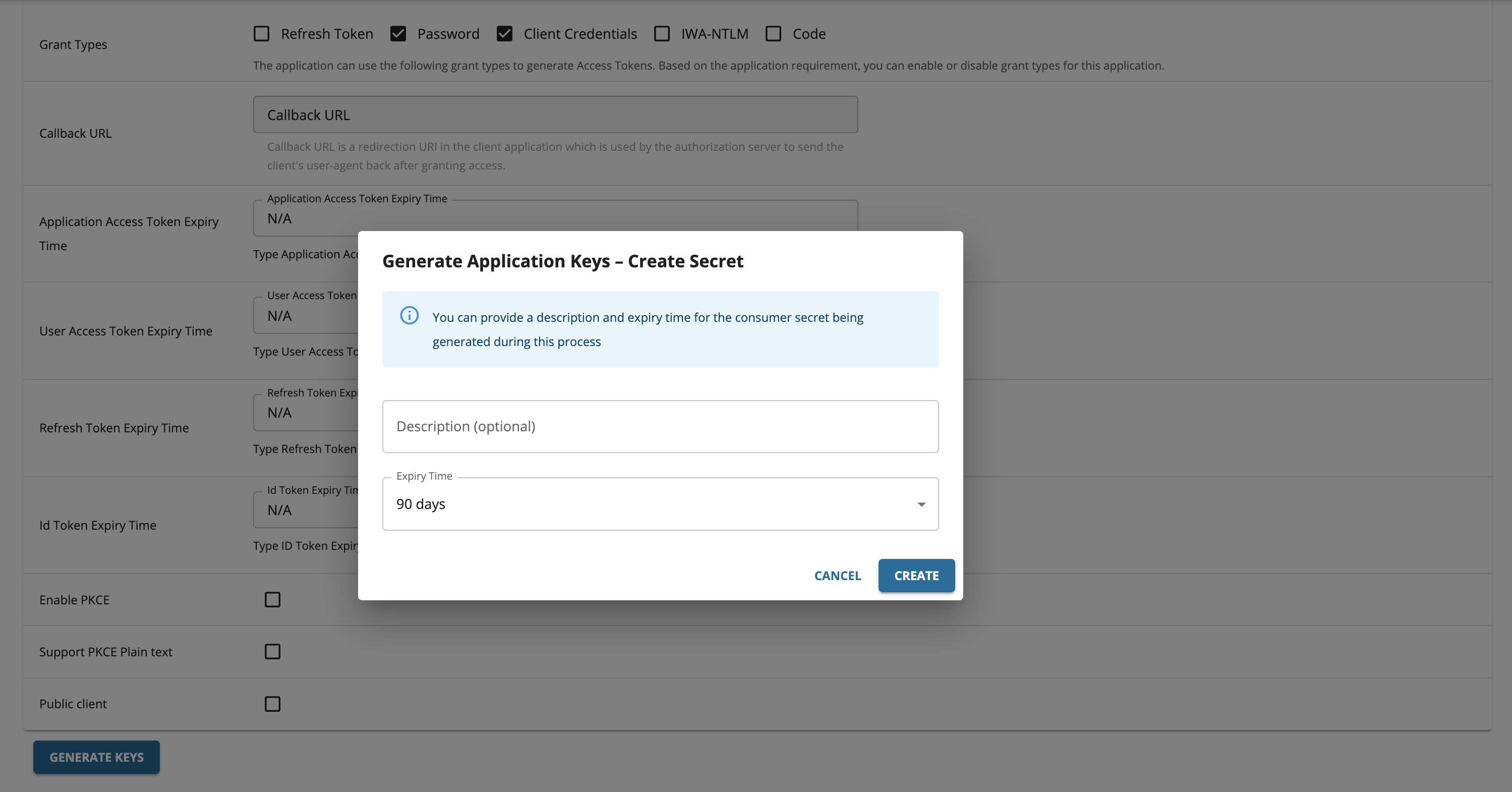
Click Generate Keys to create the consumer key and secret pair.
An optional description and expiry time can be provided for the consumer secret which will be generated.
-
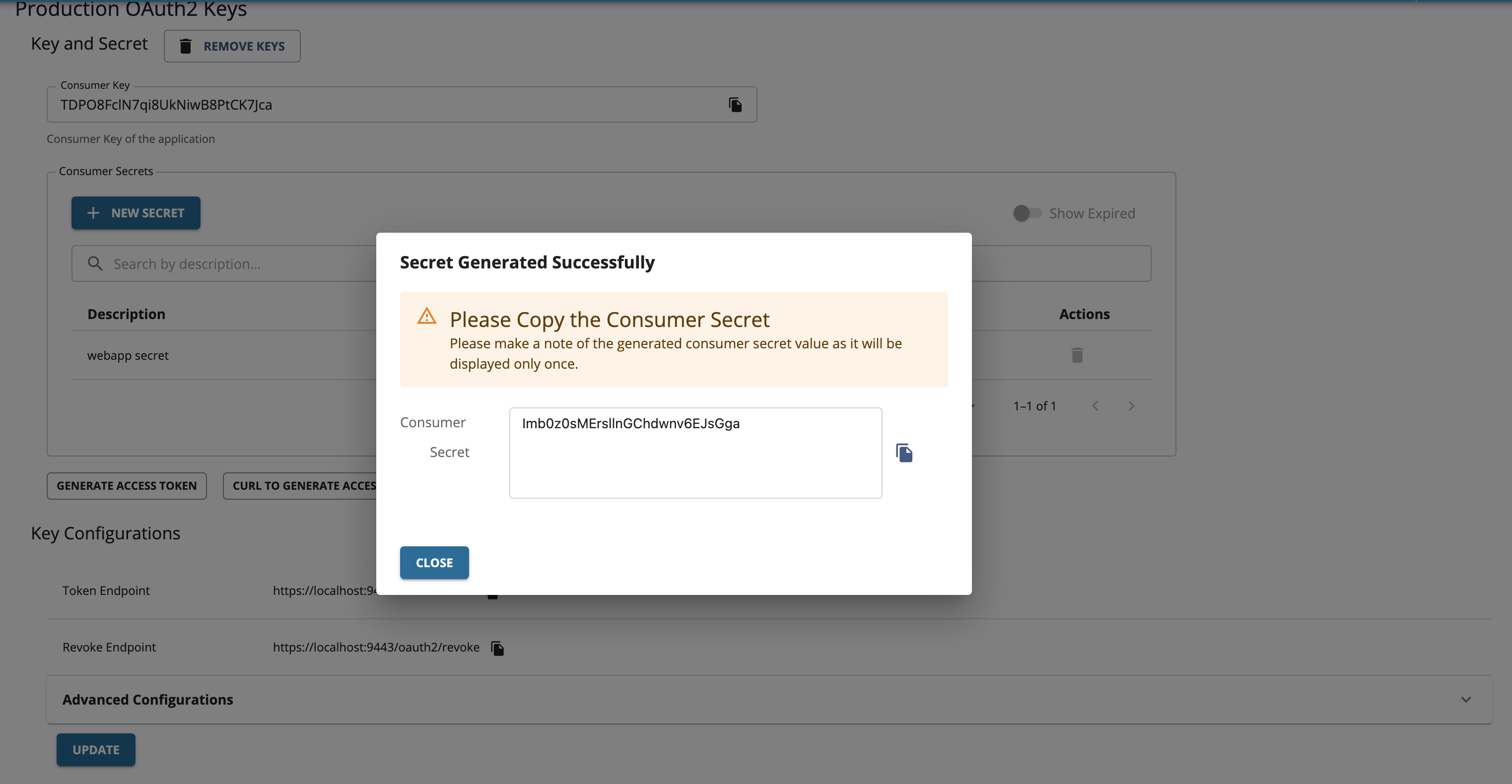
The generated consumer secret will be displayed.
Important
Make sure to copy the generated consumer secret as it will be displated only once.
-
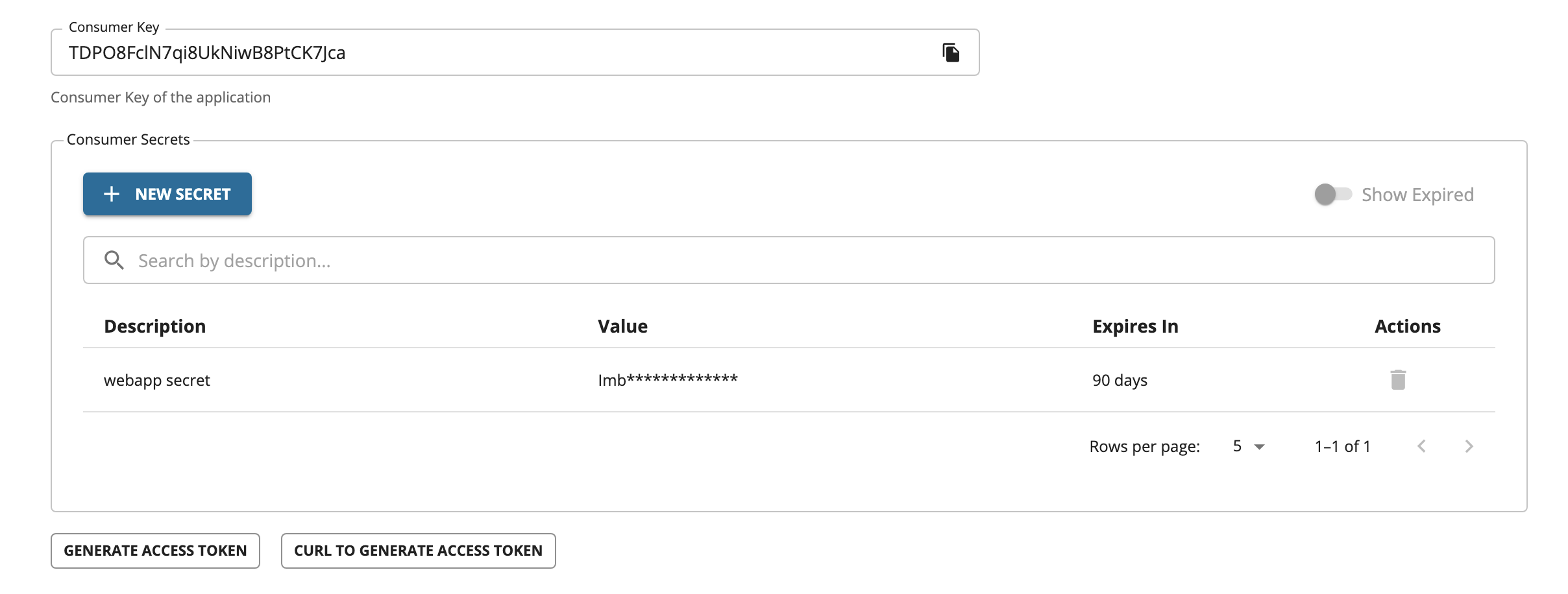
The consumer secret list will be displayed in a table.
-
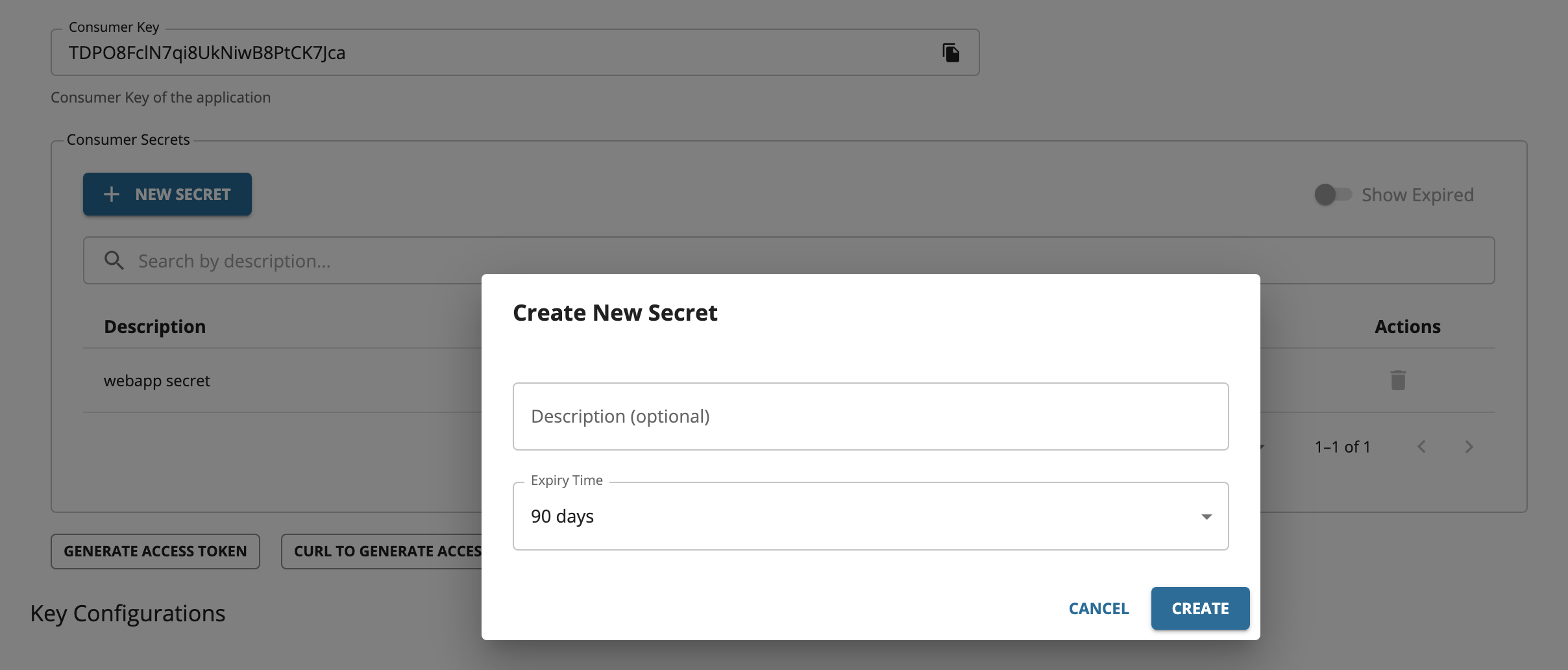
To generate another consumer secret, click + NEW SECRET button. A form will be shown where an optional description and expiry time can be provided for the consumer secret which will be generated.
The generated consumer secret will be displayed. Make sure to copy the generated consumer secret as it will be displated only once.
-
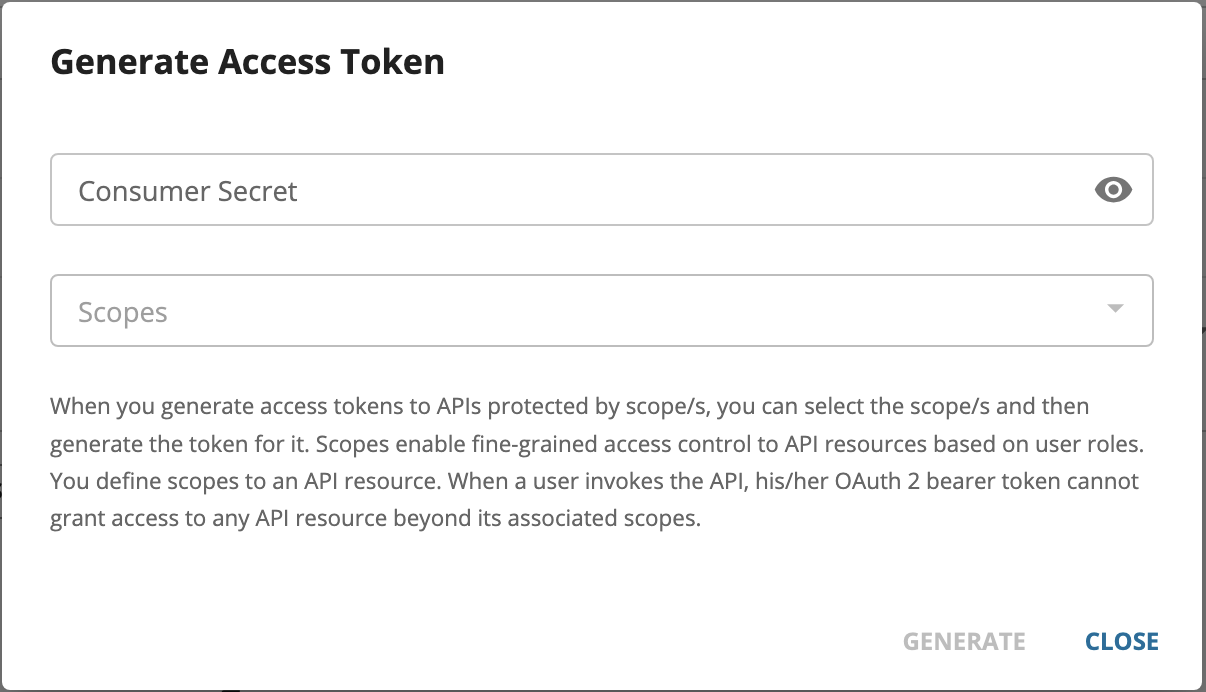
Two consumer secrets are now available for the application. Access tokens can be generated using any of the available consumer secret values. To generate an access token, click GENERATE ACCESS TOKEN. When prompted, provide one of the consumer secrets associated with the application.
-
Copy the generated JWT Access Token that appears so that you can use it in the future.
Deleting a Consumer Secret
-
To delete a consumer secret, click the DELETE icon under the Actions column corresponding to the consumer secret which should be deleted.
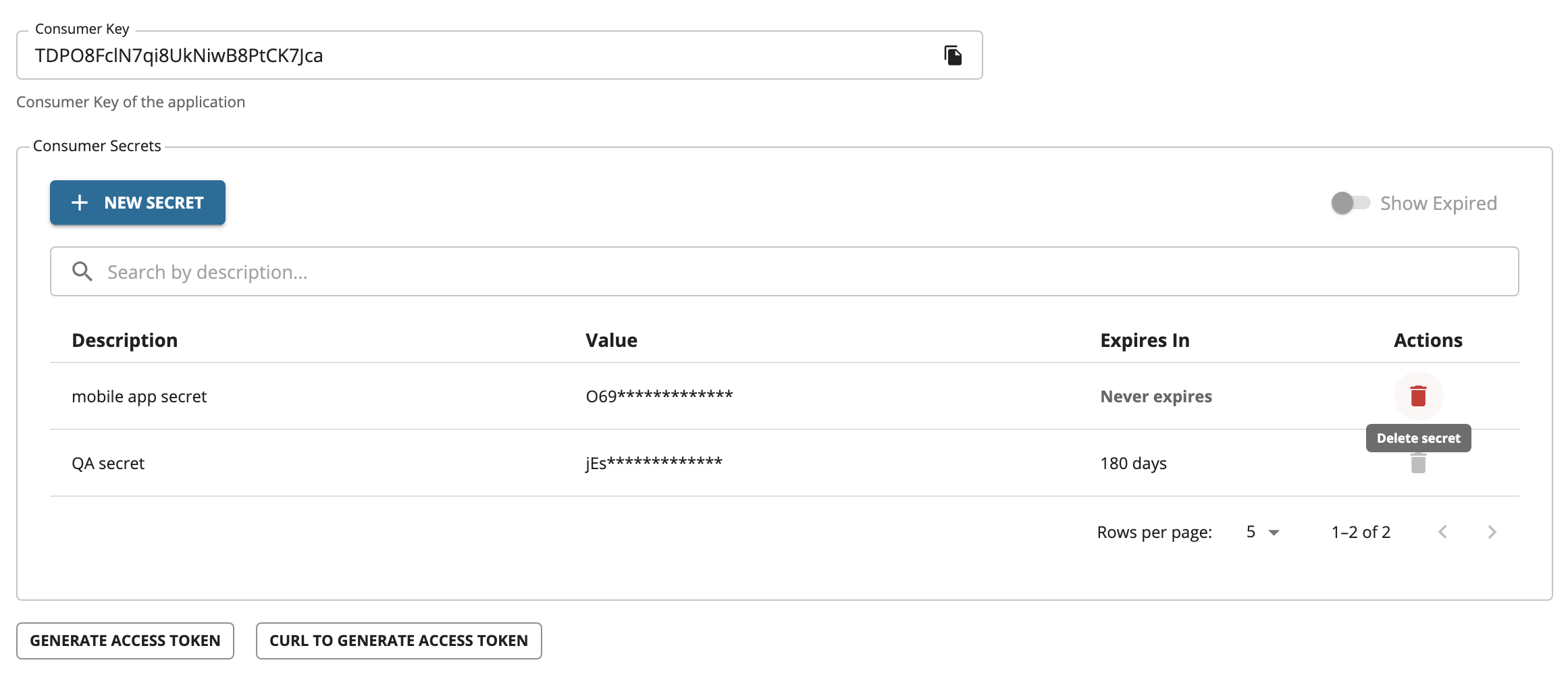
-
A confirmation box will be opened to verify whether the action was intended. Click DELETE to delete the consumer secret.
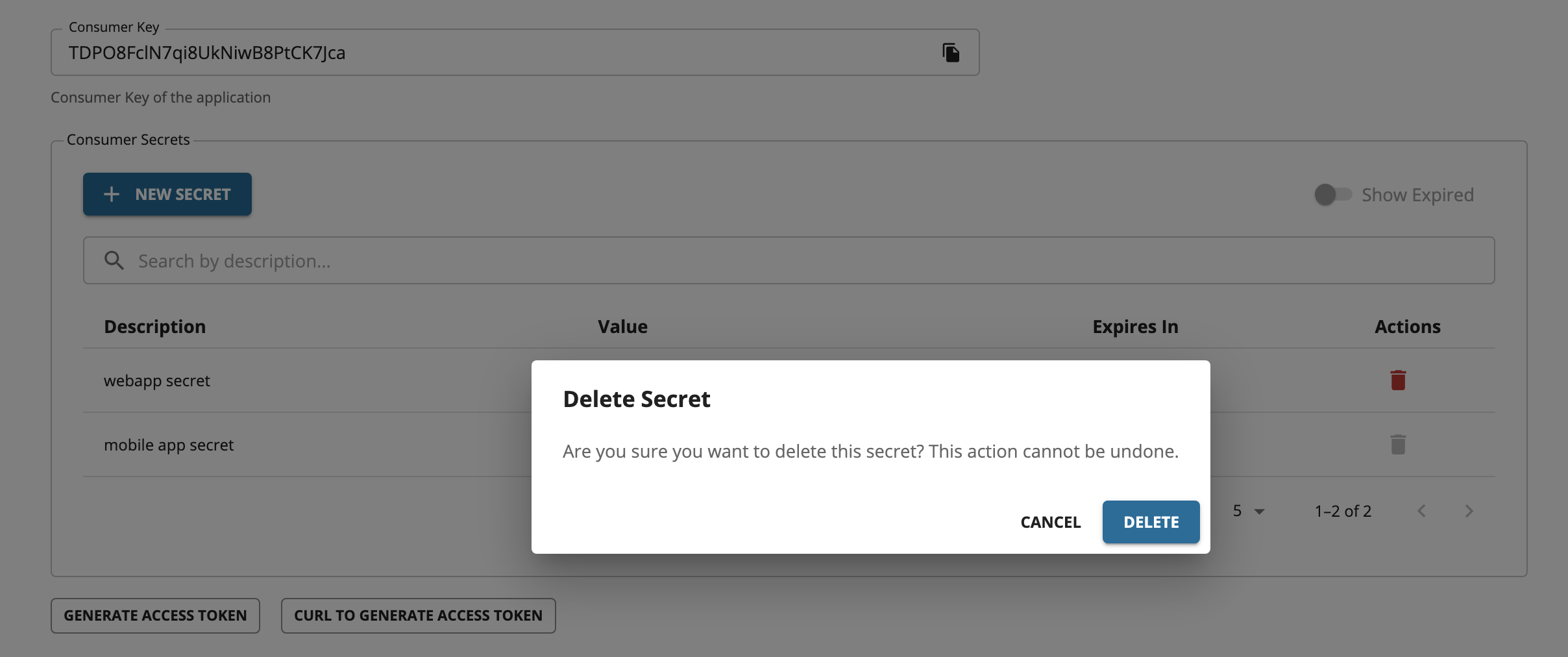
Note
The most recently added consumer secret cannot be deleted
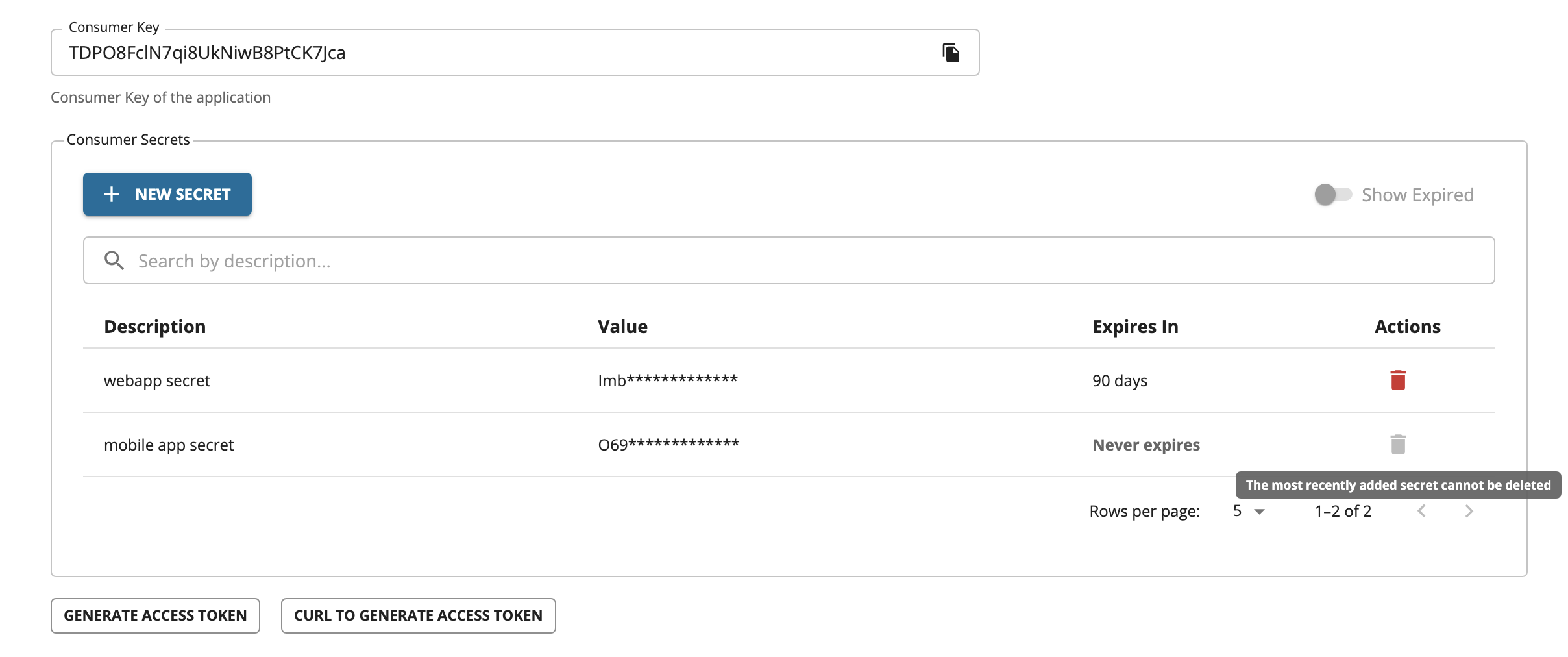
Important
Deleting a consumer secret does not revoke access tokens that were generated using that secret. These tokens will continue to remain valid until their configured expiry time. Therefore, it is recommended to use access tokens with the minimum required expiry time.
Generating application keys using Okta
Note
Before you begin, make sure to follow steps 1 and 2 in Configure Okta as a Key Manager guide.
Follow the instructions below to generate keys using Okta as the Key Manager:
-
Sign in to WSO2 API Developer Portal (
https://<hostname>:9443/devportal). -
Click Production Keys or Sandbox Keys based on the environment for which you need to generate keys.
If you are working in a production environment, click Production Keys.
-
Click Okta.
-
Click Generate Keys to create an application Access Token.
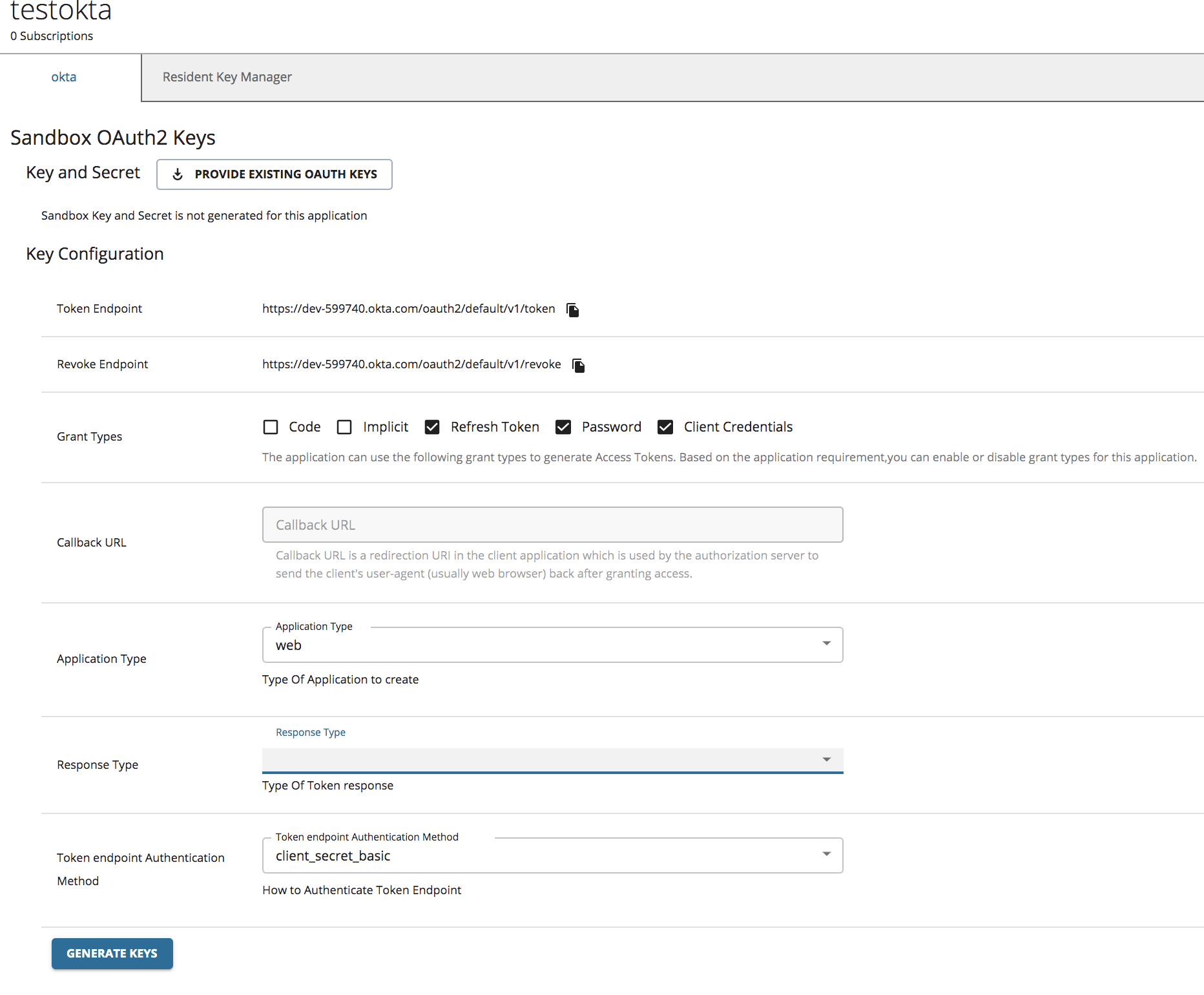
Info
For more information on the client application properties that need to be set, see the Okta documentation.
Note
If you need an Access Token with scopes, make sure that you have created the scopes in advance on the Okta side.
Generating application keys using Keycloak
Note
Before you begin, make sure to follow steps 1 and 2 in Configure Keycloak as a Key Manager guide.
Follow the instructions below to generate keys using the Keycloak as the Key Manager:
-
Sign in to WSO2 API Developer Portal (
https://<hostname>:9443/devportal). -
Click Production Keys or Sandbox Keys based on the environment for which you need to generate keys.
If you are working in a production environment, click Production Keys.
-
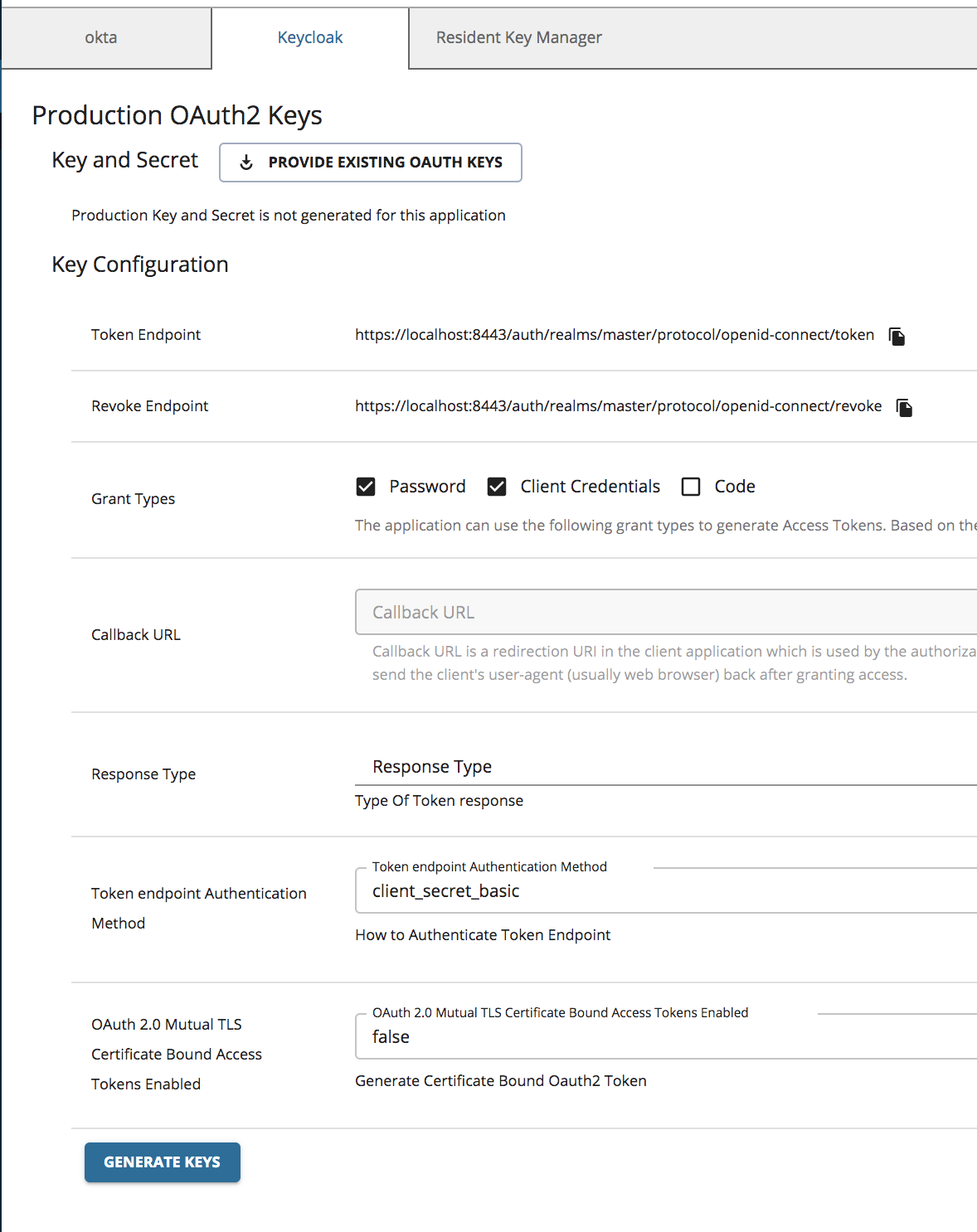
Click Keycloak.
-
Click Generate Keys to create an application access token.