Invoke prerelease api
Step 3 - Deploy the API
Deploy the API in order to make the API available in the respective Gateway.
Step 4 - Test the API via the Publisher
Once deployed to the Gateway, you can test the REST type APIs via the Publisher Portal.
Step 5 - Publish the API as a Prototype
Important
- By default, from WSO2 API Manager 4.1.0 onwards, security is enabled for all the resources of the Prototype API. As a result, you need a subscription to invoke the API.
-
Skip this step if you have disabled security for all the resources in the API.
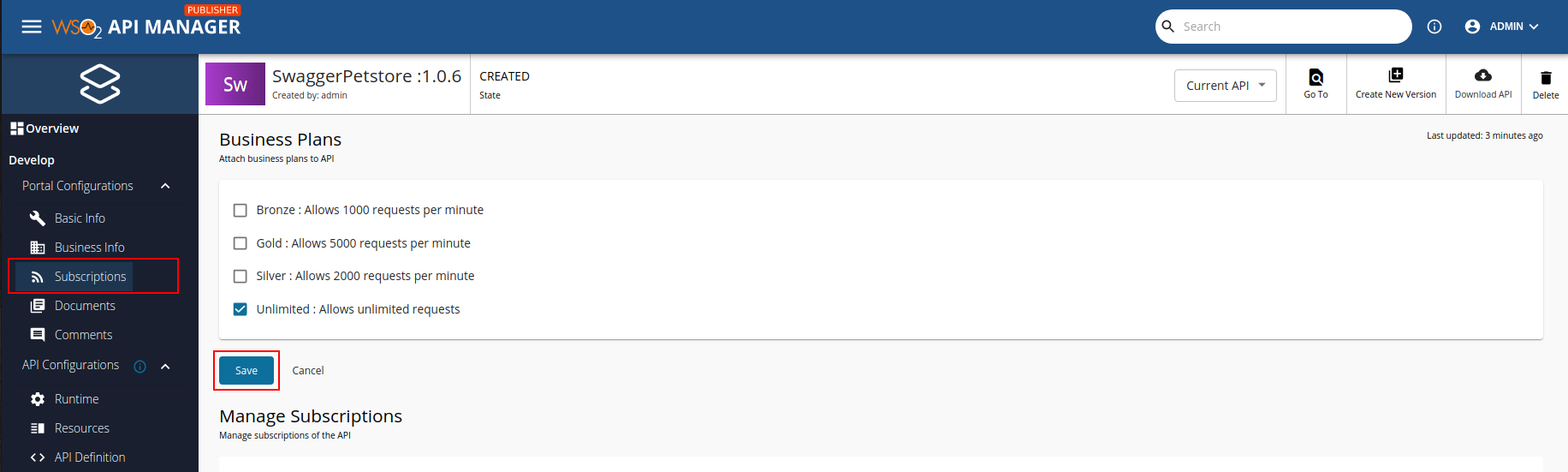
Follow the instructions below to attach Business Plans to the API.
-
Navigate to Portal Configurations and click Subscriptions.
-
Select the required Business Plans and click Save.
-
Follow the instructions below to publish the API to the Developer Portal as a Prototype:
-
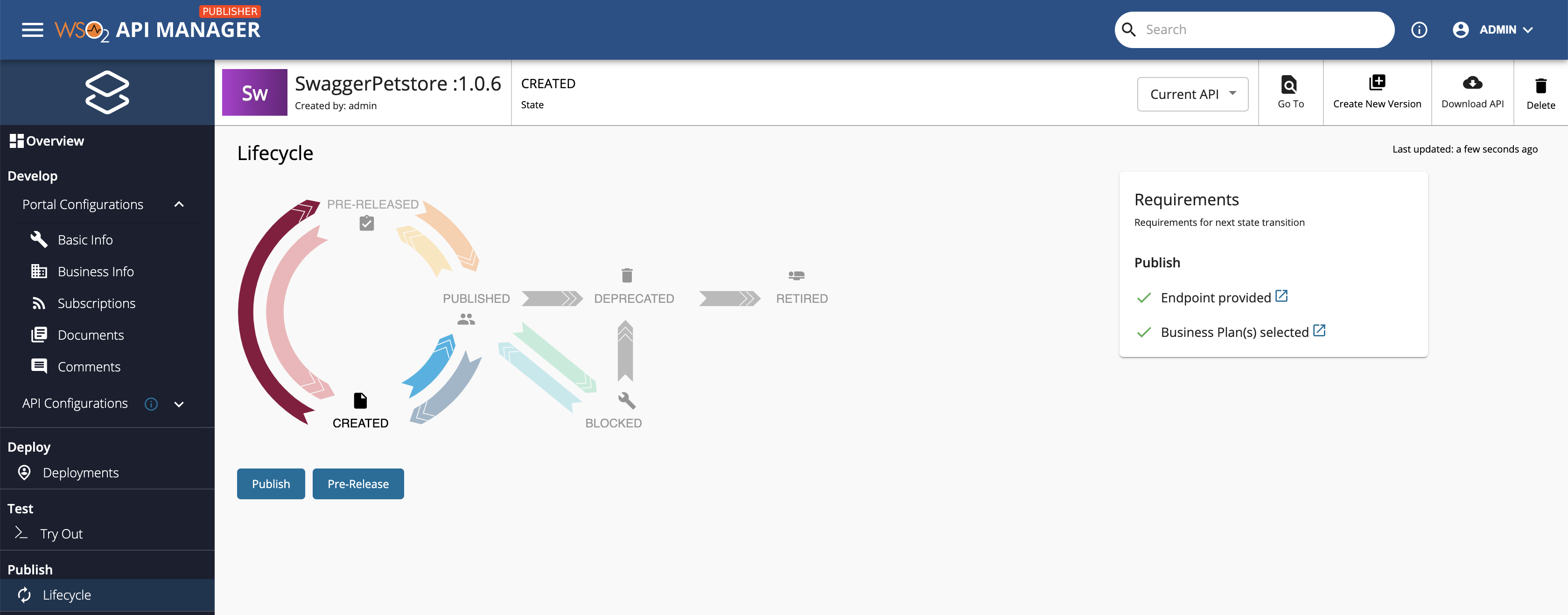
Navigate to the Lifecycle page listed under Publish.
For both options, When creating an API with the Mock Implementation and When creating an API with an actual backend URL, you will have the option to either promote your API to the PRE-RELEASED state or to the PUBLISHED state in the API lifecycle.
-
Click Pre-Release to publish the API as a Prototype API to the Developer Portal.