Configuring Identity Server as External IDP using OIDC
WSO2 API Manager uses the OIDC Single Sign-On feature by default. This document explains how to connect WSO2 Identity Server (or WSO2 Identity Server as a Keymanager) as a third party Identity provider to API-Manager.
prerequisites
- Download the API Manager distribution from https://wso2.com/api-management/.
-
Download the Identity Server distribution from https://wso2.com/identity-and-access-management/.
Tip
For testing purposes if you want to run both the WSO2 API Manager and WSO2 Identity Server on the same server, go to the
<IS_HOME>/repository/conf/deployment.tomlfile and offset the port by 1 as by adding following configuration:[server] offset=1 -
Start the servers using the following commands:
wso2server.bat --runsh wso2server.sh
Configure the Identity Server
Step - 1 Configure the Service Provider
-
Sign in to the Management Console of WSO2 IS by browsing the following URL:
https://{is-ip}:9444/console -
Create a Service Provider:
a. Go to Applications → New Application and select Traditional Web Application.
b. In the popup, provide the following details and click Create:
Protocol OpenID Connect Authorized Redirect URL https://localhost:9443/commonauth 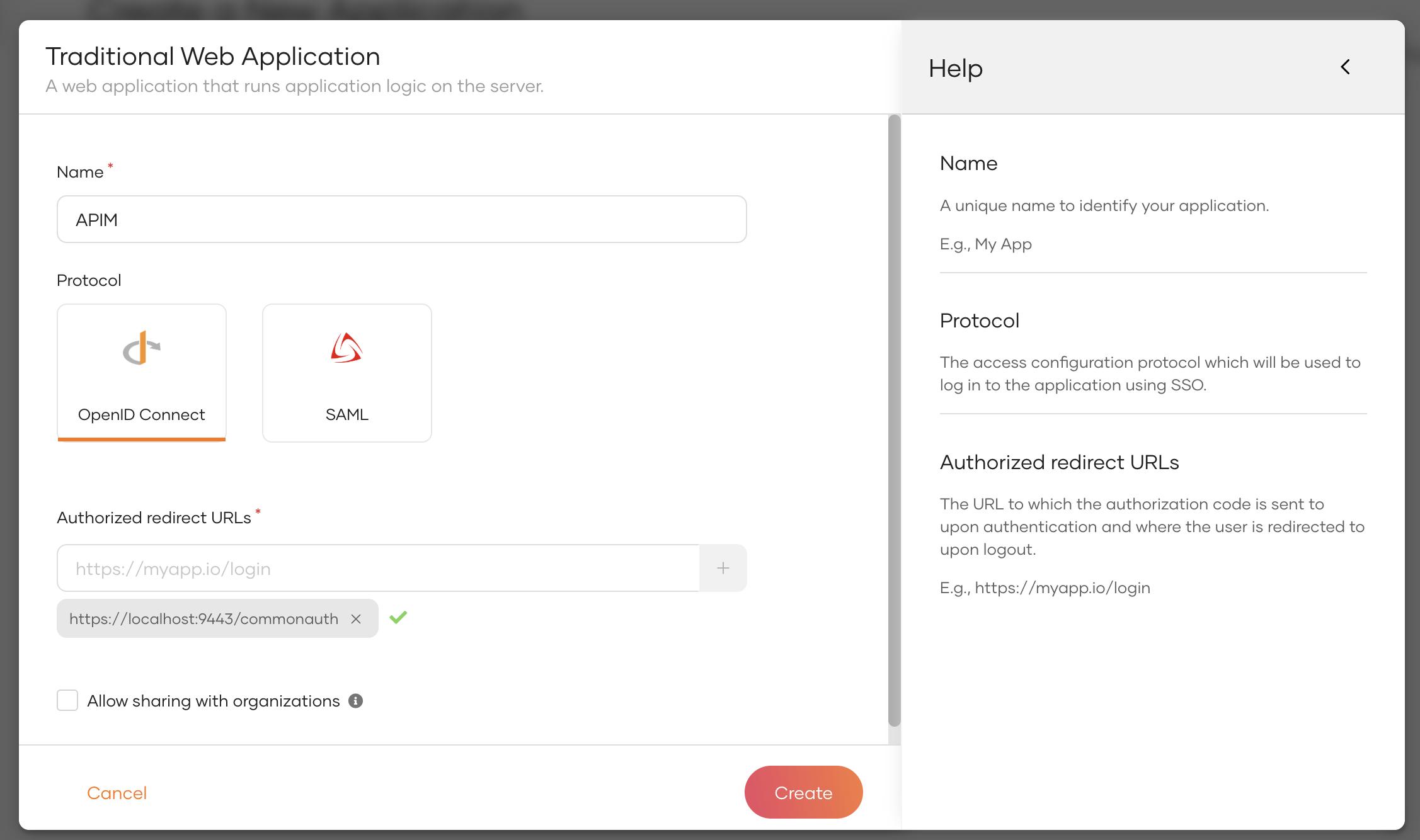
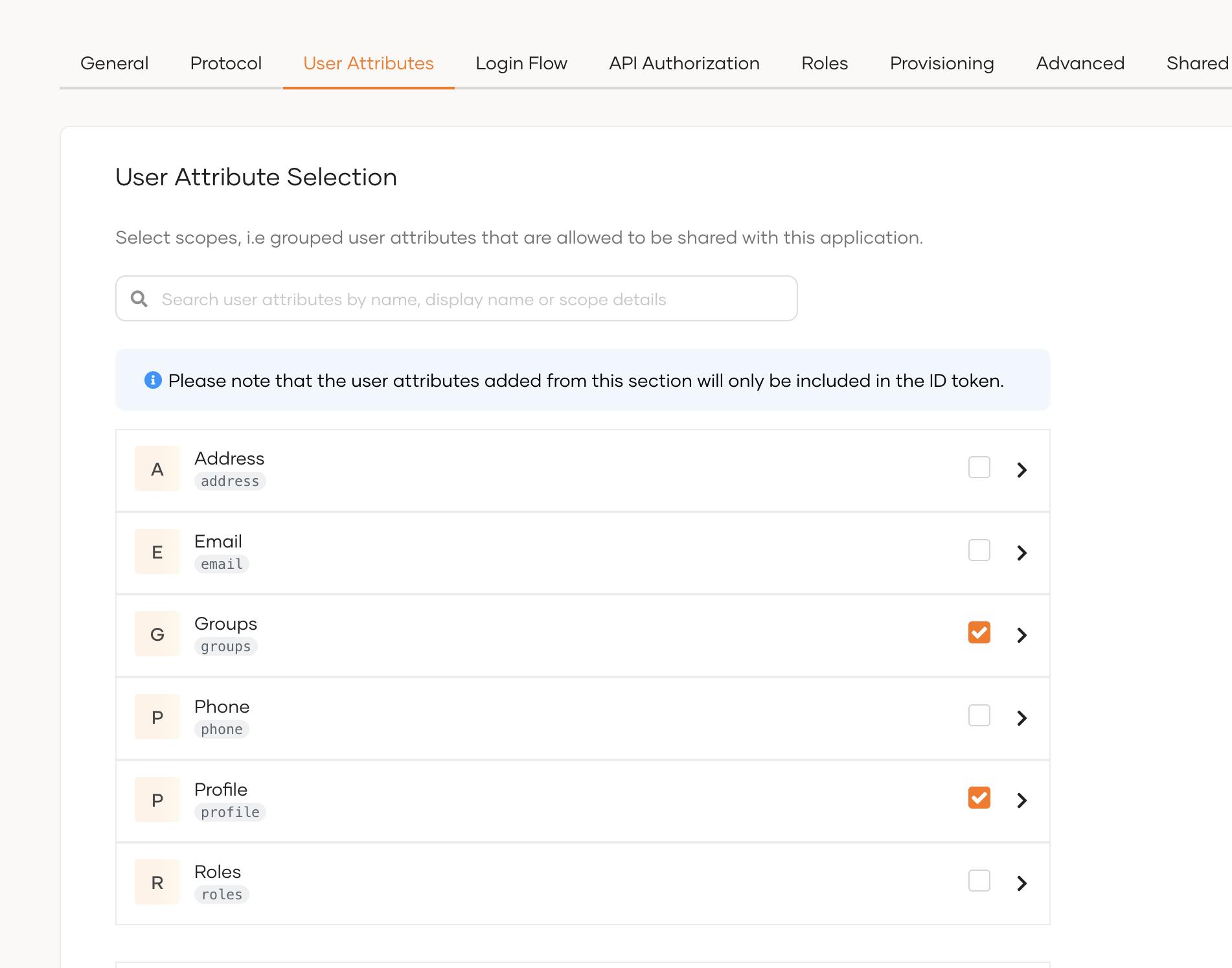
c. In the configuration page, select User Attributes and enable the Groups attribute.
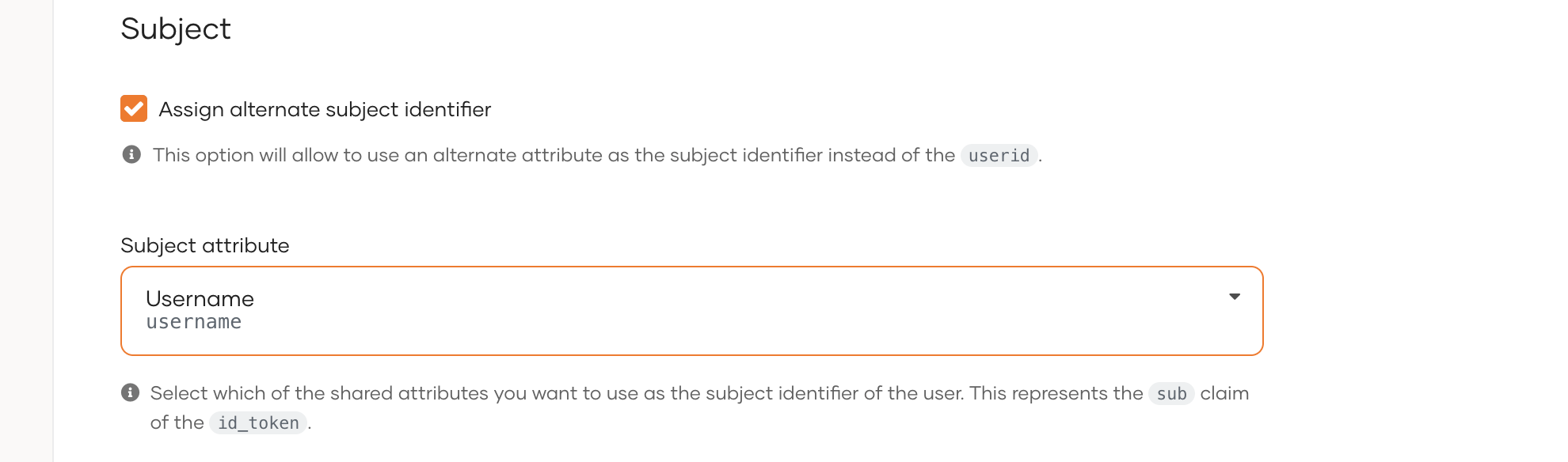
d. In the same tab, under the Subject section, select Assign alternate subject identifier and from the dropdown list select Username.
e. Under the Protocol tab, copy the Client ID and Client Secret.
Step - 2 Create users and roles
-
Create the required users and groups in Identity Server. Assume, following users are created in Identity Servers with the given groups.
User Groups Sam publisher Karen devportal
Configure the API Manager
Step - 1 Import the Identity Server Certificate to WSO2 API Manager
Import the Keymanager certificate to the WSO2 API Manager client-truststore.jks using the following steps.
-
Export the WSO2 IS certificate.
echo -n | openssl s_client -connect localhost:9444 -servername wso2is7 | openssl x509 > is7.certopenssl s_client -connect localhost:9444 -servername wso2is7 < NUL | openssl x509 > is7.cert -
Import this certificate to the
client-truststore.jkslocated in<AM_HOME>/repository/resources/security/.keytool -import -alias wso2is7cert -file is7.cert -keystore client-truststore.jks -storepass wso2carbon
Step - 2 Configure the Identity Provider
-
Sign in to the Management Console of API Manager by browsing the following URL:
https://{apim-ip}:9443/carbon -
Navigate to the Identity Providers section under Main → Identity and create a new Identity Provider.
-
Expand the Federated Authenticators section and add the following configurations under OAuth2/OpenIDConnect Configuration:
Enable OAuth2/OpenIDConnect True Client Id Client Id of the Service Provider created in Identity Server Client Secret Client Secret of the Service Provider created in Identity Server Authorization Endpoint URL https://is.wso2.com:9444/oauth2/authorize Token Endpoint URL https://is.wso2.com:9444/oauth2/token Callback Url https://apim.wso2.com:9443/commonauth Userinfo Endpoint URL https://is.wso2.com:9444/oauth2/userinfo Logout Endpoint URL https://is.wso2.com:9444/oidc/logout Scopes openid groups The following image shows the sample values for OAuth2/OpenIDConnect Configurations:
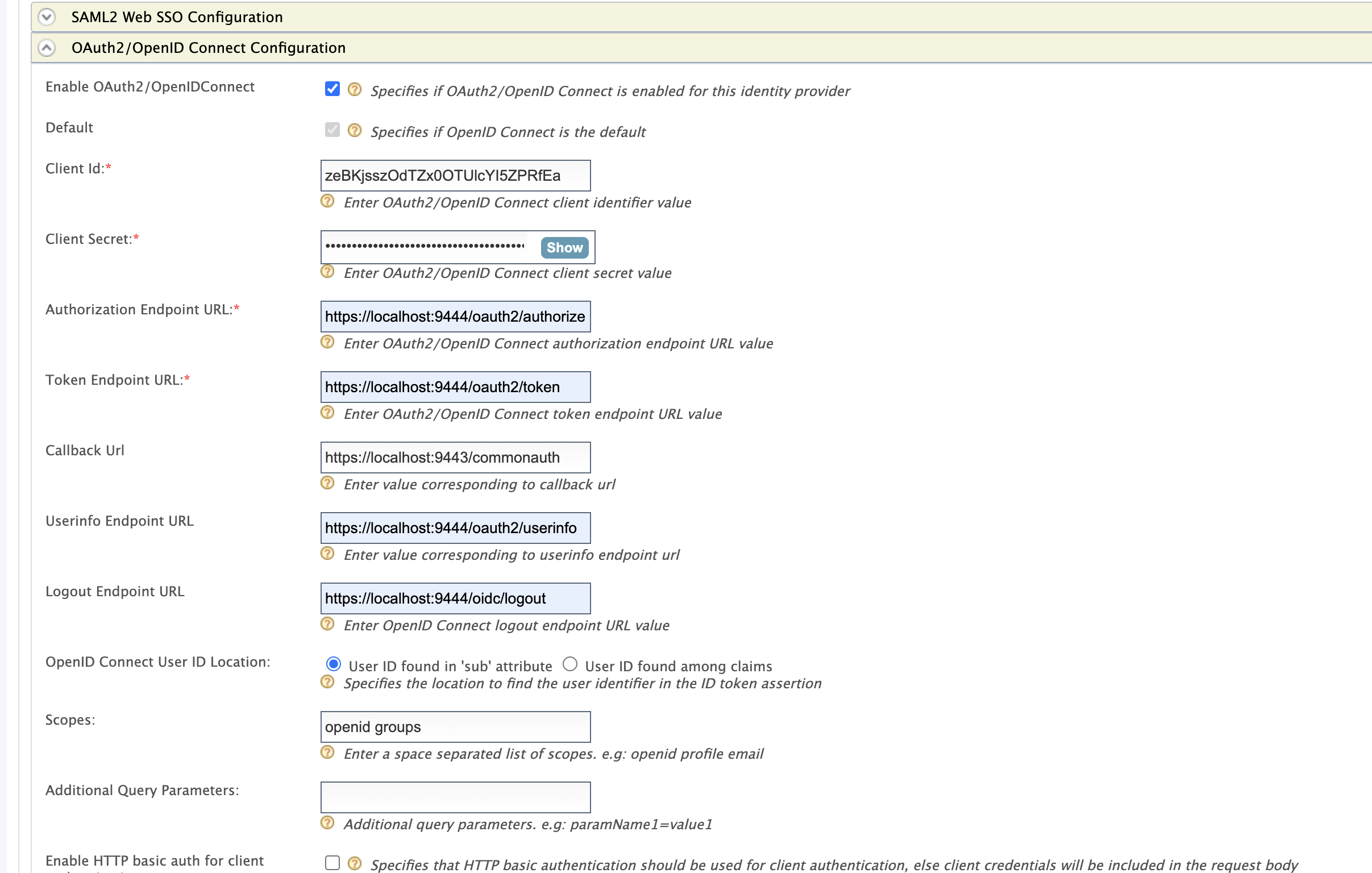
-
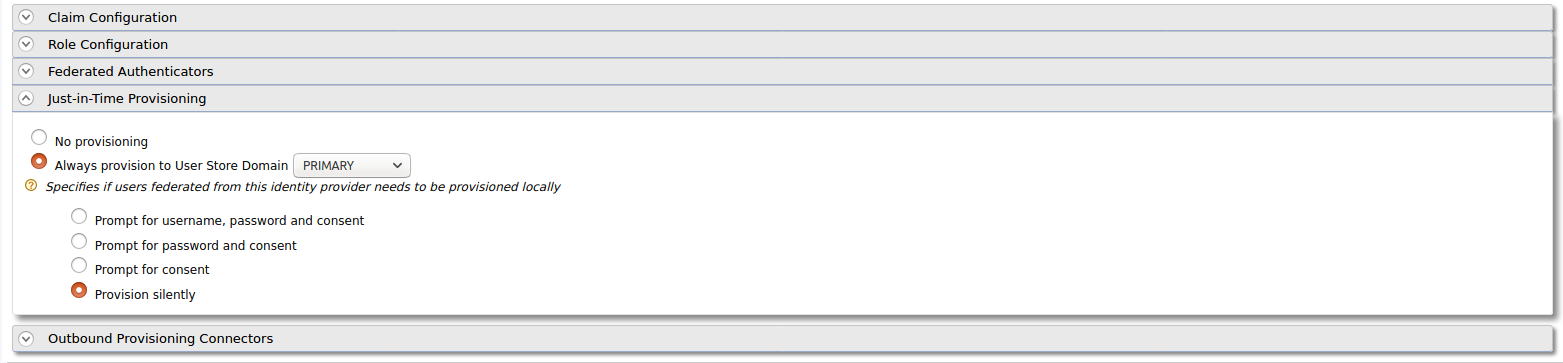
Enable Just-in-Time Provisioning to provision the users in API Manager:
-
Add the following role mapping under the Role Configuration section:
Identity Server Roles Roles Mapped in API Manager devportal Internal/Subscriber publisher Internal/publisher 
Tip
Instead of using the default internal roles, you can also create new roles in API Manager and map it to the provisioned users.
-
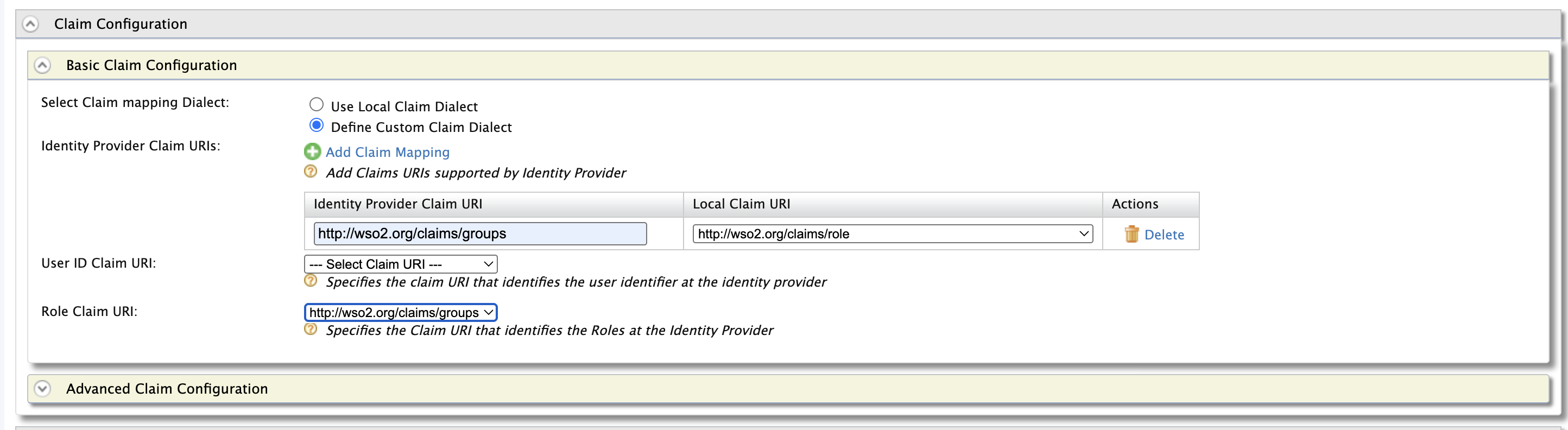
Add the following claim mapping under the Claim Configuration section.
Identity Provider Claim URI Local Claim URI groups http://wso2.org/claims/role Also select groups as the Role Claim URI.
-
Step - 3 Configure the Service Provider
-
Navigate to Service Providers section and list the Service Providers. There are two service providers created for Publisher portal and Developer portal named as
apim_publisherandapim_devportal. Edit theapim_publisherservice provider.Attention
You will have to log into the Developer Portal and Publisher at least once for the two service providers to appear as it is created during first login.
-
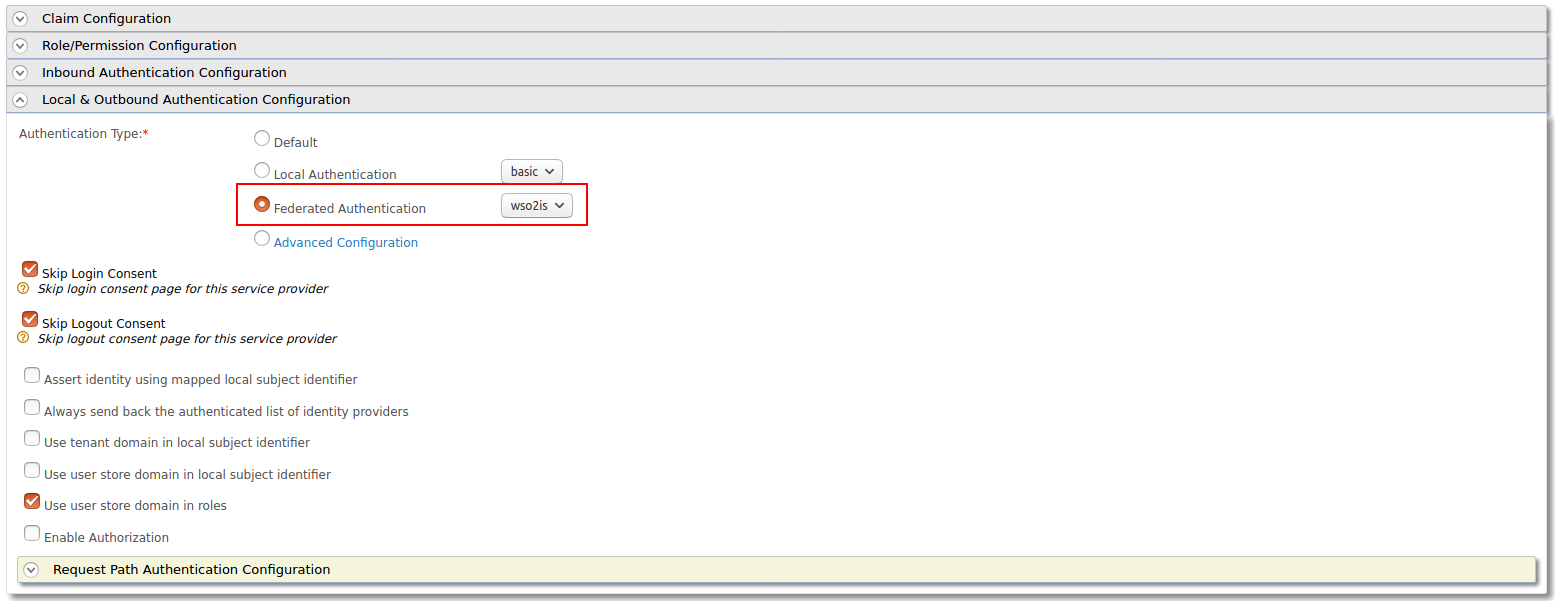
Expand the Local & Outbound Authentication Configuration section and select Federated Authentication as Authentication Type and select the name of the Identity Provider you created in previous step and update.
-
Repeat the same step for
apim_devportalService Provider as well.
Now you will be able to login to Publisher and Devportal using the users in WSO2 Identity Server.
Note
If your Identity Provider has multiple secondary user stores (such as LDAP) and you want to include the user domain in the subject identifier (LDAP_DOMAIN/username), you must also connect the same user stores to the API Manager in read-only mode. This is required when the secondary user stores contain users with the same name and you cannot provision those users to the API Manager primary user store.
Troubleshooting
When using Identity Server as external IdP, following error can be observed in API Manager, when logging in to Portals.
invalid_request, The client MUST NOT use more than one authentication method in each
This is because the MutualTLS authenticator is enabled by default in the Identity Server, from version 5.8.0 onwards. Since the OIDC specification does not allow to use more than one authentication, the login fails with the above error. To resolve this issue, add following the configuration in the deployment.toml file in the <IS-Home>/repository/conf directory to disable the MutualTLS authenticator in the Identity Server.
[[event_listener]]
id = "mutual_tls_authenticator"
type = "org.wso2.carbon.identity.core.handler.AbstractIdentityHandler"
name = "org.wso2.carbon.identity.oauth2.token.handler.clientauth.mutualtls.MutualTLSClientAuthenticator"
order = "158"
enable = false